
Appendices

Supporting documents and resources for FinSync.

Appendices

Complete reference documentation for the FinSync system

User Manual

The user manual provides detailed guidance for financial executives using the FinSync application to track campaign spending across Chanel's product divisions.

Dashboard Overview

The homepage provides financial executives with a comprehensive overview of campaign spending across Chanel UK.

Chanel Dashboard Homepage showing budget visualization

Figure 1: Main dashboard interface with budget overview and campaign spending breakdown

Report Generation

To download the report, click the "Download report" button in the bottom right corner of the homepage. This will generate the complete financial report.
Chanel Dashboard Report page

Figure 2: Generated report page showing comprehensive financial data

Excel Sheet Previews

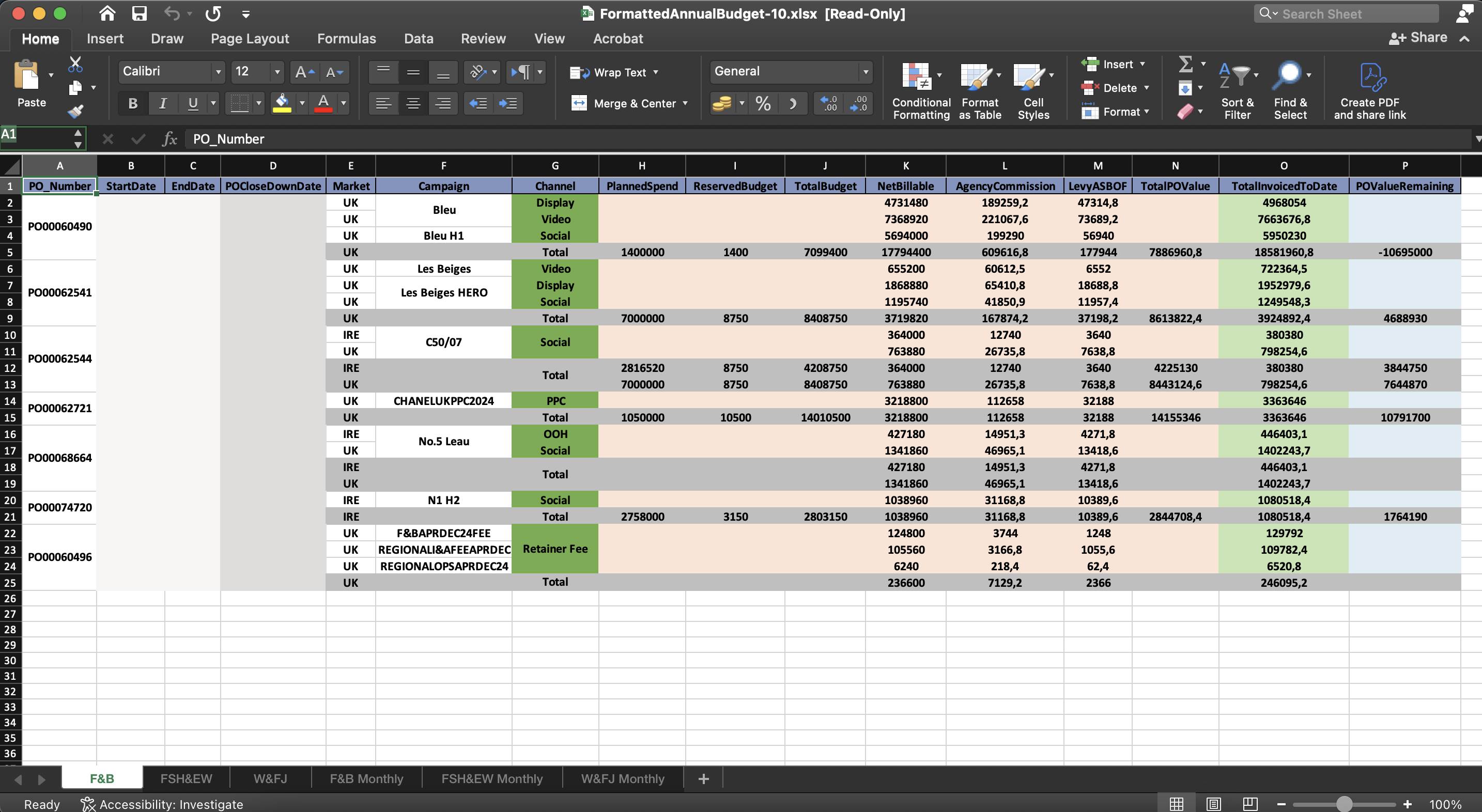
To view reported data for specific divisions, click the corresponding division tab. This displays the detailed division report.

F&B division report page

Figure 3: F&B division report showing detailed expenditure breakdown

Data Upload

To upload Excel files, click the "Upload" button in the navigation bar. Select "Upload" and choose the document you wish to import into the system. Please ensure to follow the file and sheet naming guidelines shown on the page. A notification asking you to wait 2 minutes for the summary spreadsheet to be generated will pop up.

Upload page interface

Figure 4: File upload interface for importing financial data

Deployment Manual

System Requirements: This guide covers deployment of both the Azure Functions backend and Next.js frontend to Azure.

Prerequisites

Step 1: Clone the Repository
git clone https://github.com/dp-IED/SystemsEngineering.git
            cd SystemsEngineering
Step 2: Create a Resource Group
az login
            az group create --name MyResourceGroup --location uksouth

Replace MyResourceGroup with your desired name and uksouth with your preferred Azure region.

Step 3: Create Azure Blob Storage
Create Storage Account:
az storage account create --name MyStorageAccount --resource-group MyResourceGroup --location uksouth --sku Standard_LRS
Create Blob Container:
az storage container create --account-name MyStorageAccount --name subcontractor-documents --public-access off
Step 4: Create Azure Data Explorer
Create ADX Cluster:
az kusto cluster create --resource-group MyResourceGroup --name MyADXCluster --sku Dev(No SLA)_Standard_D11_v2 --capacity 1 --location uksouth
Create ADX Database:
az kusto database create \
            --resource-group MyResourceGroup \
            --cluster-name MyADXCluster \
            --database-name MyADXDatabase \
            --read-write-database location=uksouth soft-delete-period=P31D
Step 5: Create Azure OpenAI Service
az cognitiveservices account create --name MyOpenAIService --resource-group MyResourceGroup --kind OpenAI --sku S0 --location uksouth
Step 6: Create Azure Function App
Create Function App:
az functionapp create --resource-group MyResourceGroup --consumption-plan-location uksouth --runtime python --functions-version 4 --name MyFunctionApp --storage-account MyStorageAccount
Enable Managed Identity:
az webapp identity assign --resource-group MyResourceGroup --name MyFunctionApp

Take note of the returned Principal ID for permission assignments.

Step 7: Assign Permissions to Function App
Grant Access to Blob Storage:
az role assignment create \
            --assignee "" \
            --role "Storage Blob Data Contributor" \
            --scope /subscriptions//resourceGroups/MyResourceGroup/providers/Microsoft.Storage/storageAccounts/MyStorageAccount
Grant Access to Azure Data Explorer:
az kusto cluster-principal-assignment create \
            --resource-group MyResourceGroup \
            --cluster-name MyADXCluster \
            --principal-assignment-name MyPrincipalAssignment \
            --principal-id "" \
            --principal-type App \
            --role Admin \
            --tenant-id ""
Grant Access to Azure OpenAI Service:
az role assignment create \
            --assignee "" \
            --role "Cognitive Services OpenAI User" \
            --scope /subscriptions//resourceGroups/MyResourceGroup/providers/Microsoft.CognitiveServices/accounts/MyOpenAIService
Step 8: Deploy the Functions

For each function (ADXGraphs, BlobTriggerFunction, ADXIngest, AIQuery):

  1. Navigate to the function directory
  2. Deploy the function:
func azure functionapp publish MyFunctionApp
Verify Functions:
az functionapp function list --name MyFunctionApp --resource-group MyResourceGroup --query "[].name"
Update Connection String:
az functionapp config appsettings set --name MyFunctionApp --resource-group MyResourceGroup --settings AzureWebJobsStorage="Your Storage Account Connection String"

Get the connection string from Azure Portal > Storage Account > Access keys.

Step 9: Deploy the Next.js Frontend
Create App Service Plan:
az appservice plan create --name MyFrontendAppServicePlan --resource-group MyResourceGroup --sku B1 --is-linux --location uksouth
Create Web App:
az webapp create --resource-group MyResourceGroup --plan MyFrontendAppServicePlan --name MyFrontendApp --runtime "NODE|16-lts"
Navigate to frontend directory:
cd /path/to/SystemsEngineering/frontend
Build and deploy:
npm install
            npm run build
            az webapp up --resource-group MyResourceGroup --name MyFrontendApp --runtime "NODE|16-lts" --launch-browser false
Step 10: Configure CORS
az functionapp cors add --resource-group MyResourceGroup --name MyFunctionApp --allowed-origins https://MyFrontendApp.azurewebsites.net
Step 11: Testing
  • Upload a test Excel sheet to Blob Storage and verify it's processed
  • Visit the deployed website and verify it connects to ADX and OpenAI
Note: Replace all placeholder names (MyResourceGroup, MyFunctionApp, etc.) with your actual project names and fill in required IDs.
GDPR Compliance

The FinSync project adheres to GDPR regulations (effective May 25, 2018) ensuring proper handling of personal data with strict controls on collection, use, sharing, storage, security, and disposal.

Key Principles
  • Lawfulness, Fairness, Transparency
  • Purpose Limitation
  • Data Minimization
  • Accuracy
  • Storage Limitation
  • Integrity & Confidentiality
Data Subject Rights
  • Right to be Informed
  • Right of Access
  • Right to Rectification
  • Right to Erasure
  • Right to Restrict Processing
  • Right to Data Portability
  • Right to Object
  • Right to Prevent Automated Decision-Making
Intellectual Property
Copyright

All source code and creative works are protected under copyright law with exclusive rights to reproduce, distribute, and adapt the work.

Licensing

The FinSync project uses a closed-source license, with all software remaining property of Chanel. Third-party components are properly attributed.

Development Blog

The development blog documents the progress of the FinSync project with monthly updates, challenges, and solutions.

Visit Development Blog