User Manual
Navigating the Humanitarian Crisis Analysis Platform
1. Accessing the Platform
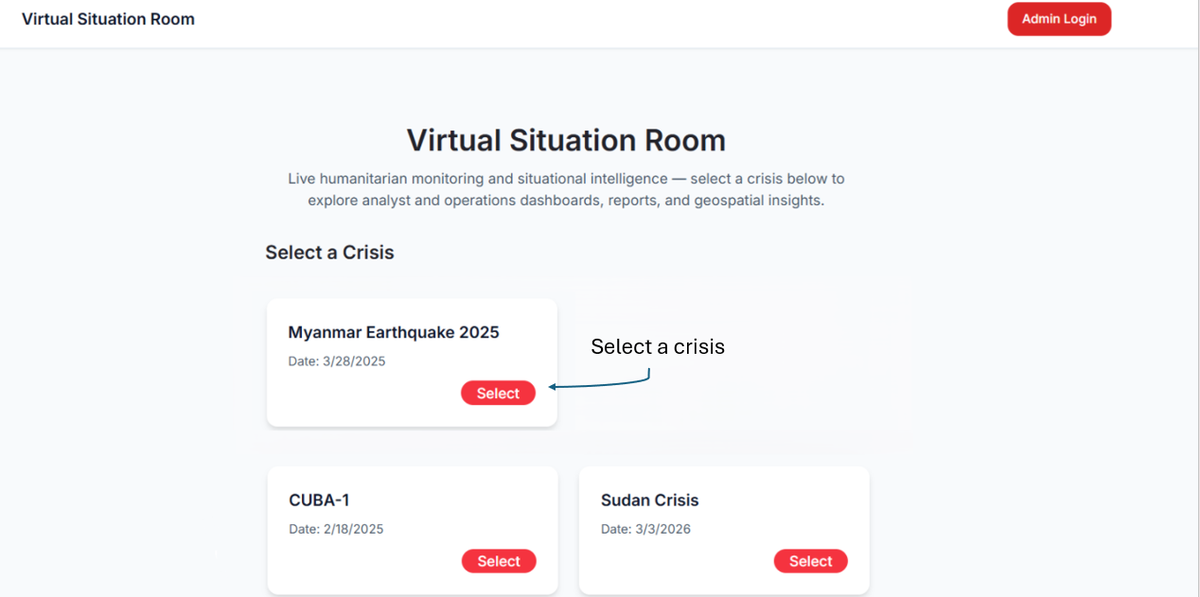
Upon loading the website, users are directed to the Overview Page, which serves as the central hub for exploring active humanitarian crises. Select a crisis from the list to continue.
2. Landing Page
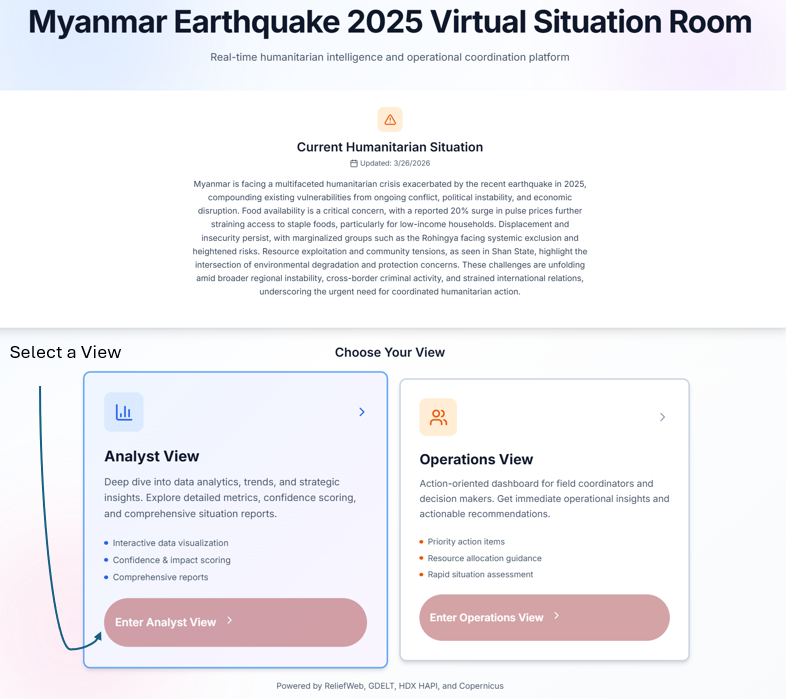
The Landing Page provides a concise summary and navigation into the Analyst and Operations perspectives.
- High-level summary of the selected crisis.
- Navigation options: Analyst View and Operations View.
3. Analyst View
Designed for in-depth exploration and structured analysis.
3.1 Crisis Metrics Interaction
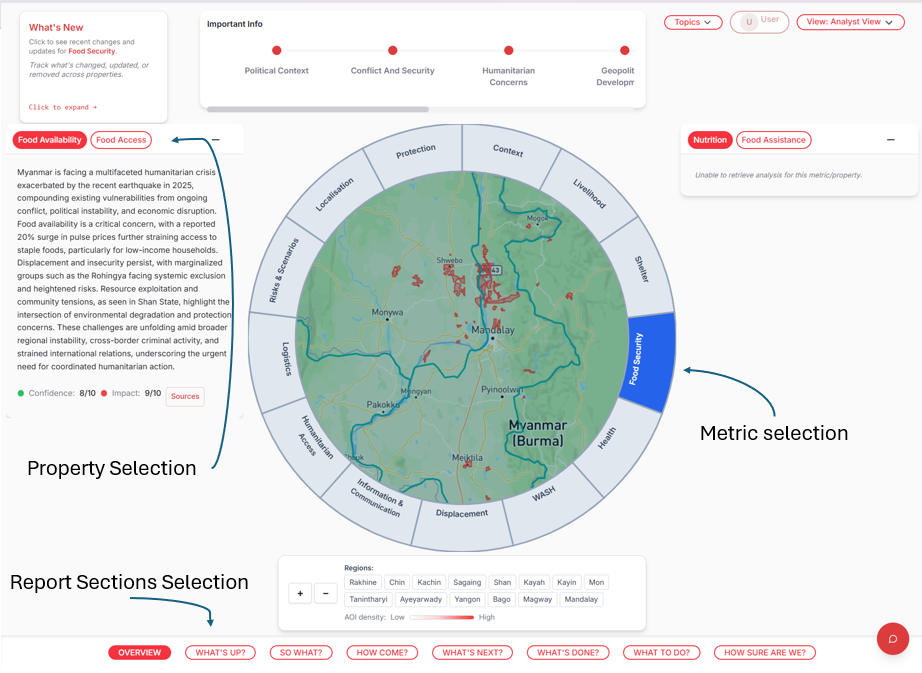
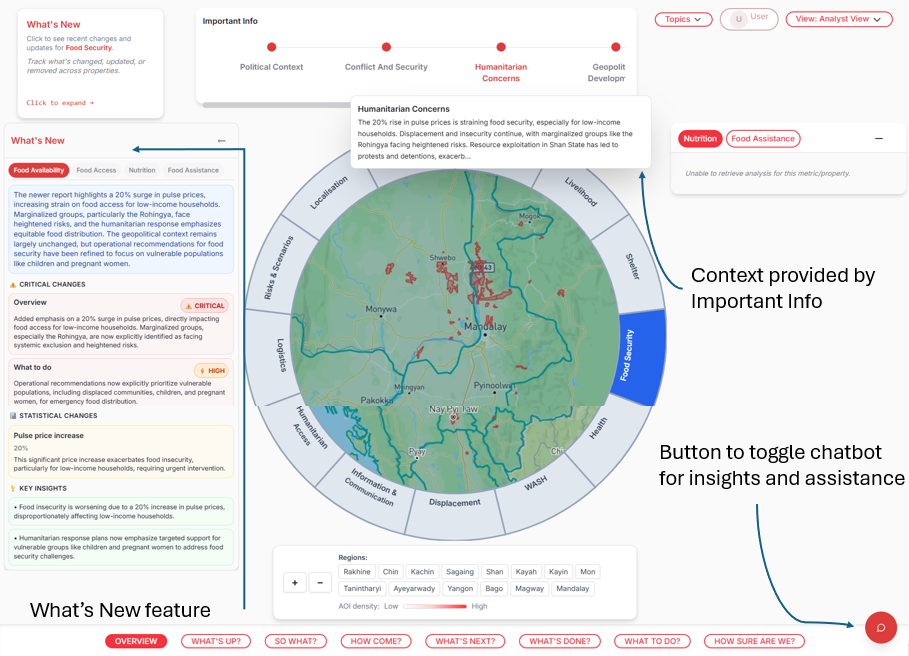
Click on a metric segment around the map to load related properties in the left and right information boxes.
3.2 Property Reports
Each property report follows the IFRC Analytical Framework, organized into 8 sections as seen in the bottom tab. Clicking on a tab loads that section of the report into view.
3.3 Switching Between Properties
Use the top tabs in the information boxes to switch properties.
3.4 Contextual Information Panel
An Important Info Panel at the top provides broader crisis context and supporting insights.
3.5 Chatbot Access
Use the integrated chatbot to retrieve crisis-specific insights and support analytical queries.
3.6 Temporal Analysis — What’s New
The What’s New feature compares the latest report with prior versions to highlight changes over time.
3.7 Map and Regional Insights
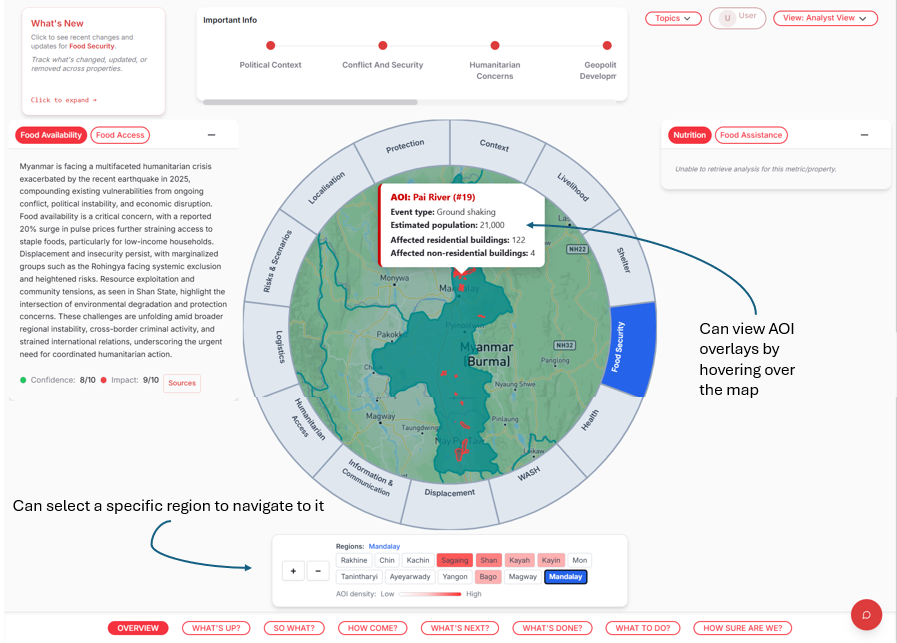
Map overlays reveal geospatial context; region panel highlights areas of interest.
4. Navigation Controls
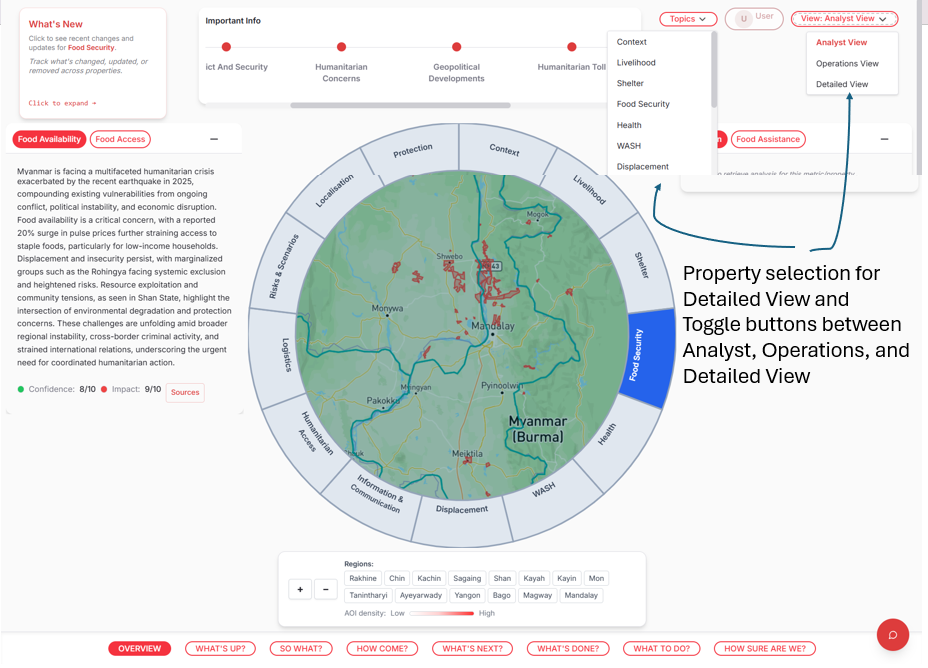
Top-right controls provide:
- Topics: detailed breakdown of a metric.
- View Selector: switch between Analyst, Detailed, and Operations views.
5. Alternative Views
Detailed and Operations views present the same data at different levels of depth: Detailed for expanded analysis; Operations for action-oriented tasks.
Admin Credentials
To access the administrative features of the platform, please use the following credentials:
- Username: admin
- Password: Admin123!
Admin Guide
This section outlines the key workflows available to administrative users for managing crises and data within the platform.
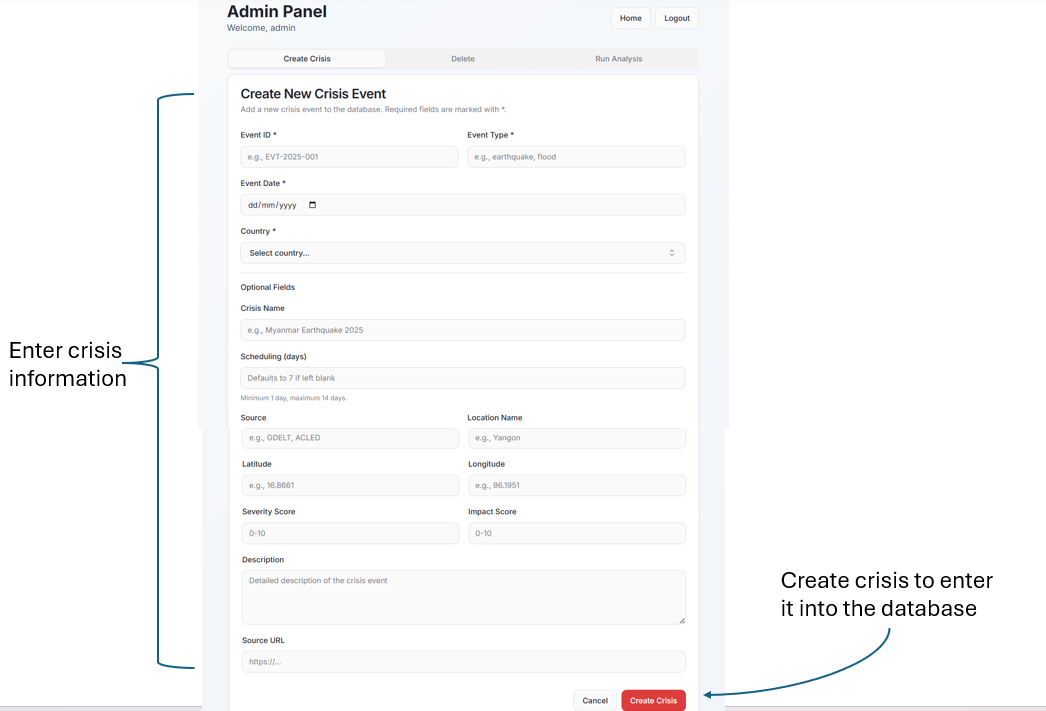
1. Crisis Creation
Administrators can create new crisis events by navigating to the crisis management dashboard. Fill out the required details including the crisis name, country, ISO3, and other parameters. This establishes the foundation for subsequent data ingestion and reporting.
2. Data Ingestion and Report Generation
Once a crisis is created, administrators can trigger data ingestion pipelines to gather relevant documents and information. After the data is securely processed, you can manage and generate comprehensive analysis reports which populate the Analyst and Operations views.
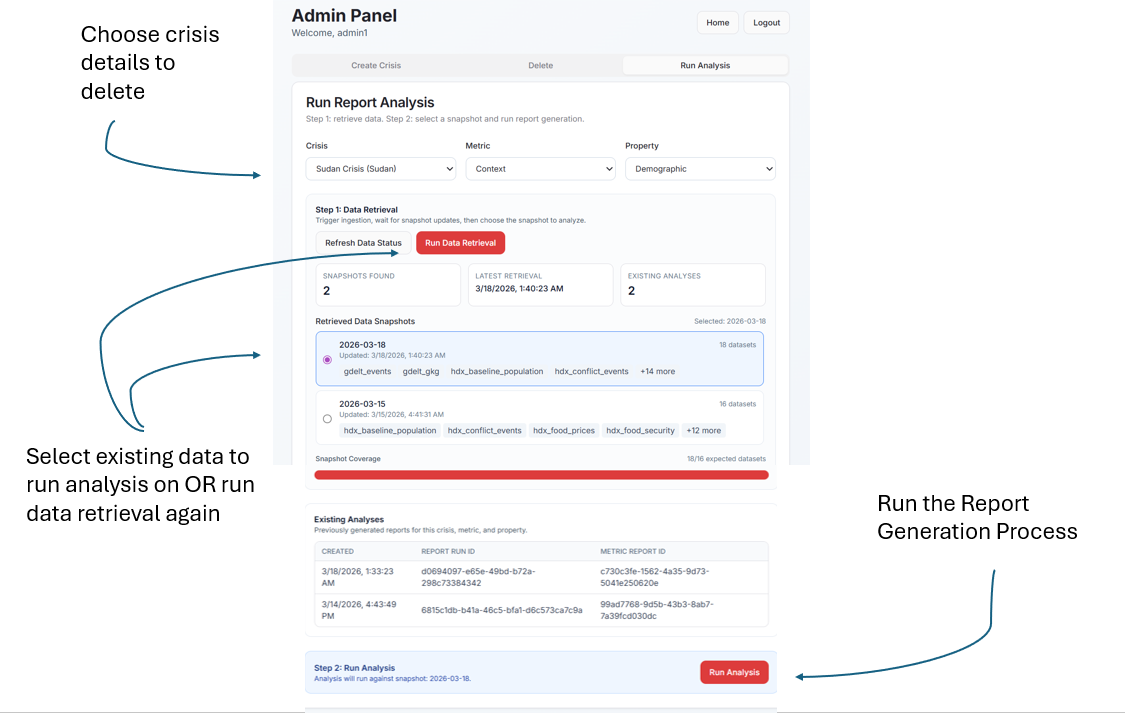
3. Crisis Deletion
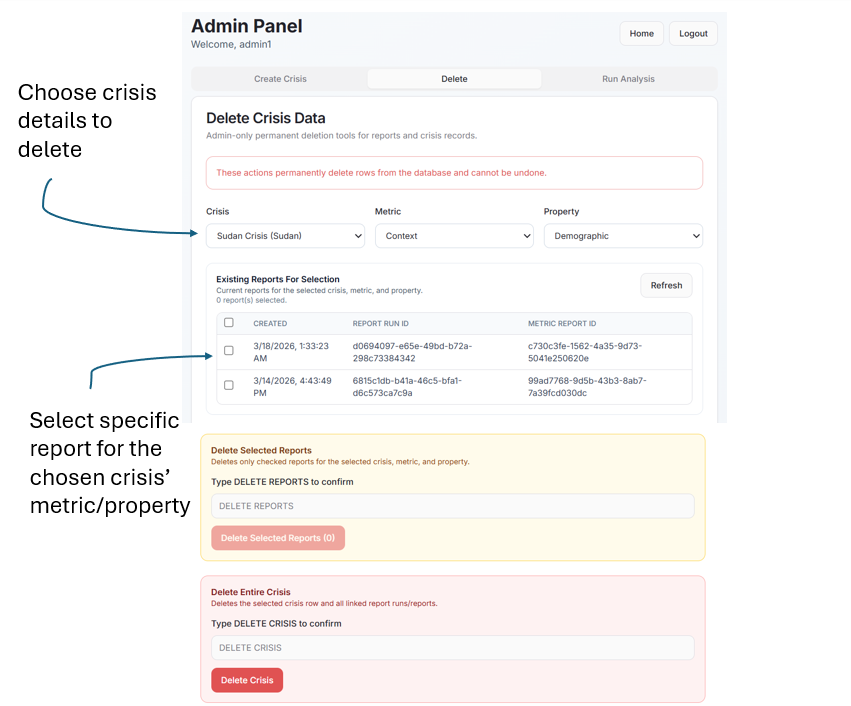
If a crisis event is no longer active or was created in error, it can be deleted from the platform using the delete action available on the crisis cards. This action removes the crisis and all associated reports from the system.