System Design
It was integral that our application was engineered to run fully offline, with all inference occuring locally and optimised for Intel devices. Our System Design was crafted to realise these requirements, and can be broadly categorised into 2 main components: the C++ and the Python layers. The following page provides relevant diagrams to highlight the structure of the app.
High Level Overview
A high level overview of the app is provided below. Further implementation details can be found in the relevant sections of the Implementation page.
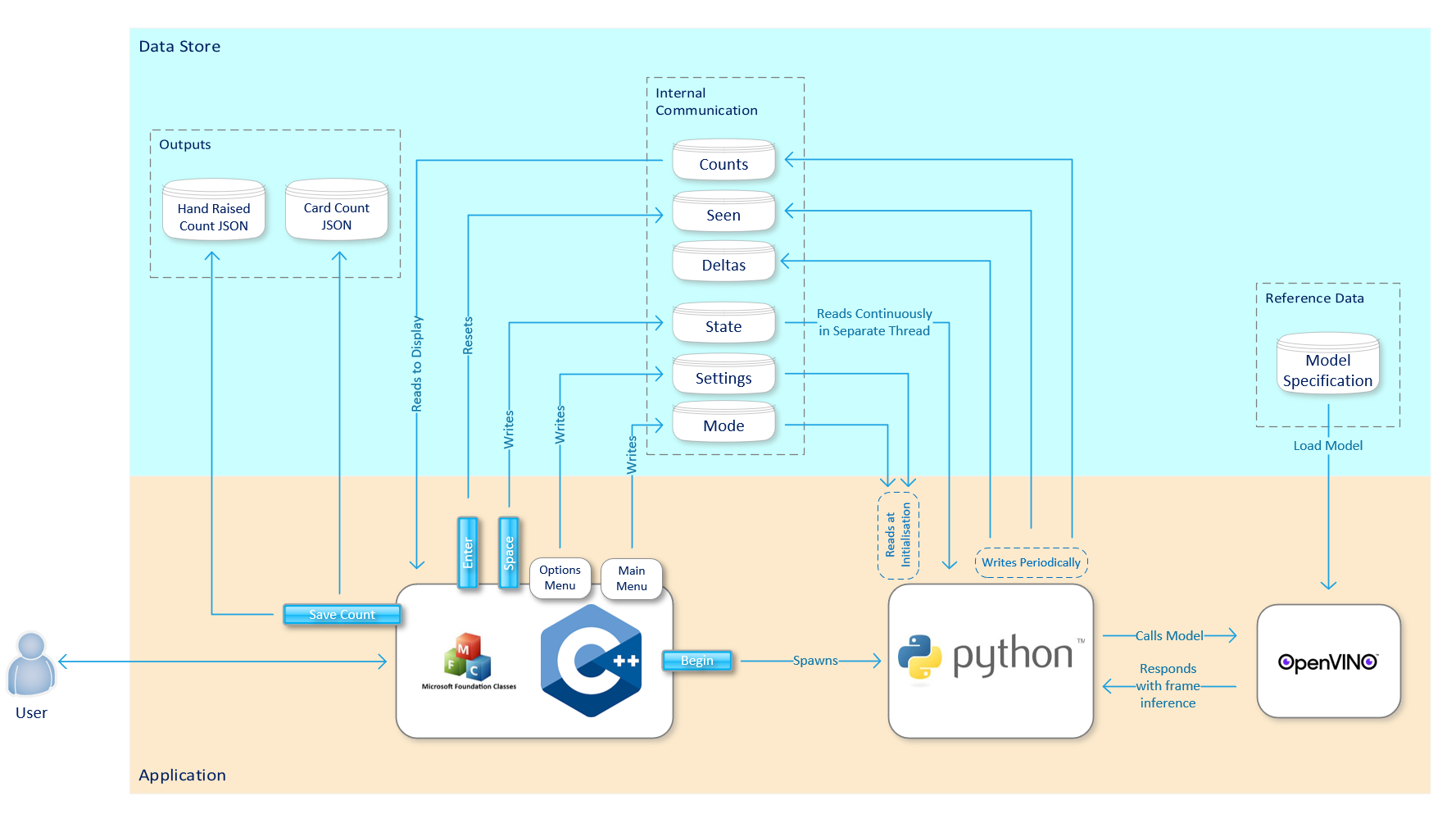
The C++ provides a user interface and communication layer, alongside providing the main functionality of the GUI and internal communication. The Python layer, embedded within the C++, contains the algorithm for the real time detection of hands and coloured cards. Both layers, in conjunction, are responsible for the logic of the game modes. The two layers communicate via a shared folder in Windows memory, where files are read and written to by both components.
Data Storage
Internal Communication Layer
A shared folder is defined within which data can be read and written to from both the C++ and Python components. Various files serving multiple purposes have been created for this app, detailed below:
- mode.txt: A text file containing the selected game mode from the user interface, allowing for the python script to modify its functionality depending on the mode.
- state.txt: A file containing the values of either 0, 1 or -1, indicating running, closing and freezing of the app respectively. The value of the state.text file is modified via the user key presses on the C++ side, and the Python continuously monitors the value to decide the functionality of the app.
- settings.txt: A file containing the different configurations set by the user via the user interface, written to via the C++ and read by the Python
- card_counts.txt: A file that is continuously updated by the coloured card detection algorithm in Python that stores the number of each of the coloured cards detected in each frame, which is read by the C++ to update the dialog box displaying these counts
- hand_counts.txt: Likewise, a file that is continuously updated by the hand detection algorithm to represent the number of hands detected in each frame at a given time, which is read by the C++ to update the dialog box displaying these counts
- cumulative_seen_card_counts: A file that stores the most recent counts of each of the colours in a particular frame, used as the incrementing value for the cumulative count total
- cumulative_delta_card_counts: A file that stores the overall cumulative counts of each of the colours across multiple freeze cycles, and which is updated upon clicking the space key in the C++ dialog box. This file is read by the C++ to update the dialog box displaying these counts
User Outputs
Alongside the files above used for communication between the apps, the user has the option to save the counts of the cards and hands detected to a specified directory for future reference and to extract insights from their lesson. The following files are created for this purpose, with the save location defined in the settings.txt file. For the card counting modes, the checkboxes next to each text field on the UI are used to indicate that the answer was correct.
card_counts.json
[{
    "timestamp": "2025-02-24 16:18:18",
    "red": { "count": 1, "selected": true },
    "green": { "count": 0, "selected": false },
    "yellow": { "count": 0, "selected": false },
    "blue": { "count": 0, "selected": false }
},
{
    "timestamp": "2025-02-24 16:19:17",
    "red": { "count": 0, "selected": true },
    "green": { "count": 0, "selected": false },
    "yellow": { "count": 0, "selected": false },
    "blue": { "count": 0, "selected": false }
}]
hands_raised.json
[{
    "timestamp": "2025-02-24 16:18:18",
    "hands_raised": 7
},
{
    "timestamp": "2025-02-24 16:19:17",
    "hands_raised": 3
}]
Reference Data
Additionally, as our application is fully offline, the YOLO model has to be bundled with the app. The model specification is specified in the models directory and in a .xml and .bin format for compatibility with OpenVINO for inference. During compilation (this process is detailed further in the Implementation page), the model specification is embedded within the Python executable.
C++ Architecture
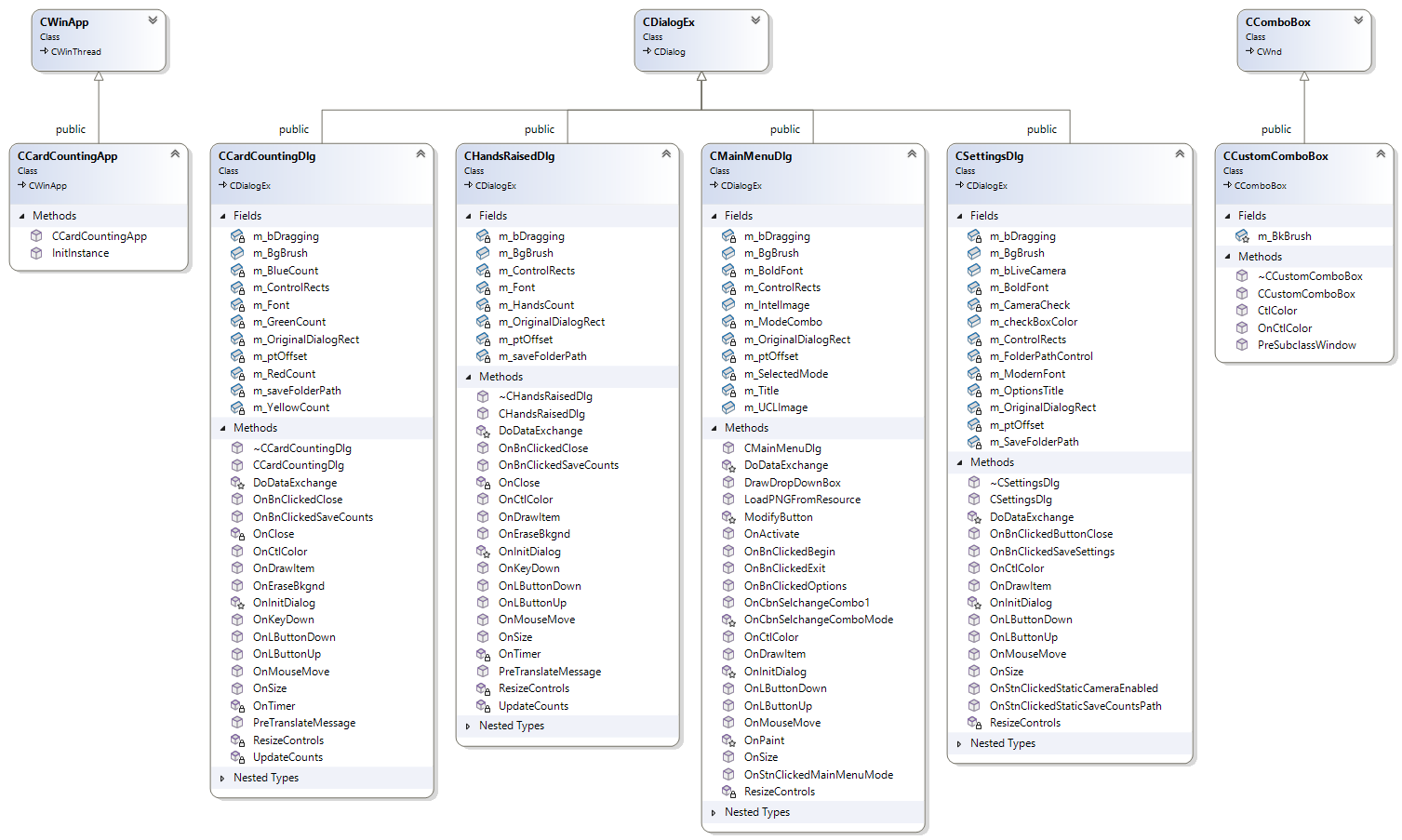
The app is developed using MFC, a C++ library, providing various functionalities for GUI development. The app is formed of various dialogs, implemented as classes alongside a couple of extra utility classes.
Python Architecture
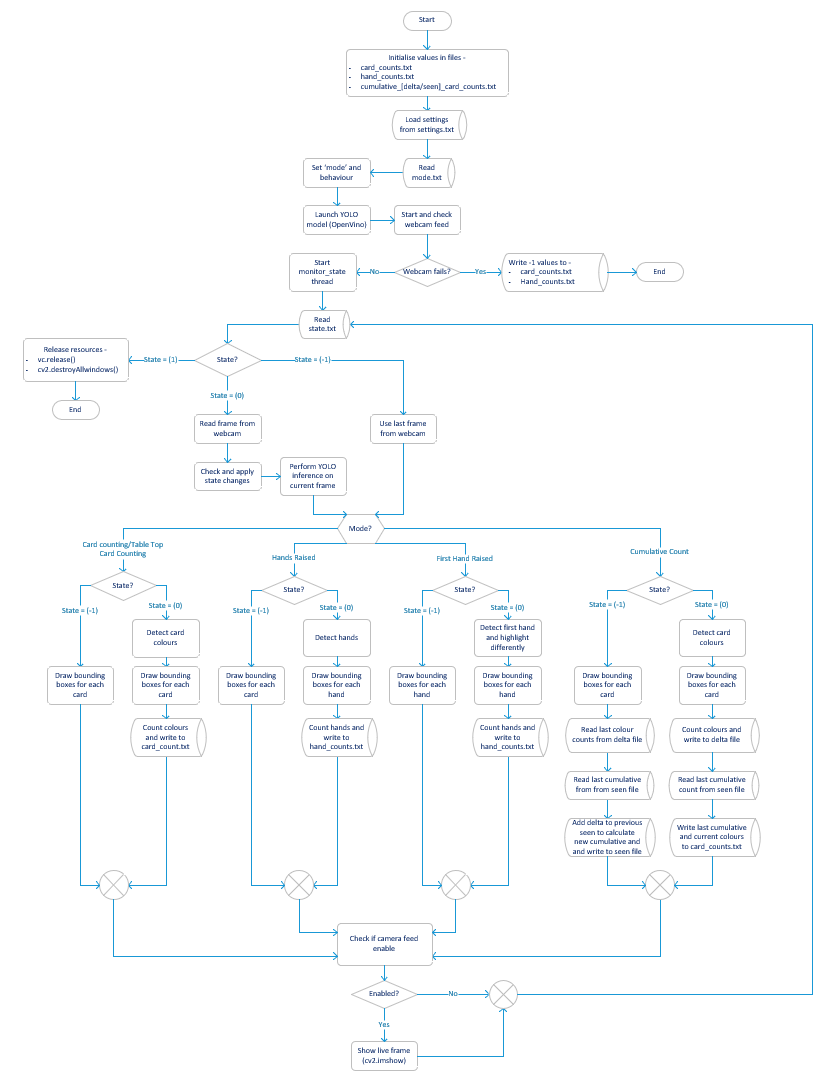
Below is a diagram explaining the logic flow of the Python layer. The Python component of our application contains the functionality for running inference on the video feed to detect hands using our custom YOLO algorithm, as well as the logic for the different game modes.
Site Map
A site map for the various game modes has been provided below. The site map provides a high level overview of the different game modes and the functionality of each mode:
Main Menu (CMainMenuDlg)
│
├──► Card Counting Mode
│     └── CardCountingDlg
│         └── Displays live counts of coloured cards (R, G, B, Y)
│         └── Checkboxes for marking correct answers
│         └── Save button to store results
│
├──► Cumulative Card Counting Mode
│     └── CardCountingDlg
|         └── Similar functionality to Card Counting Mode
│         └── Accumulates card counts over spacebar freezes
│         └── Updates cumulative based files to accumulate counts
│
├──► Tabletop Card Counting Mode
│     └── CardCountingDlg
│         └── Adjusts region of interest and confidence level for card detection
│         └── Designed for cards placed on a table
│
├──► Hands Raised Mode
│     └── HandsRaisedDlg
│         └── Displays number of detected hands in real time
│         └── Single save button to record hand count
│
├──► First Hand Raised Mode
│     └── HandsRaisedDlg
│         └── Highlights first detected hand in a different colour
│         └── Tracks and displays hand count
|         └── Single save button to record hand count
│
├──► Options / Settings
│     └── SettingsDlg
│         └── Toggle Live Camera (Live vs Frozen preview)
│         └── Change save path for output files
│
└──► Exit
      └── Closes application
Packages and APIs Used
MFC (Microsoft Foundation Classes)
MFC is a C++ library that wraps Windows API functionality into C++ classes for GUI development. In our application, it acts as the UI for our system, and allows users to select modes, trigger detection, and interact with the Python layer. It also controls system state via files like state.txt, mode.txt etc, and is the point of entry for the launching of the python executable as a suprocess.
OpenCV
OpenCV is a computer vision library used for parsing and processing input images. We use OpenCV for the computer vision functionality of the application, namely for:
- Capturing the video feed from the webcam
- Processing each frame to pass through to the YOLO model
- Draw bounding boxes for the objects
- Displaying the video wind in a window
- Perform the colour detection via HSV filtering
NumPy
We use NumPy, a number processing library to manipulate pixel arrays during frame preprocessing and to support image masking and matrix operations in colour detection.
YOLO Model with OpemVINO
We use a YOLOv4-tiny model for the hand detection algorithm in conjunction with OpenVINO for optimised inference. This model is selected as it is lightweight enough to run on low-end devices, whilst still providing a high level of performance with quick inference times for use in a live classroom environment.
OpenVINO
OpenVINO is a software toolkit developed by Intel which optimises deep learning models for Intel hardware. As mentioned above, one of our key user requirements was to optimize performance on Intel devices, hence the inclusion of this package. In this project, OpenVINO is used to run inference on the YOLOv4-tiny model, by converting the YOLOv4-tiny model into a format that can be run on Intel hardware. This is done via the OpenVINO Model Optimizer, which converts the model into an Intermediate Representation (IR) format that can be run on Intel hardware. Following the above steps ensures that our application can be run on low-end devices.
PyInstaller
PyInstaller is used to compile the Python script into a standalone executable, allowing it to be run on any PC. This is crucial for our application as it allows us to run the Python script without requiring a separate Python installation on the target machine.