Testing
Testing Strategy
Our testing strategy focuses on ensuring a fully accessible and user-friendly experience for Dialogue Cafe users. We also want to ensure that all features and external services integrate and function as expected.
Testing Approach
We implement a testing strategy that addresses both functionality and accessibility:
- Unit & Integration Testing: Comprehensive testing of backend and frontend components, mocking external services
- Compatibility Testing: Cross-browser and cross-platform verification of all features
- Responsive Design Testing: Ensuring proper layout and functionality across all device sizes
- Accessibility Testing: Automated tests using Lighthouse and manual testing with screen readers
- User Acceptance Testing: Testing with real users to validate usability and functionality
This comprehensive approach ensures that our application not only functions correctly but also provides an accessible and inclusive experience for users of all capabilities, which is a key requirement of our project.
Unit and Integration Testing
Backend
To ensure our backend functions reliably, we produced comprehensive unit and integration tests during development.
Backend Testing Framework
- Pytest: Our main testing framework, chosen for its simplicity and scalability.
- unittest.mock: Used to mock external services for isolated testing.
- SQLite in-memory database: Local database for testing without affecting production data.
Our backend tests cover several critical areas:
- Data validation: Ensuring all user inputs are properly validated before processing
- API endpoints: Testing that all API endpoints return correct responses for various inputs
- Service integrations: Confirming that email services and AI assistant integrations work as expected
Example of a backend test for AI creating a booking:
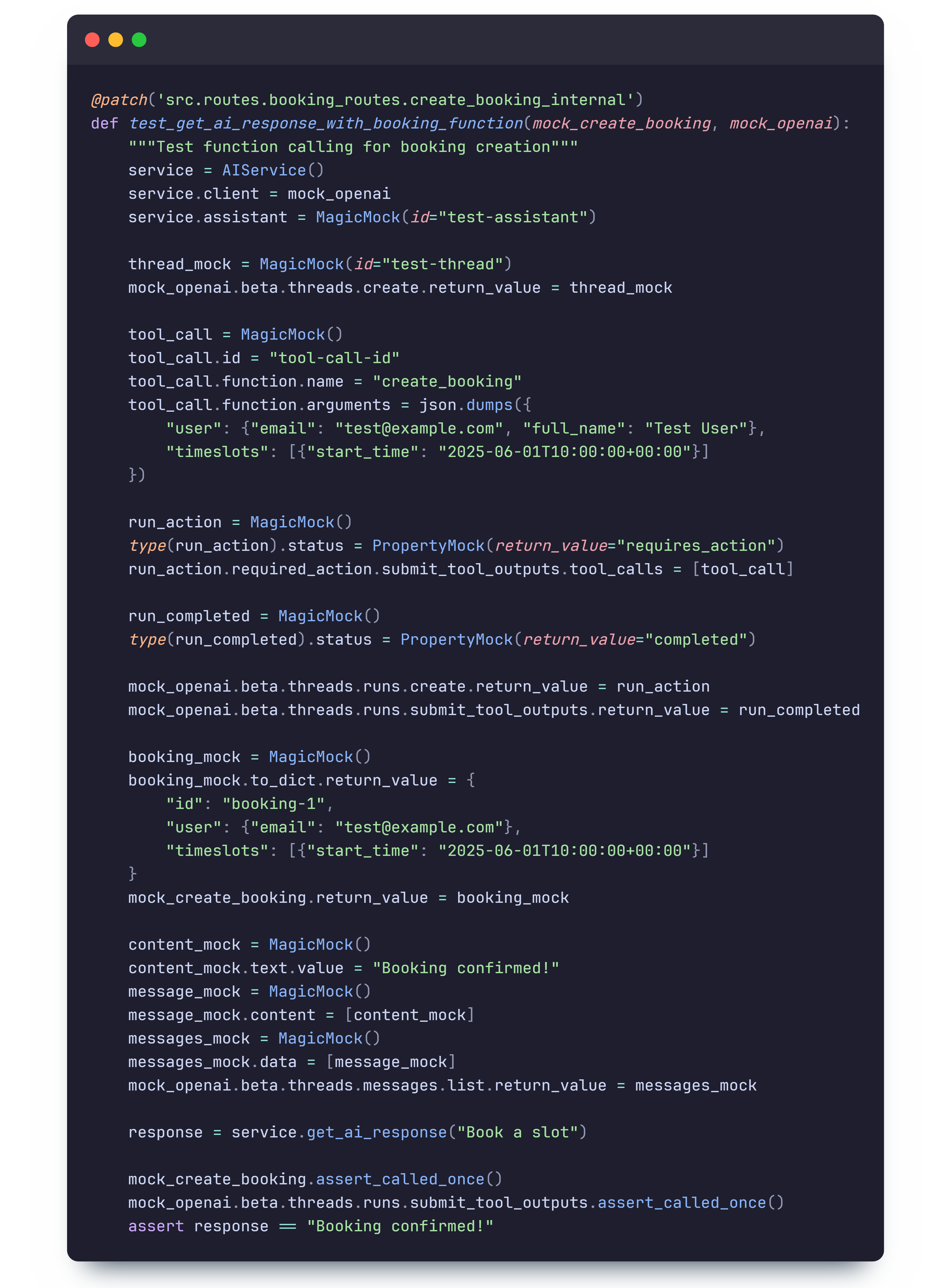
This test verifies that the AI assistant correctly processes a user's booking request and returns the expected response. By mocking the AI service, we can isolate this test and ensure that the AI assistant functions correctly.
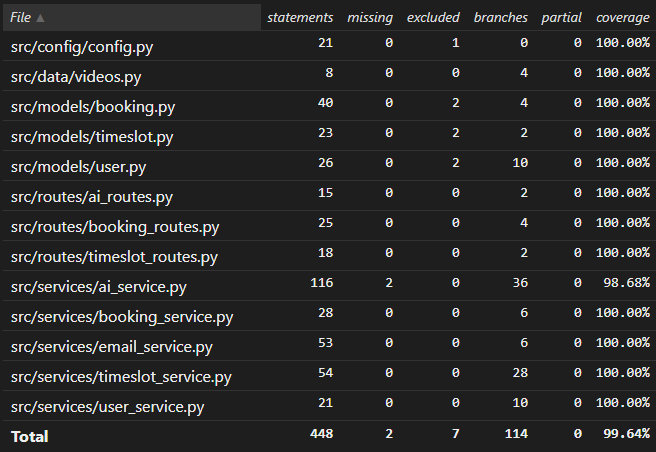
We used Coverage.py to measure our backend test coverage, achieving almost 100% coverage with 106 total tests. This comprehensive coverage ensures that our backend code is robust and functions correctly under all expected conditions.
Frontend
Frontend testing was especially critical for our project due to the many accessibility features implemented. Our approach focused on component isolation and comprehensive feature testing:
Frontend Testing Framework
- Vitest: Our main test runner with useful features for mocking, unit tests and coverage. It is a fast and Vite native testing library.
- React Testing Library: A component testing library for React that ensures components are tested in a way that reflects how they are used by end users.
- Jest DOM: An extension library that provides custom DOM element matchers for Vitest.
Our frontend tests specifically focused on:
- Accessibility features: Testing for presence of accessibility attributes and functionality
- Form validation: Ensuring forms provide appropriate feedback for all input scenarios
- State management: Verifying that application state is correctly maintained and updated
- UI components: Testing that components render correctly across different device sizes
Example of a frontend test for navigation to success page upon successful booking:
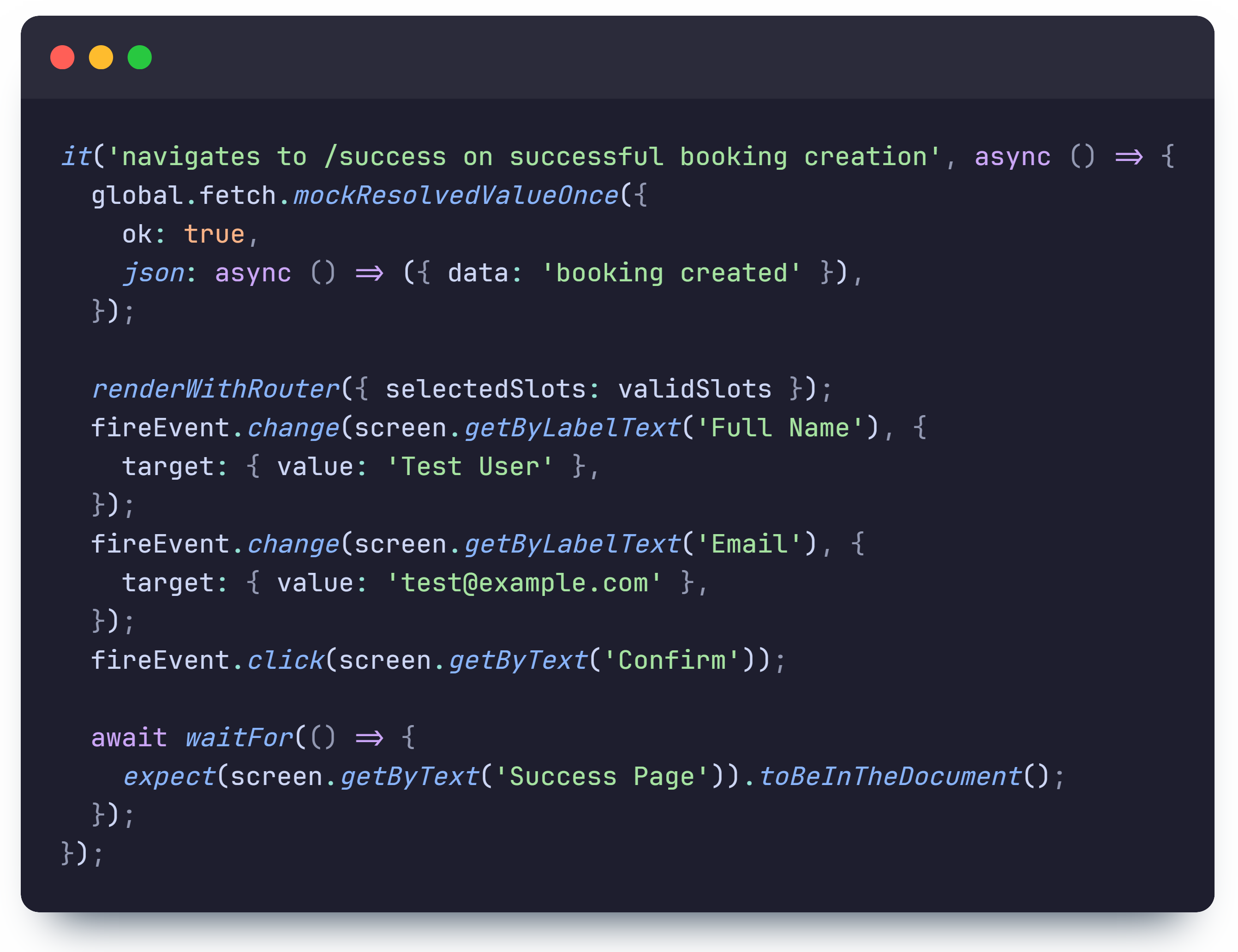
This test verifies that the user is redirected to the success page after successfully booking a session. By isolating this test, we can ensure that the booking process functions correctly and that the user is provided with the correct feedback.
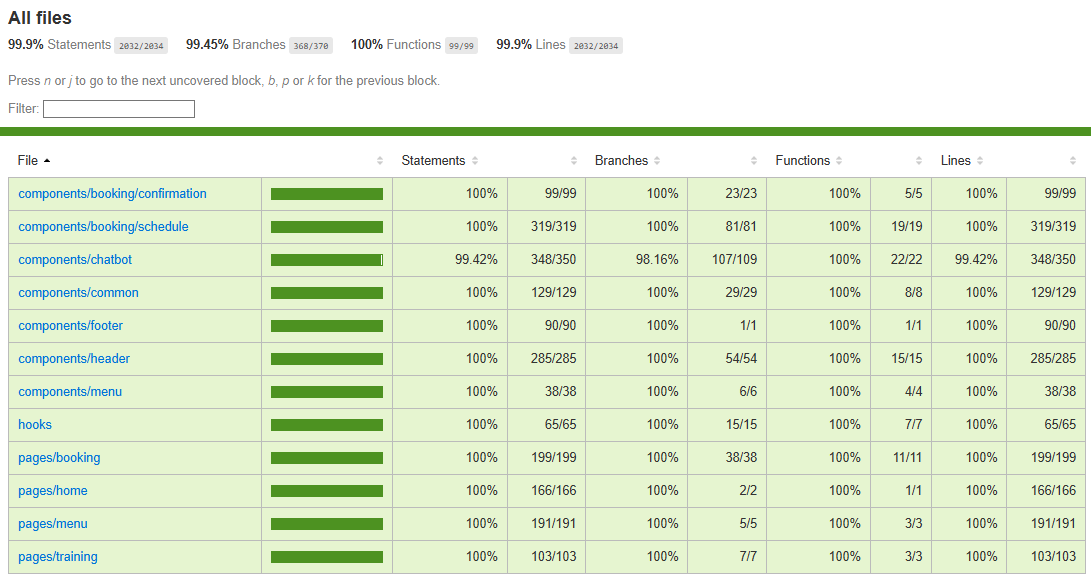
Using Vitest's native code coverage via V8, we achieved almost 100% test coverage with 182 frontend tests. This extensive testing ensures that all user-facing features work as intended without errors.
Testing Benefits
Our iterative testing approach for unit and integration tests provided several key benefits:
- Early detection of bugs and features not working as intended
- Confidence in making changes without breaking existing functionality
- Documentation of expected behavior through tests
- Verification that accessibility requirements are continuously met
Compatibility Testing
Since our website needs to be accessible to users with varying technical capabilities using different devices and browsers, we conducted extensive compatibility testing across multiple platforms.
Browser Compatibility
We tested our application on the most commonly browsers to ensure consistent functionality and appearance:
| Browser | Version | Results |
|---|---|---|
| Google Chrome | 134+ | All features working as expected |
| Mozilla Firefox | 135+ | All features working as expected |
| Safari | 18+ | All features working as expected |
| Microsoft Edge | 134+ | All features working as expected |
Accessibility Features Testing
We paid special attention to testing features that may require browser permissions:
- Voice Input: Tested microphone access and speech recognition across browsers
- Screen Reader: Verified text-to-speech functionality works consistently
- High Contrast Mode: Ensured color contrast adjustments apply properly
- Font Size Controls: Confirmed text scaling works on all browsers
Additionally, we tested our application on different operating systems (Windows, macOS, iOS, and Android) to ensure that the user experience remains consistent regardless of platform. This cross-platform testing was particularly important for the Dialogue Cafe's tablet display and for users accessing via QR codes on their personal devices.
Compatibility Testing Analysis
Our compatibility testing results demonstrate that the application performs consistently across all major browsers and operating systems. Users will be able access the website on any device and browser of their choice without any issues.
Responsive Design Testing
Testing Approach
Dialogue Cafe displays their website on a tablet at their venue and presents QR codes for customers to access the website on their personal devices. This made responsive design a critical requirement for our project.
Responsive Testing Process
- Device Simulation Testing: We used Chrome DevTools to test layouts across devices including iPhone SE, iPhone 12 Pro, iPad Mini, iPad Pro, Samsung Galaxy S8+ and standard desktop resolutions. We tested on both landscape and portrait orientations.
- Accessibility Options Testing: For each layout, we tested every page with varying font sizes (from 12pt to 20pt) using our built-in font-size adjuster and in high contrast mode.
- Interactive Element Testing: We verified that all interactive elements remained accessible and usable at each breakpoint.
Key Layout Changes
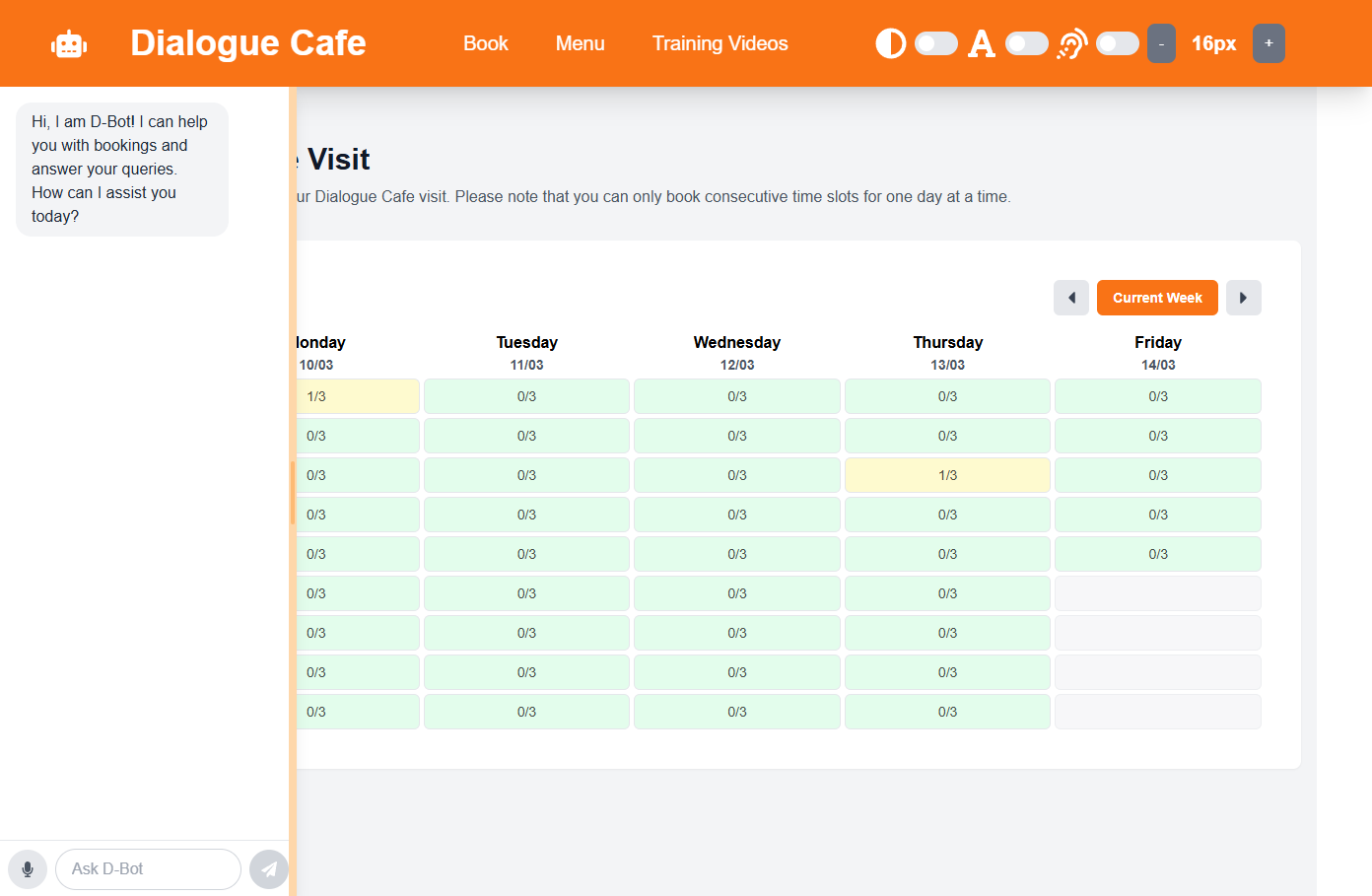
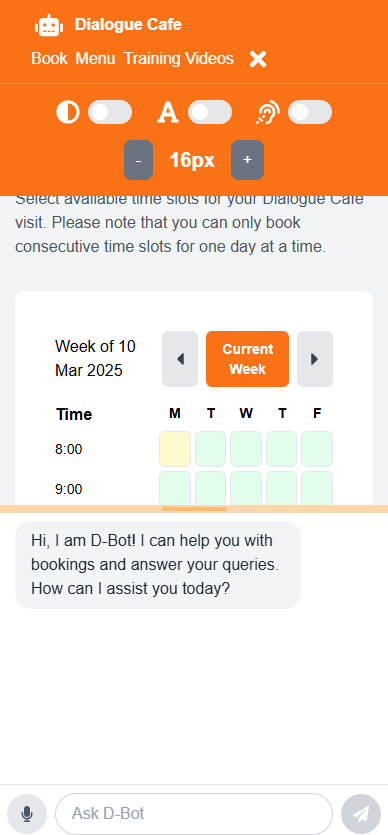
Based on our testing, we implemented several responsive design adaptations to optimise the user experience across devices:
Key Responsive Design Implementations
- AI Chatbot: Vertically resizable on mobile vs. horizontally resizable on desktop
- Accessibility Options: Consolidated into a toggleable menu on smaller screens
- Form Layouts: Stacked fields on mobile for improved readability and usability
- Clutter: Abbreviated or removed text on smaller screens to reduce clutter and improve readability, e.g. 'Monday'/'Mon'/M'
Technical Implementation
We implemented responsive design using Tailwind CSS's responsive breakpoints which allowed us to easily modify layouts based on screen size. For example:
<div className="md:flex-row flex-col">
  {/* Content that changes from column to row layout on medium screens */}
</div>
This approach allowed us to optimise the interface for all target devices within the same component, ensuring users have a consistent and accessible experience regardless of how they access the site.
Accessibility Testing
Automated Testing
Accessibility is a core requirement of our project. We tested each page of our site using Lighthouse in Chrome DevTools, which runs a series of accessibility tests and provides a score from 0-100.
| Page (High Contrast Mode Enabled) | Accessibility Score |
|---|---|
| Home | 100 |
| Booking | 100 |
| Menu | 100 |
| Training Videos | 100 |
All pages achieved maximum accessibility scores according to Lighthouse, validating our focus on creating an inclusive experience. These scores reflect our implementation of proper semantic HTML, adequate color contrast, appropriate ARIA attributes, and keyboard navigability throughout the site.
Manual Testing
Since Lighthouse only detects a subset of accessibility issues, we also conducted manual testing. We used VoiceOver on MacOS and Narrator on Windows to ensure that all content is read correctly and all interactive elements are accessible. We also thoroughly tested our built-in screen reader and voice input features across various browsers.
Additionally, many of our unit tests specifically check for the presence of screen reader attributes and other accessibility features, which ensures these features are present and functional.
To conclude, we are confident that our website meets all accessibility requirements and provides an inclusive experience for all users.
User Acceptance Testing
We conducted user acceptance testing to ensure that our solution meets the needs of our target audience and analyse potential improvements based on user feedback.
Simulated Testers
| Tester Group | Age Range | Technical Proficiency | Accessibility Needs |
|---|---|---|---|
| Elderly Users | 65-85 | Limited to moderate | Vision impairments, motor control difficulties |
| Cafe Staff | 20-40 | Moderate | Hearing impairments |
| University Students | 18-25 | High | None |
We selected these groups to represent the primary users of Dialogue Cafe and to ensure that our solution meets the needs of all users.
- Elderly Users: Particularly important due to the focus of our project on accessibility and inclusivity. As they have low technical proficiency and may have accessibility needs, their feedback is crucial to ensure our solution is user-friendly.
- Cafe Staff: Essential users as they will interact with the system daily and need to be able to navigate it efficiently. Their feedback helps us determine whether the system effectively promotes BSL usage in the cafe.
- University Students: Included as key users since the cafe is located in the UEL campus, making them frequent visitors. Most students have high technical proficiency and no accessibility needs, giving us a broader range of feedback.
Test Cases
We designed specific test scenarios to evaluate key functionality and accessibility features with our testers:
Test Case 1
Users were asked to create a booking for multiple hours (2:00-4:00 PM) on a specific date two weeks in the future. This tested the calendar interface, week navigation, time slot selection, and booking confirmation process.
Test Case 2
Users were asked to find and view the BSL training video for "Hot Chocolate" from the home page. This tested page navigation, usability of the menu interface, and video playback functionality.
Test Case 3
Users with accessibility needs were asked to enable high contrast mode, increase font size, activate screen reader, and then complete a booking. This tested whether our accessibility features effectively improved usability, and how easy they are to enable.
Test Case 4
Users were asked to book a session using only the AI chatbot assistant rather than the standard form interface. Users with accessibility needs were encouraged to use voice input. This tested the conversational UI and whether it provided an effective alternative booking method.
Feedback
| Acceptance Requirement | Score (1-5) | Comments |
|---|---|---|
| Booking Process Usability | 5/5 | Elderly users found the process straightforward with accessibility features enabled. University students completed tasks quickly. Cafe staff appreciated the clear confirmation emails. The interface and timeslot selection was clear and intuitive to all users. |
| BSL Video Navigation | 5/5 | Users found the BSL videos useful for learning sign language for menu items. All users could easily locate and play videos. The ability to search and sort videos was particularly praised by cafe staff. |
| Accessibility Features Effectiveness | 4/5 | High contrast mode and font size controls were particularly praised by users with vision impairments, and their ease of use was praised. One user suggested allowing larger font sizes or a built-in magnifier tool. Another suggestion was to implement a profile to quickly enable all features. Screen reader functionality worked well but some users suggested more configuration options such as volume and speed control. Although students did not require the accessibility features, they appreciated how they were not intrusive to the standard interface. |
| AI Assistant Effectiveness | 4/5 | Elderly users found voice input particularly helpful, but input was occasionally misread. Most users were able to successfully book using the assistant, but at times the AI's responses were unclear or incorrect. Cafe staff found the assistant especially useful for answering common questions. University students found the assistant helpful but preferred the standard form interface for booking. Additionally, we had to explain some of the AI's capabilities to users for them to use it effectively so we may need to provide more information in the interface. |
Comparison Testing with OpenTable
We conducted comparison testing between our solution and OpenTable.com, one of the most widely used restaurant booking platforms globally. OpenTable was selected as our comparison benchmark because:
- It is an industry leader in restaurant booking systems with extensive market presence
- It has a similar core booking flow to our system
- It represents the current standard for online restaurant booking interfaces
Our test participants were asked to complete identical tasks on both platforms:
| Test Case | Our Platform | OpenTable | Key Differences |
|---|---|---|---|
| Making a Booking |
|
|
Our platform's simplified interface and accessibility features resulted in faster completion times, especially for elderly users |
| Finding Information |
|
|
Our clear navigation and accessibility options made information discovery significantly easier for all users |
| Using Accessibility Features |
|
|
Our platform offers integrated accessibility features vs. relying solely on browser capabilities |
Comparative Scoring (1-5 scale)
| Metric | Our Platform | OpenTable | Notes |
|---|---|---|---|
| Ease of Use | 5/5 | 3/5 | Our simplified interface and clear navigation proved more intuitive for all user groups |
| Accessibility | 5/5 | 2/5 | Our built-in accessibility features significantly outperformed OpenTable's limited options |
| Speed of Completion | 4/5 | 3/5 | Users completed tasks faster on our platform, particularly elderly users |
| Alternative Input Methods | 5/5 | 1/5 | Our AI assistant and voice input options provided significant advantages over OpenTable's traditional interface |
Key Findings from Comparison Testing
- Our platform consistently outperformed OpenTable in accessibility and ease of use
- Elderly users particularly benefited from our simplified interface and built-in accessibility features
- The AI assistant and voice input provided valuable alternatives not available on OpenTable
- While OpenTable offers more features overall, our focused approach better served our target users' needs
Conclusion
In conclusion, our user acceptance testing confirmed that our solution meets the needs of our target audience and provides an accessible and user-friendly experience. The feedback we received was positive overall, with users praising the simplicity yet effectiveness of our features. The suggestions for improvements were also valuable and will be considered for implementation.