User Manual
💻 User Manual
1. 📁 Upload Data
To upload multimedia data:
- Click "Upload" in the top-right menu.
- Enter the following details:
- Collection Name: A logical grouping for related data (like a folder).
- Description: Briefly describe the content (e.g., "A lovely dog").
- Location: Provide either an address (e.g., "London Zoo") or coordinates.
- Drag and drop files or click to browse files.
Example:
- Uploaded: Image of "A lovely dog with sunglasses"
- Location: "University College London"
- Collection: "Demo"
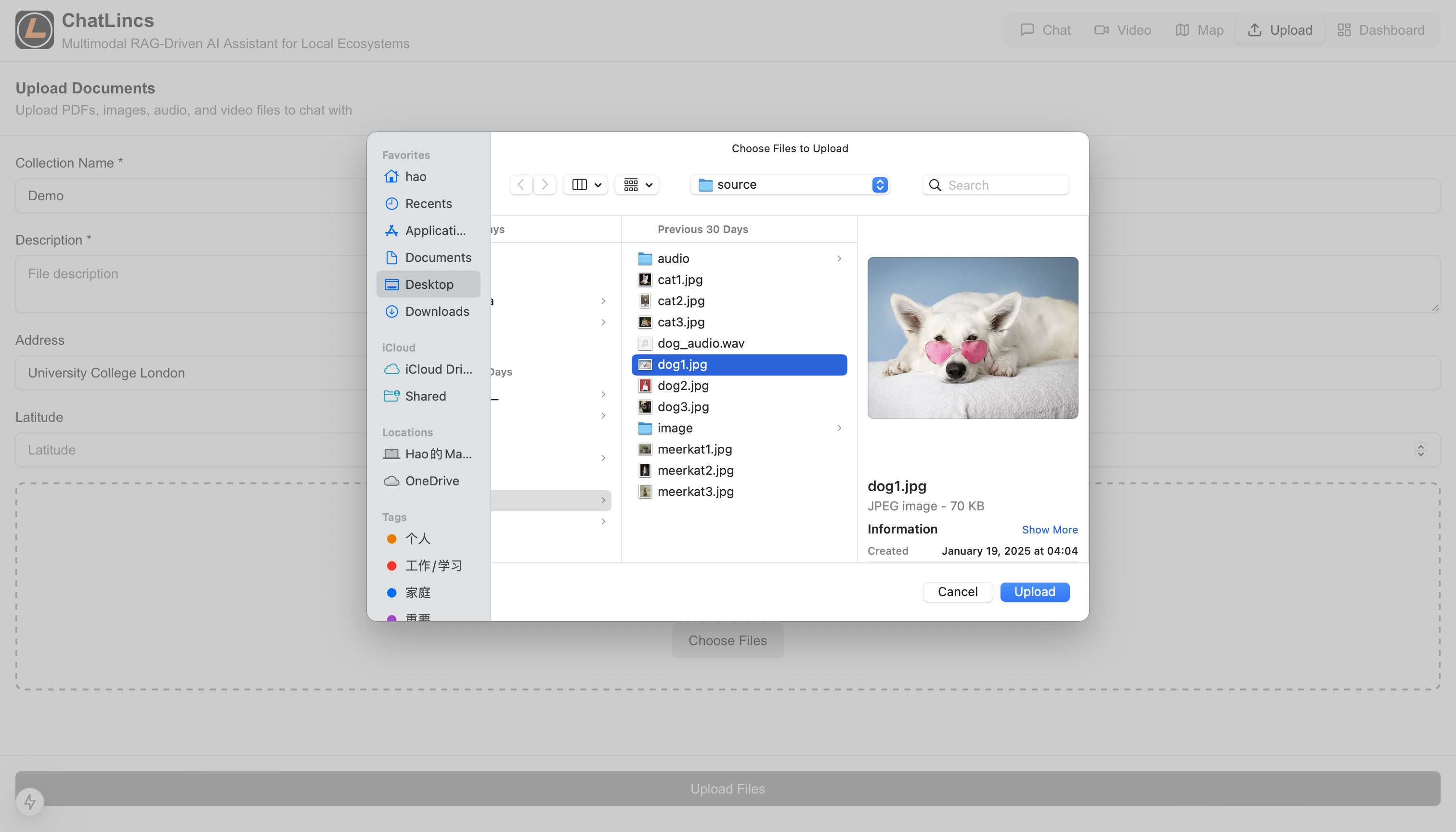
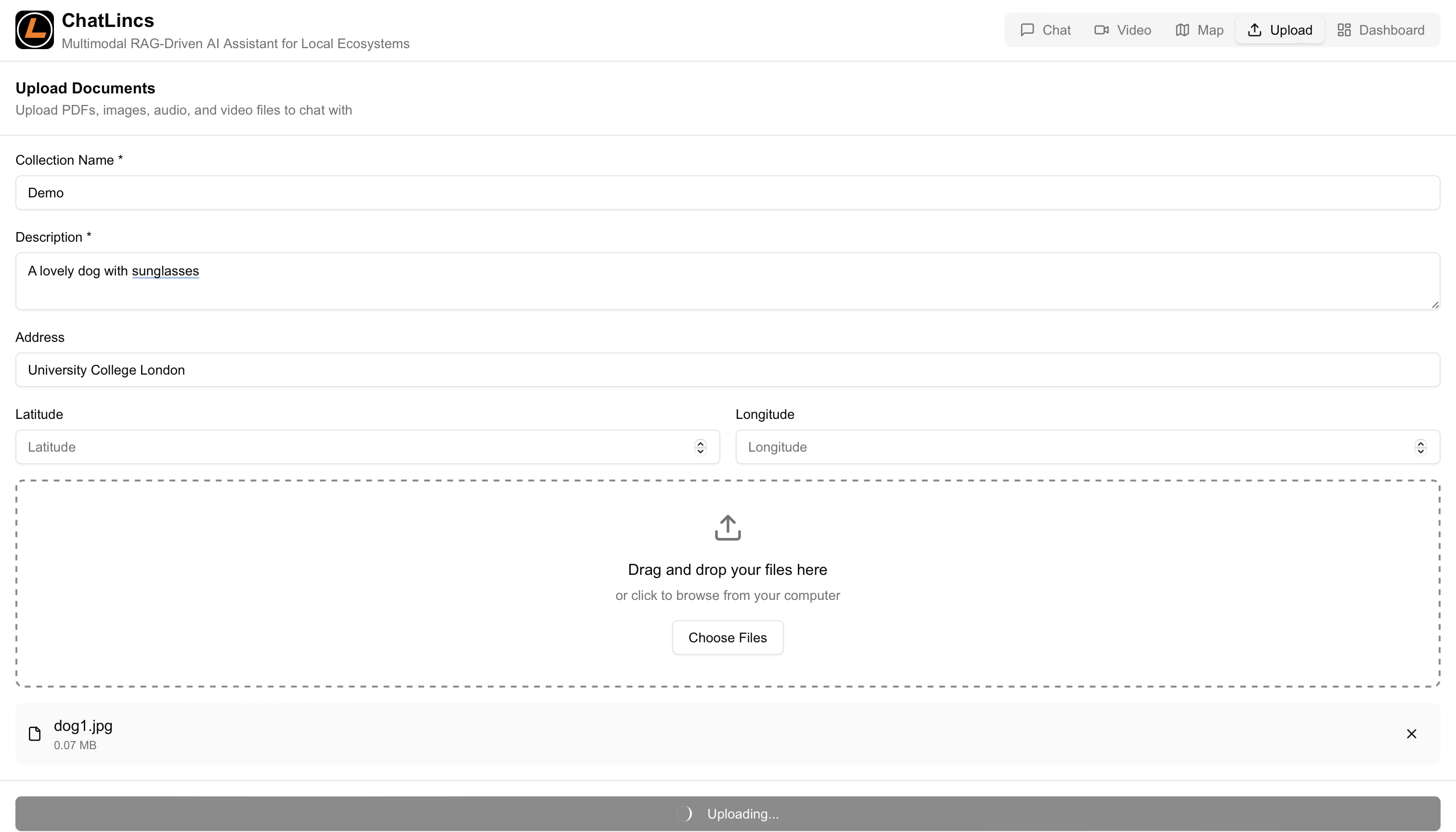
(Uploaded files from different sources can be stored in the same collection to enrich your dataset.)
2. 🌍 Map View
To visualize your uploaded data geographically:
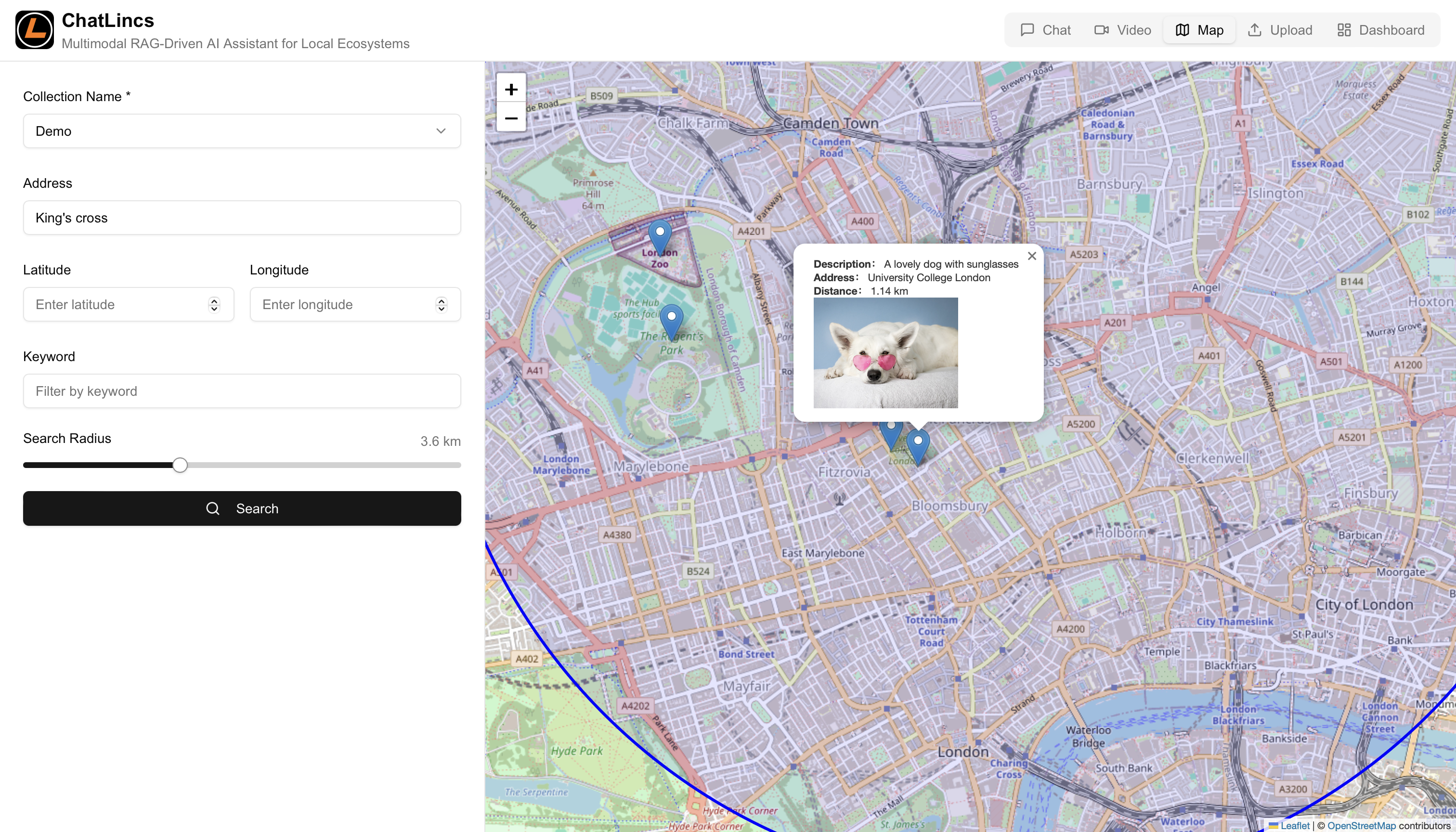
- Click "Map" in the top-right menu.
- Enter:
- Collection Name
- Central Location (address or coordinates)
- Keywords (optional)
- Search Radius
Example:
- Center: "King’s Cross", Radius: 3.6 km, Collection: "Demo"
- Result: Dog image at "University College London", 1.14 km away
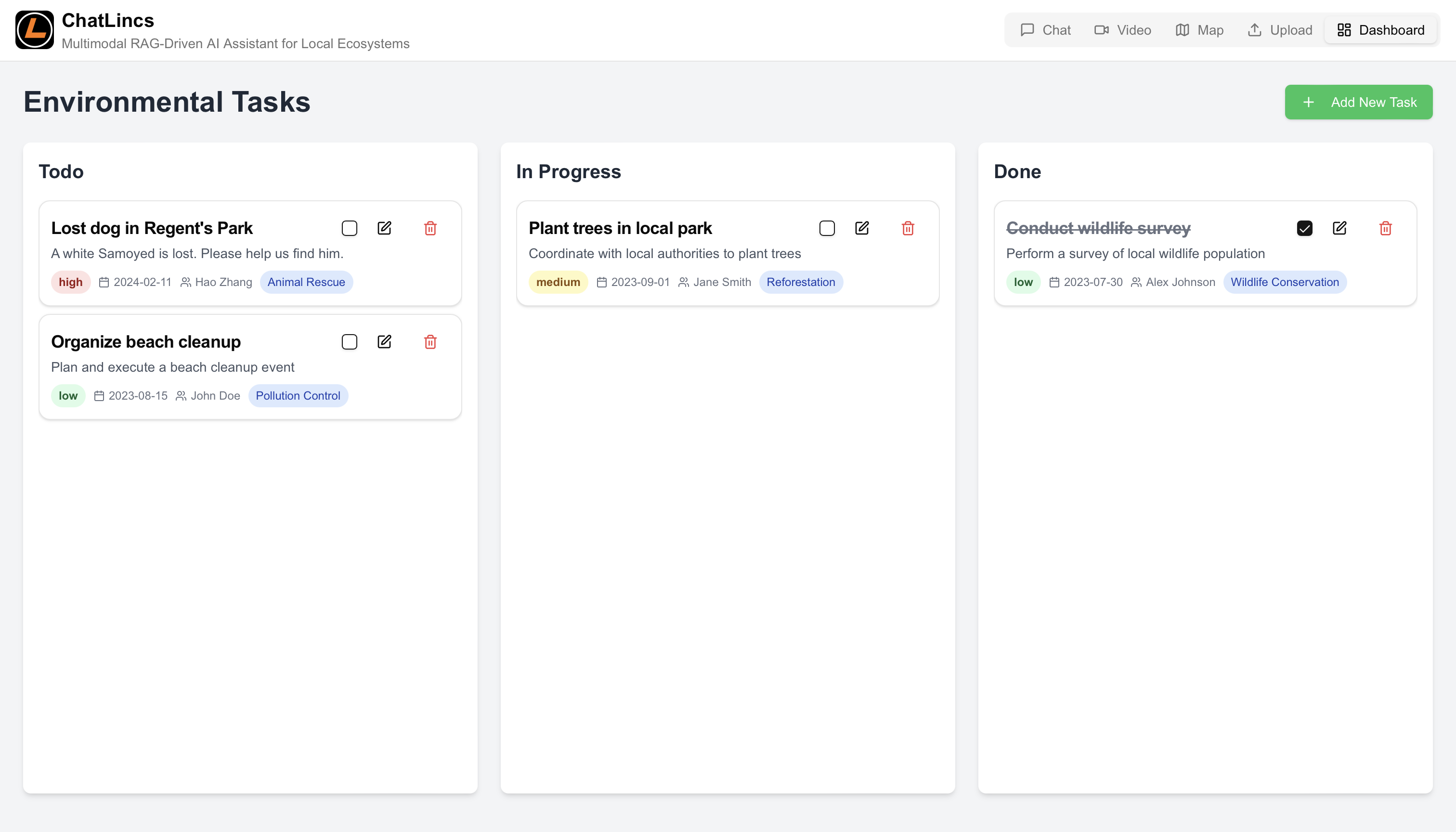
3. ✅ Task Management (Kanban Interface)
Efficiently organize and prioritize your tasks:
- Click "Dashboard" from the top-right menu.
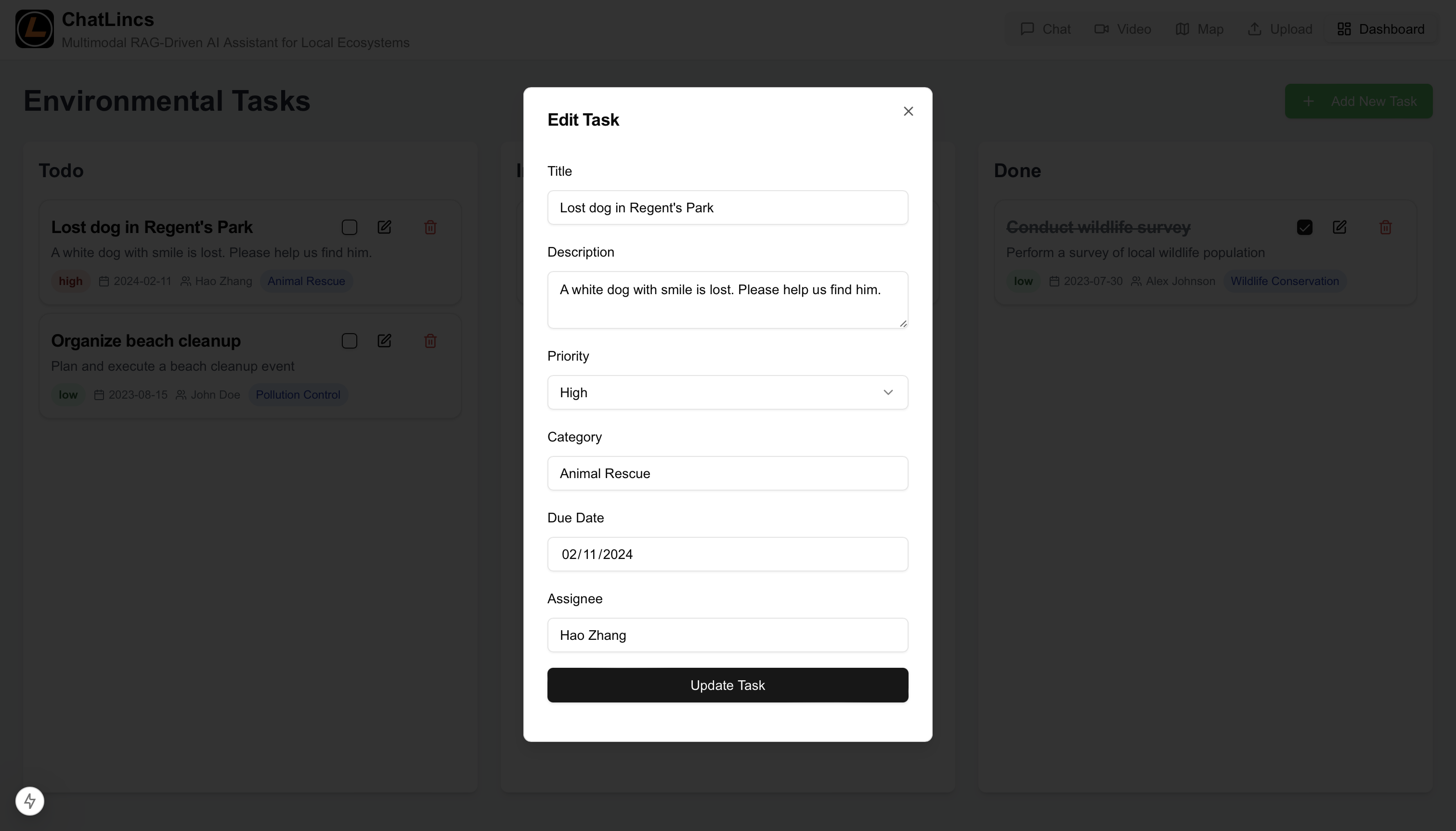
- Click "Add New Task".
- Enter task details:
- Title
- Description
- Priority (High, Medium, Low)
- Category
- Due Date
- Assignee
- Use Drag-and-Drop to move tasks across Todo, In Progress, and Done.
Example:
- Task: "Lost dog in Regent's Park"
- Description: "A white dog with a smile is lost"
4. 💬 Multimodal RAG
Engage in advanced retrieval-augmented conversations:
- Click "Chat" in the top-right menu.
- Check "Retrieve" to enable RAG-based search.
- Select the desired Collection from the dropdown.
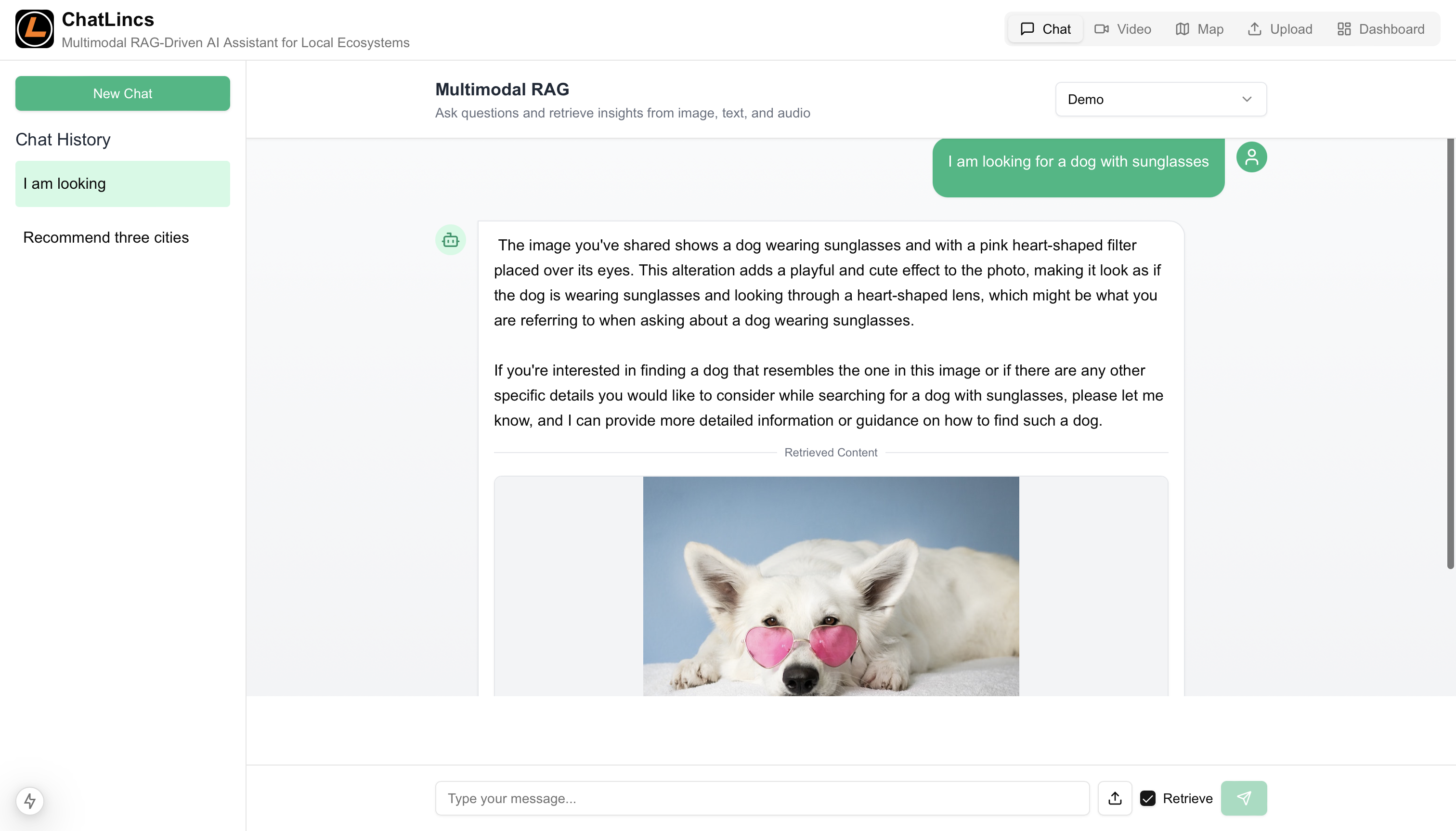
Example (Text Retrieval):
"I am looking for a dog with sunglasses."
→ Bot retrieves image and notes: “pink and heart-shaped sunglasses.”
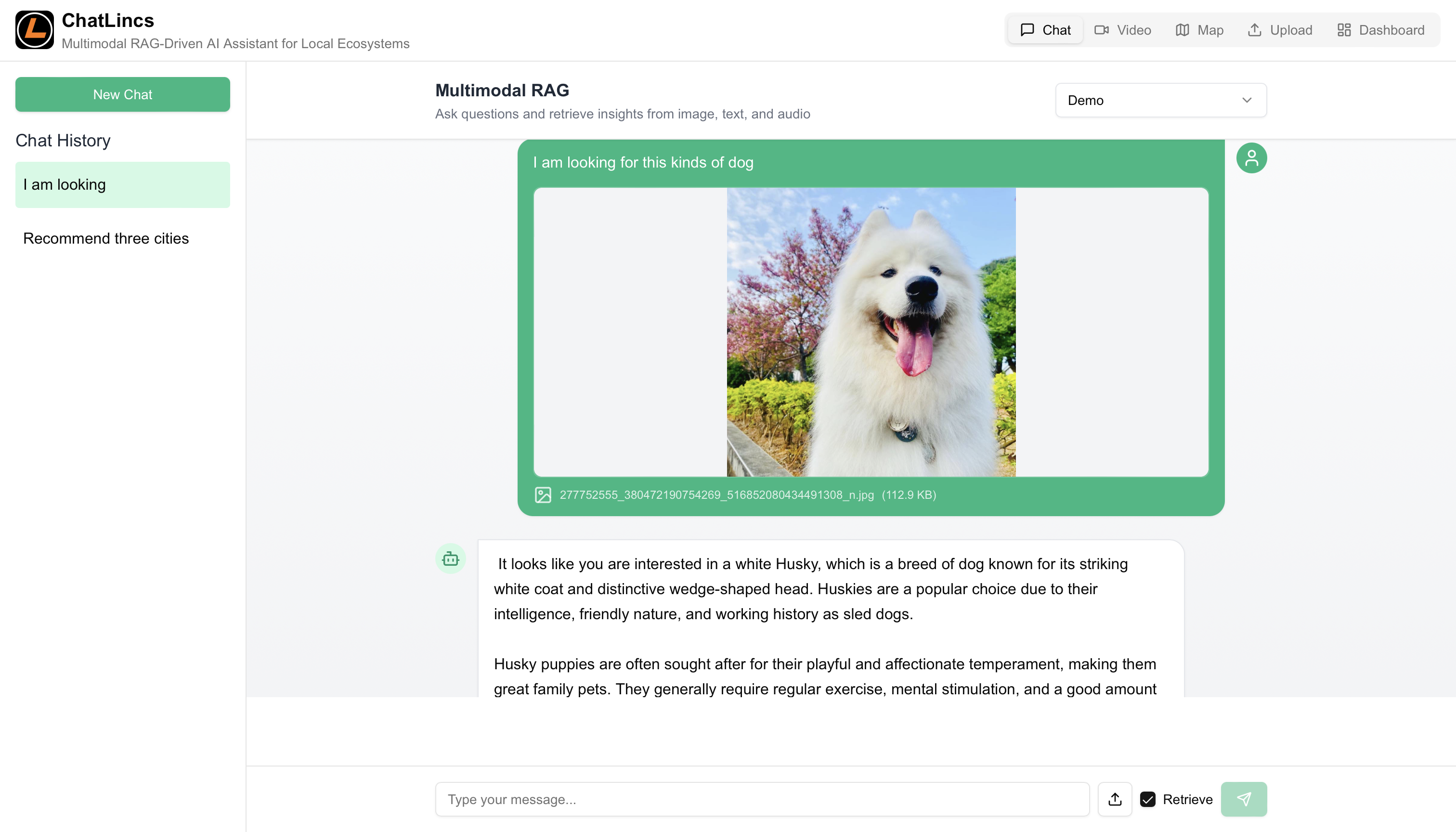
Example (Multimodal Retrieval):
- Click upload next to input box.
- Select an image and type a query.
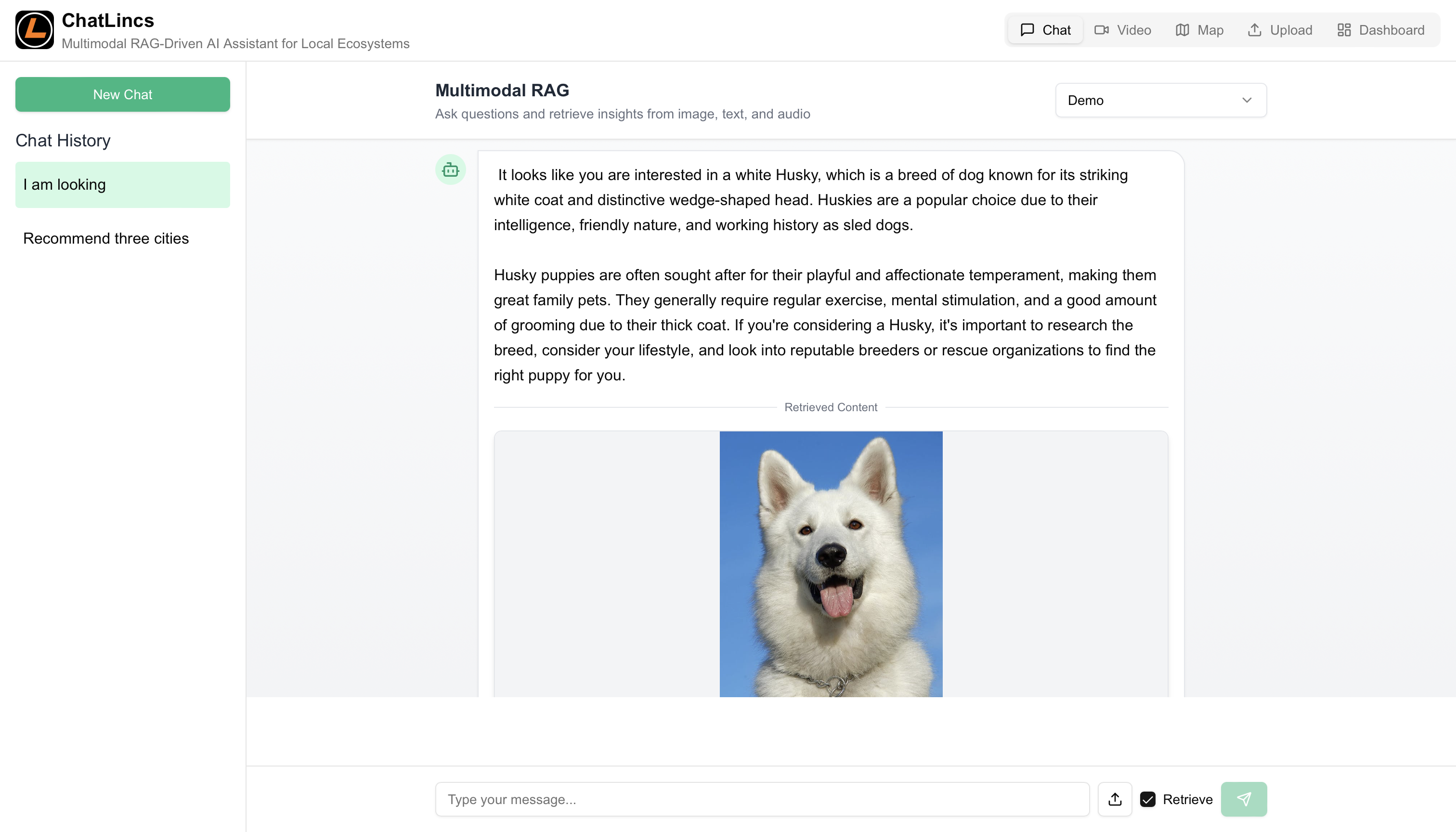
"I am looking for this kind of dog."
→ Bot retrieves visually similar dog image + context.
5. 🎬 Chat with Video
Interact with video content using AI-powered Q&A:
- Click "Video" in the top-right menu.
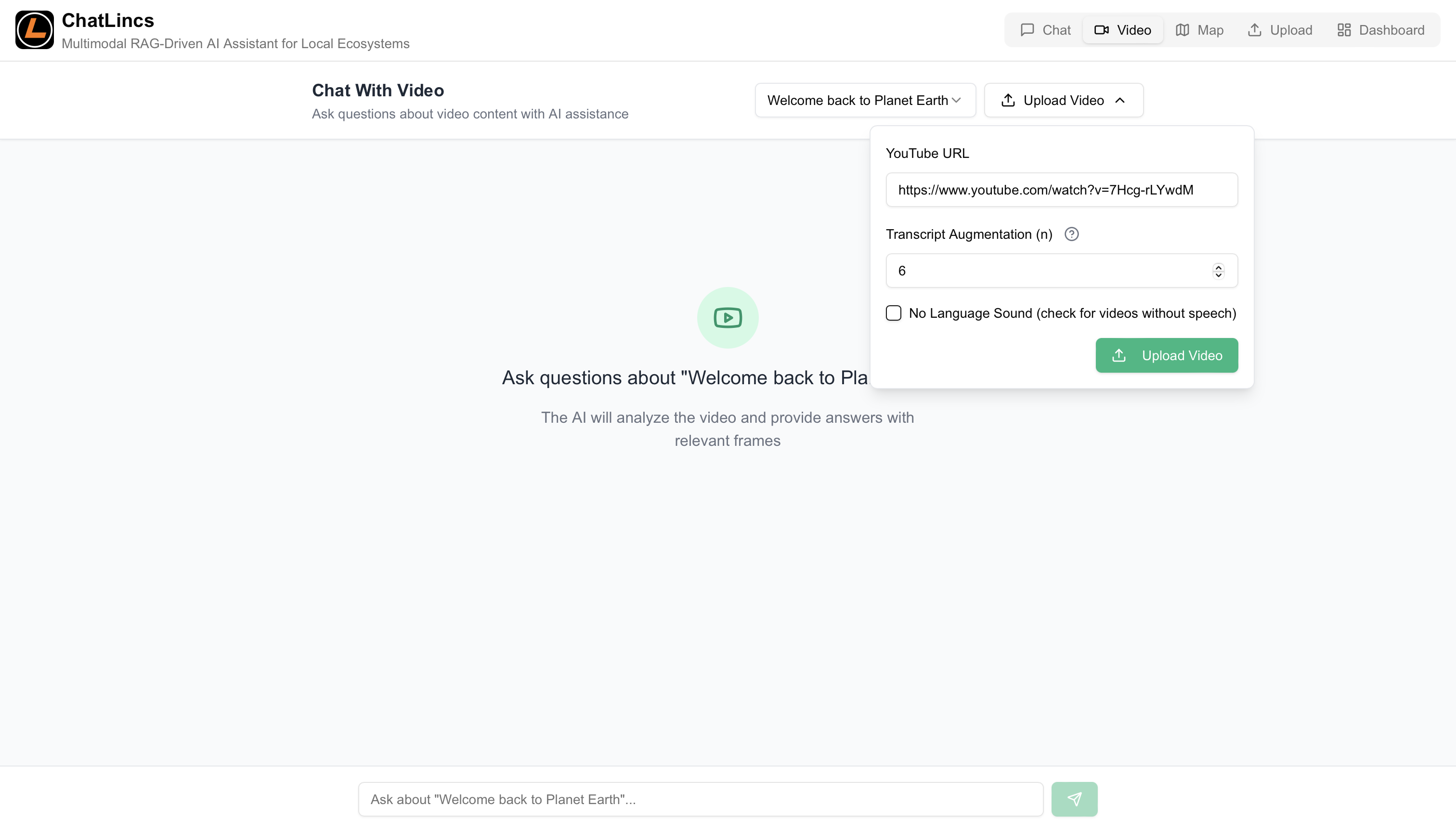
- Click "Upload Video".
- Paste YouTube URL.
- Optional: Set Transcript Augmentation (n).
- Check No Language Sound for silent videos.
- Click Upload. Processing may take time.
n controls how many transcript segments are combined. Test to optimize results.
Example:
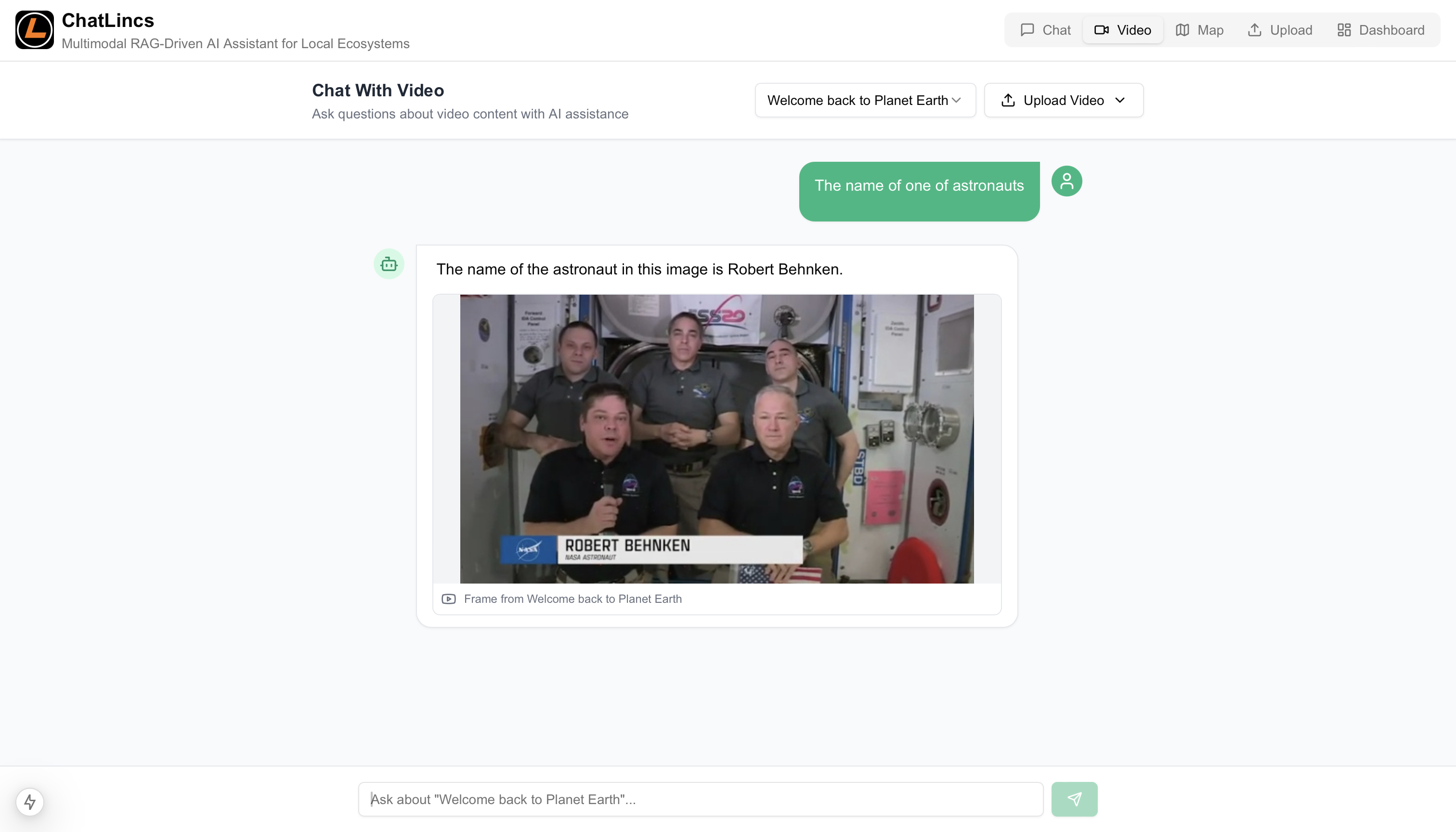
We upload the YouTube video "Welcome back to Planet Earth", documenting NASA astronauts Douglas Hurley and Robert Behnken’s return.

"What is the name of one of the astronauts?"
→ Bot identifies Robert Behnken and provides snippet.
🛠 Troubleshooting & FAQs
- Slow Upload/Processing: Use shorter videos with transcripts.
- Location Issues: Prefer precise addresses or coordinates.
- Docker Issues: Run
docker compose logsto debug.