Research
Related Projects
Data automation and reporting solutions have become essential for optimising project management and resource allocation across various businesses.
To determine the most effective approach to creating the customised reporting system for our client, Chanel, our team conducted a comprehensive analysis of the most effective technologies and existing automated reporting systems.
Our research focused on understanding how the popular modern software products utilise data automation tools, structure data pipelines and present data insights through visual dashboards.
Monday.com
Overview:
Monday.com is a cloud-based work platform that enables teams to manage projects, workflows, and collaborate in a highly visual and customisable way. It helps businesses to centralise project data and improve project visibility.
Key Features:
- Custom dashboards view: allows to visualises data using various widgets - Gantt charts, timelines, Kanban boards, progress tracking, and more.
- Automation: automates repetitive tasks - has auto-triggers, for example, for task status updates.
- Workload management: provides visual tracking of team capacity and task distribution.
- Integration: integrates with Jira, Slack, Zoom, Google Drive, and more.
What we learnt / Inspiration for Chanel project:
- Inspired us to use Power BI for dynamic report dashboards.
- Reinforced the need of Power Automate to eliminate manual tracking and exporting of data from Planner.
- Confirmed the importance of creating individual workload visibility - individual reports - one of core features of our solution.
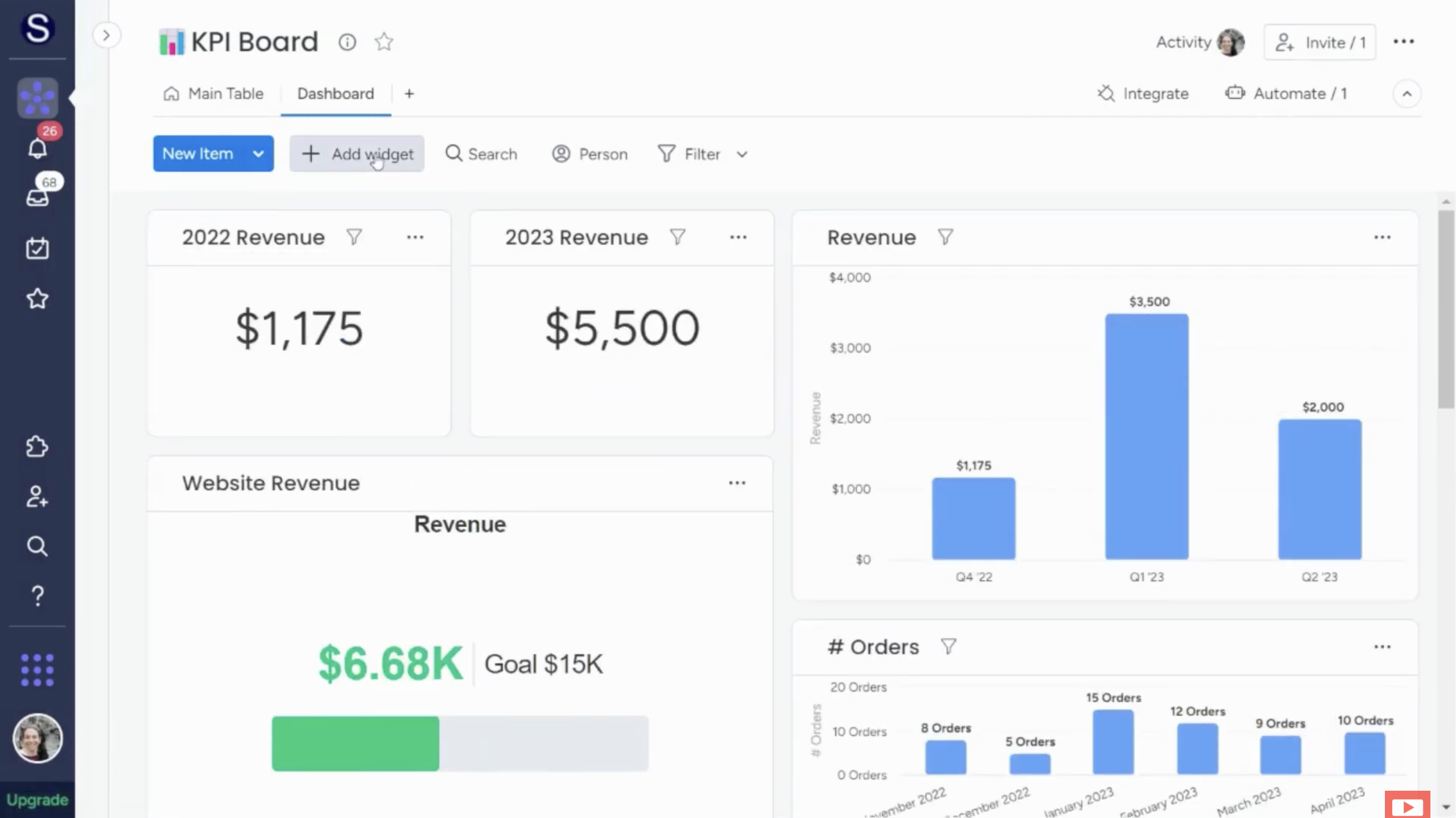
Source: YouTube video tutorial by "Mastering monday" channel
ClickUp
Overview:
ClickUp is an all-in-one productivity and reporting platform designed for task management, product development, goal tracking, and team collaboration.
Key Features:
- Hierarchical task management: organises tasks into structured workspaces.
- Custom dashboards view: allows to visualise data using various widgets - List, Board, Calendar, Gantt, and more.
- Time tracking: logs hours spent on tasks.
- Progress tracking: tracks progress toward objectives.
- AI for smart task suggestions.
- Cross-platform (web, mobile, desktop).
What we learnt / Inspiration for Chanel project:
- Highlighted the need to track individual performance, reflected in the Individual reports we implemented.
- Inspired our reporting to produce multiple visuals for a report type to provide alternative perspectives on metrics.
- Inspired us to use cross-platform design - to develop the Power App UI with adaptability for desktop and tablet screen sizes.

Source: ClickUp features
Jira (by Atlassian)
Overview:
Jira is a leading agile project management tool, designed for task tracking, reporting, and workflow optimisation. It is primarily used by software teams (also mentioned by our Chanel's software engineer) but it is adaptable to other workflows as well.
Key Features:
- Advanced reporting: burndown charts, velocity metrics, and backlog tracking.
- Issue tracking: logs tasks, bugs, and approvals.
- Custom filters: JQL (Jira Query Language) for advanced filtering and reporting.
- Agile workflow management: scrum and kanban Boards.
What we learnt / Inspiration for Chanel project:
- Reinforced the importance of creating interactive dashboards using Power BI.
- Highlighted the benefits of custom filters for the reports dashboard in Power BI.
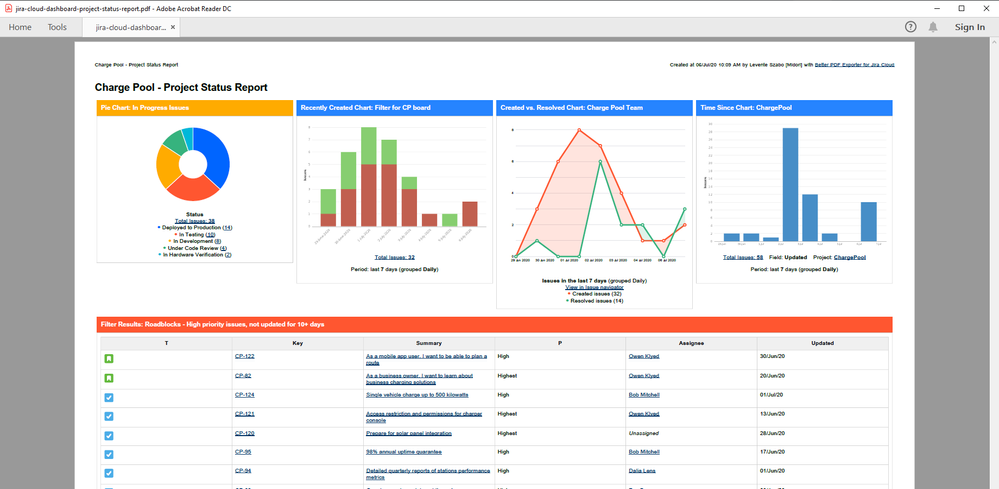
Source: Atlassian Community: Jira Reporting for Team
Research Conclusion
Our research into leading project management platforms inspired us by demonstrating the power of dynamic dashboards, automation, and workload analytics. However, these tools are built for generic project management and fail to address Chanel’s specific business needs, particularly within the Digital Creative and Copywriting teams.
The key gap in the existing solutions is the lack of the native integration with Microsoft Ecosystem. This is a major drawback since Chanel relies heavily on Microsoft Tools (for example, Microsoft Planner).
Additionally, most platforms focus on tracking task completion but cannot seamlessly track intrinsic metrics of the tasks within Chanel’s Creative Department (for example, types of delivery).
Our research highlighted the need for a custom-built solution for Chanel. The solution we came up with provides seamless integration with Chanel’s existing Microsoft ecosystem and workflows, and automated generation of reports customised to Chanel’s business needs.
Technology Review
Our Automated Report Generating System is designed to automate the collection, storage, and visualisation of project and task data from Microsoft Planner. Using Microsoft Power Platform tools - Power Automate, SharePoint Lists, Power BI, and Power Apps - our team created an efficient, automated reporting system that provides insights into team and individual performance within Chanel’s Creative Department.
Below is an overview of the technologies considered and selected for this system.
Considered Tech Stacks
| Criteria | Microsoft Tech Stack | Non-Microsoft Tech Stack |
|---|---|---|
| Front-End | Power Apps (low-code, drag-and-drop UI) | Next.js + MUI (custom, highly flexible UI development) |
| Back-End | Power Automate (workflow automation) | Prisma + JavaScript (manual API and database connections) |
| Data Storage solution | SharePoint Lists (built-in integration with Microsoft tools) | PostgreSQL (more control, requires hosting and maintenance) |
| Data Visualization | Power BI (native dashboards, easy integration) | ApexCharts.js (custom but requires development effort) |
| Authentication | Single Sign-On (SSO) with Microsoft 365 (2FA authentication) | Auth.js (flexible, requires setup for different authentication methods) |
| Scalability | Scales well within Microsoft ecosystem, limited outside | Fully scalable but requires setup and more maintenance efforts |
| Integration | Seamless with Microsoft apps (Teams, Planner, Project, SharePoint) | Custom integrations needed with external services |
| Pricing | Requires Microsoft 365 & Power BI licenses (already owned within Chanel) | Mostly free, but hosting costs apply (e.g., AWS for PostgreSQL) |
After dicussion with Chanel, they expressed a preference for the Microsoft tech stack as it aligns better with their exisitng Microsoft ecosystem.
Overview of Microsoft Tech Stack
Power Automate
Why Power Automate?
Power Automate was selected due to no-code integration with other Microsoft tools, in particular, to automate the extraction of data from Microsoft Planner and store it in SharePoint Lists, eliminating manual export and data entry. Additionally, this tool ensures prompt synchronisation of data between the Planner and Power BI for up-to-date reporting experience.
Key Features:
- Automatically retrieves data from Microsoft Planner, using Planner's API, and stores it into SharePoint List.
- Scheduled workflow execution ensures daily updates of data in SharePoint List.
- Has an error handling: logs failed operations and retries fetching data when necessary.
- Provides dynamic data processing: cleans and structures raw data before storing it in SharePoint List.
SharePoint Lists
Why SharePoint List?
SharePoint List was chosen as the centralised data storage solution due to its structured data storage capabilities (rows and columns format) and seamless integration with Power BI and Power Apps. In addition, it Eliminates the need for an external database (SQL or Dataverse) and the associated extra costs and allows direct querying of data from Power BI.
Key Features:
- Provides a centralised data storage: stores all task and project data in a single place and single format.
- Works with Power Automate for regular data updates: Power Automate automatically updates SharePoint Lists with new data from Planner.
- Seamless integration with Power BI and Power Apps: Power BI and Power Apps connect directly to Share Point List as to a data source, no need for extra connectors.
- Allows to set up Role-Based Access control for Power Apps: provides a way create a setup to restrict reports access in Power Apps based on user roles.
Power BI
Why Power BI?
Power BI was selected as the primary reporting tool due to its powerful analytics capabilities and seamless compatibility with SharePoint List and Power Apps. It enables to create customised visual reports on individual and team performance from the most recent data for Chanel.
Additionally, it was selected since it enables direct connection and query of SharePoint List data with no need to set up additional connectors, and Power BI dashboards can be seamlessly embeded into Power Apps.
Key Features:
- Provides interactive dashboards and allows users to apply filters to reports.
- Scheduled daily refresh: ensures that reports reflect the most recent data.
- DAX (Data Analysis Expressions): allows for custom calculations for data analytics.
- Drill-Down capabilities: enable users to explore graph’s details dynamically.
- Report dashboards can be embedded into Power Apps.
Power Apps
Why Power Apps?
Power Apps was chosen to develop a simple, user-friendly, custom interface for interacting with reports. It allows to create the interface, which is easy to navigate even for non-technical users. Additionally, it allows to integrate role-specific access to reports set up in SharePoint List.
Key Features:
- Provides interactive UI filtering Power BI reports: users can view and filter the reports without modifying the Power BI or data directly.
- Seamless embedding of Power BI interactive dashboards.
- Tablet and Desktop view: enables on-the-go access to project insights from these two devices.
Microsoft Security & Permissions
To ensure secure and role-based access to reports within Power Apps, the project uses Microsoft Single Sign-On (SSO) with built-in two-factor authentication (2FA). This provides an added layer of security by requiring both user credentials and a second verification step.
Authorization is managed through SharePoint Lists, which define user roles and assign access to specific reports based on those roles. This setup is used in particular within Power Apps to direct users to the right reports pages.
Key Features:
- Role-Based Access Control (RBAC): restricts data access based on user roles.
- Single Sign-On (SSO) with Microsoft 365: ensures seamless authentication for Chanel employees with their existing work emails.
- Permissions configured in SharePoint List restrict access to reports within Power Apps to authorised users only.
Summary of Technical Decisions
After evaluating various technologies, our team made the following decisions for implementing Chanel’s automated reporting system.
| Type | Decision |
|---|---|
| Data Storage | SharePoint Lists (structured, cloud-based) |
| Data Automation | Power Automate (automates data extraction) |
| Data Visualisation | Power BI (interactive reports dashboards, data analytics) |
| User Interface | Power Apps (custom user interface for navigating reports) |
| Security & Access Control | Microsoft SSO + SharePoint List (for role-based permissions) |
Our research confirmed that using the tech stack above would allow us to create a secure and efficient automated reporting system which seamlessly integrates with the existing Microsoft ecosystem at Chanel.
References
[1] “Monday.com: Features - Dashboards,” Monday.com. [Online]. Available: https://monday.com/features/dashboards. [Accessed: 15-Dec-2024].
[2] “ClickUp: Features - Dashboards,” ClickUp. [Online]. Available: https://clickup.com/features/dashboards. [Accessed: 15-Dec-2024].
[3] “Jira | Features,” Atlassian. [Online]. Available: https://www.atlassian.com/software/jira/features. [Accessed: 15-Dec-2024].
[4] “Power BI: Publish to Web,” Microsoft.com. [Online]. Available: https://learn.microsoft.com/en-us/power-bi/collaborate-share/service-publish-to-web. [Accessed: 29-Feb-2025].
[5] “Power BI: Refresh Data,” Microsoft.com. [Online]. Available: https://learn.microsoft.com/en-us/power-bi/connect-data/refresh-data. [Accessed: 04-Mar-2025].
[6] “Steps to building a model-driven app - Power Apps | Microsoft Learn,” Microsoft.com. [Online]. Available: https://learn.microsoft.com/en-us/power-apps/maker/model-driven-apps/app-building-steps. [Accessed: 08-Feb-2025].
[7] “Work with any data - Power Apps,” Microsoft.com. [Online]. Available: https://learn.microsoft.com/en-us/power-apps/maker/data-platform/work-with-any-data. [Accessed: 08-Feb-2025].
[8] “Power Automate Standards: Flow Architecture & Design Tips,” Microsoft.com. [Online]. Available: https://www.matthewdevaney.com/power-automate-coding-standards-for-cloud-flows/power-automate-standards-flow-architecture-design-tips/. [Accessed: 07-Feb-2025].
[9] “Why understanding abstractions can help you write better code,” Dynamics.com. [Online]. Available: https://community.dynamics.com/blogs/post/?postid=9787e3a9-48ff-4b35-9006-9210ba0b9407. [Accessed: 07-Feb-2025].
[10] “Power Platform Governance: How to Scale and Transform Your Management,” Avepoint.com. [Online]. Available: https://www.avepoint.com/uk/ebooks/power-platform-governance-how-to-scale-and-transform-your-management-for-sustainable-adoption [Accessed: 09-Feb-2025].
[11] “Agent builder in Power Apps | Microsoft Learn,” Microsoft.com. [Online]. Available: https://learn.microsoft.com/en-us/power-platform/release-plan/2024wave2/power-apps/agent-builder-power-apps. [Accessed: 16-Jan-2025].
[12] “Redefine development: AI-first innovation with agents and Microsoft Copilot,” Microsoft.com. [Online]. Available: https://www.microsoft.com/en-us/power-platform/blog/2024/11/19/redefine-development-ai-first-innovation-with-agents-and-microsoft-copilot-in-power-platform/. [Accessed: 20-Jan-2025].
[13] “Customize Copilot with knowledge and custom topics | Microsoft Learn,” Microsoft.com. [Online]. Available: https://learn.microsoft.com/en-us/power-platform/release-plan/2024wave2/power-apps/customize-copilot-knowledge-custom-topics. [Accessed: 16-Jan-2025].
[14] “Microsoft Power Apps – Build Apps with AI | Microsoft,” Microsoft.com. [Online]. Available: https://www.microsoft.com/en-us/power-platform/products/power-apps. [Accessed: 10-Feb-2025].