
Our testing strategy includes various types of testing to ensure the functionality, performance, and user experience of the system.
Our backend application incorporates automated testing using pytest with a focus on API integration tests.
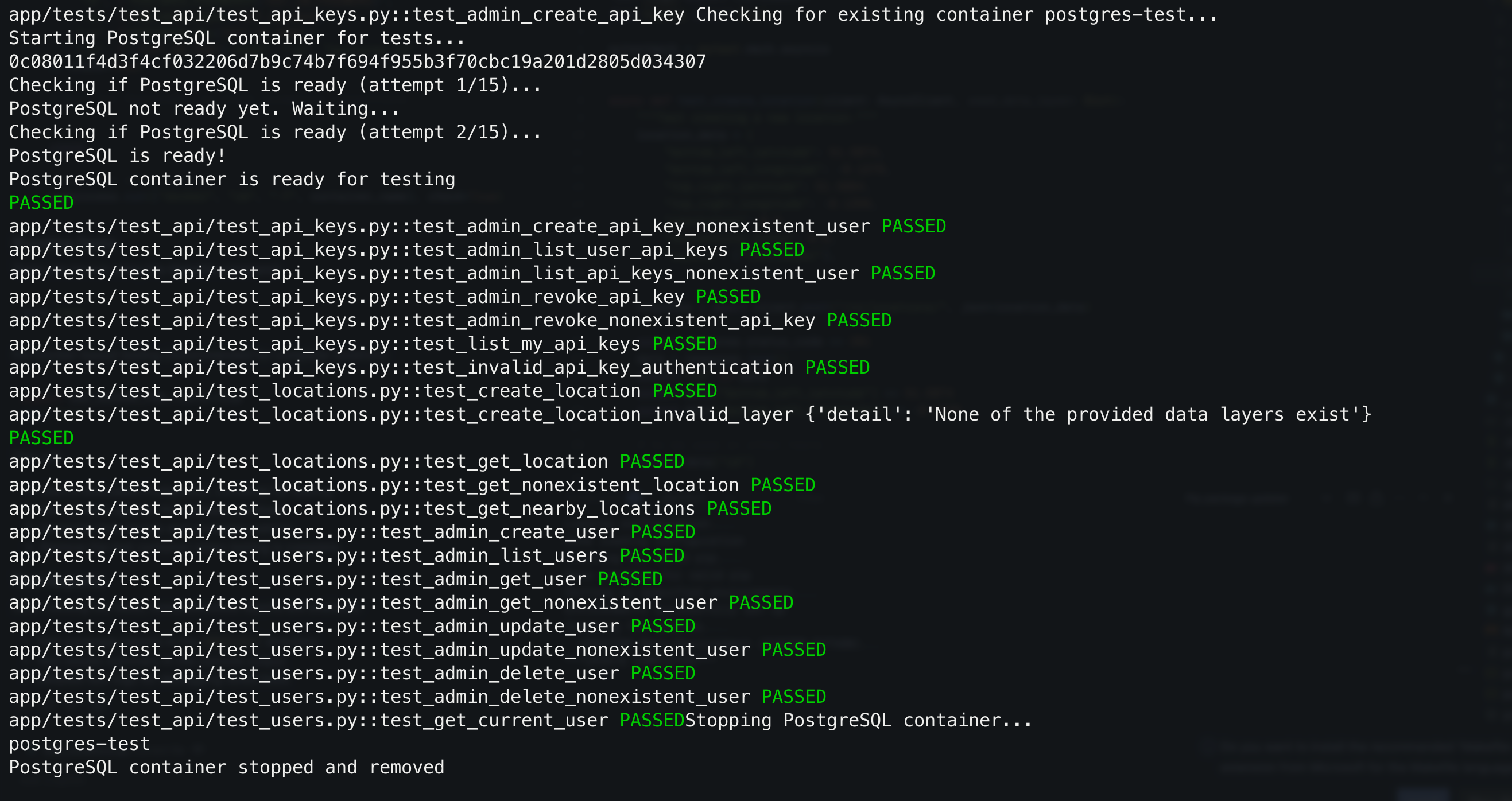
The backend application incorporates automated testing using pytest with a focus on API integration tests. The test suite, amassing 23 tests in total, validates both database interactions and API functionality through the HTTP layer. All of these tests pass as demonstrated in the screenshot below:
Our unit tests focus on validating individual components and functions. In most cases these are either utility function or service class functions. An example of a unit test is demonstrated below:
async def test_api_key_hashing():
    """Test that API key hashing is consistent."""
    api_key = generate_api_key()
    hashed_key = hash_api_key(api_key)

    assert hash_api_key(api_key) == hashed_key

    different_key = generate_api_key()
    assert hash_api_key(different_key) != hashed_key
This function validates the api key hashing system which is a single unit of code that is incorporated into our API.
Integration tests verify the interaction between components and validate the API. These are used to validate a complete flow of data from source to destination, triggering operations between components, simulating real API requests and behaviour that occurs during them. Most of the integration tests we have are tests specific for certain API endpoints that test interaction between multiple schemas. An example of such a test is shown in the snippet below:
async def test_create_location(client: AsyncClient, seed_data_layer: Dict):
    """Test creating a new location."""
    location_data = {
        "bottom_left_latitude": 51.5074,
        "bottom_left_longitude": -0.1278,
        "top_right_latitude": 51.5084,
        "top_right_longitude": -0.1268,
        "resolution": 0.5,
        "reliability_score": 0.9,
        "layers": ["test_layer"],
    }

    response = await client.post("/v1/locations/", json=location_data)

    assert response.status_code == 201
    data = response.json()
    assert "id" in data
    assert data["bottom_left_latitude"] == 51.5074
    assert data["bottom_left_longitude"] == -0.1278
This test uses the separate client used just for testing in order to invoke an api request to create a location, which in turn interacts with the database. The output is then validated, hence testing the whole flow from request to database and back.
Below is a summary of the components that were tested and specific test cases for each:
The test suite utilizes Docker to run the tests in complete isolation. A separate Docker container is created where all the tests run, then is detached. Below is the snippet of code that implements the containerisation:
@pytest.fixture(scope="session", autouse=USE_DOCKER_FOR_TESTS)
def setup_docker():
    """Set up a Docker container for PostgreSQL if needed."""
    container_name = "postgres-test"

    # Start PostgreSQL container
    subprocess.run([
        "docker", "run", "--name", container_name,
        "-e", f"POSTGRES_PASSWORD={TEST_DB_PASSWORD}",
        "-e", f"POSTGRES_USER={TEST_DB_USER}",
        "-e", f"POSTGRES_DB={TEST_DB_NAME}",
        "-p", f"{TEST_DB_PORT}:5432", "-d", "postgres:13"
    ], check=True)

    # Wait for PostgreSQL to start accepting connections
    # ...

    yield

    # Clean up after tests
subprocess.run(["docker", "rm", "-f", container_name], check=True)Tests can be run using the Makefile command:
make testFor Docker-based testing (recommended for complete isolation):
export USE_DOCKER_FOR_TESTS=true
make test
This will:
Our methods involved rigorous testing to evaluate accessibility features and UI design.
The main component of our product deliverables was the frontend
widget. It was crucial to test our product with people with a
spectrum of impairments in order to accommodate for a large variety
of accessibility needs.
Testing Session 1
We conducted two testing sessions with the members of the visually
impaired community. The first session was conducted in mid-December
and was used to discuss our prototype and finalize design decisions.
It was conducted with one member of the visually impaired community.
The session was online, however, that did not affect the session too
much as the prototypes and sketches could be shown online. The
session was in the form of a semi-structured interview.
Results
This session proved to be quite useful. The member liked our design
a lot, however, stressed that the dark theme should be improved to
high contrast. He also said that he would be less likely to use the
widget as he usually requires assistance when he moves around and
would be cautious to trust the product. He had good ideas about
adding warnings to data points, and he also suggested adding data
points such as lamp-posts. However, creating functionality like
adding more data layers is outside of our scope (was in scope of
Team 15's project.)
Testing Session 2
The second session was more important. It was conducted at the
beginning of March, when we were finalizing our design. The GDI Hub
organized a testing session with 8 members of the visually impaired
community at UCL East. We first interviewed 4 of the group members
individually, in the form of a semi-structured interview, continuing
with a joint discussion with other 4 members.
Results
The session proved to be very useful. We got great feedback on the
speech interface, however, small details such as the accent of the
speech synthesizer proved to be important. They also had
constructive feedback on the focus mode feature, which they found to
be extremely useful. They said that it should have zoom
functionality, which we then implemented. They really liked the
community feature and even suggested that we give access to the
database to local councils to improve accessible urban planning. We
were surprised by the fact that 3 out of 8 did not use any
navigation tools to help navigate, and of the 5 that did, only one
used Google Maps. Actual navigation technology (as we only provide a
visual representation of data in an accessible way), was outside the
scope of our requirements, however, we did put integration with
navigation tools like Soundscape in our future work.
Testing Session 3
We also conducted a testing session with the students who visited
our labs. Due to time constraints, the testing session was
completely structured, in the form of a questionnaire. The results
of our questions can be seen below.
Testing Demographic:
- 15 teenagers, ages 16-18, all male
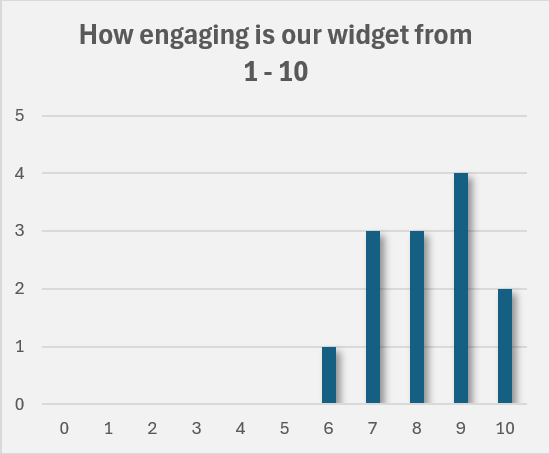
This chart shows how users rated the engagement of our widget on a scale of 1 to 10.
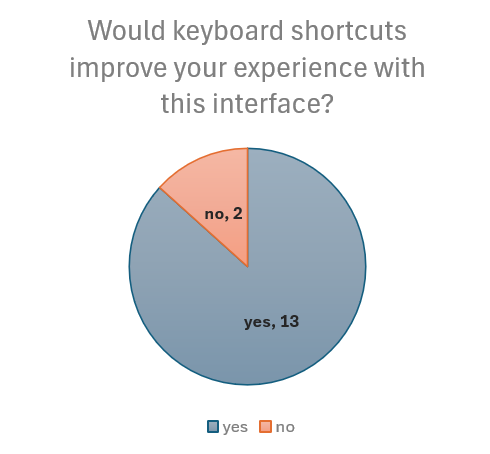
This chart highlights user feedback on whether keyboard shortcuts would enhance their experience.
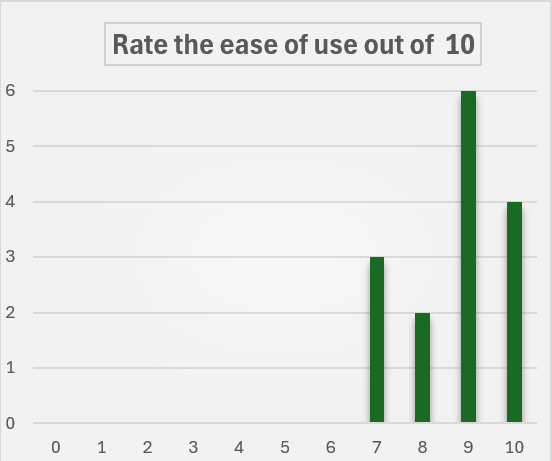
This chart displays user ratings for the ease of use of the widget on a scale of 1 to 10.
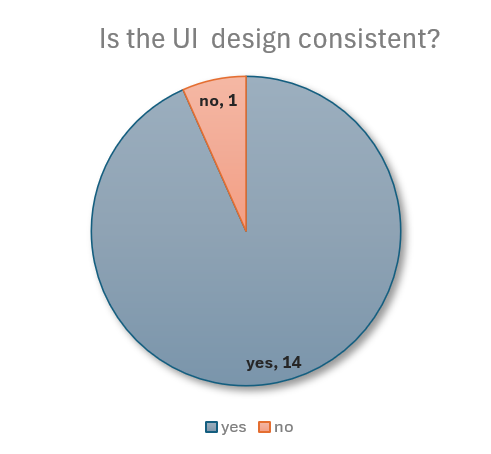
This chart shows user feedback on whether the UI design is consistent across the application.
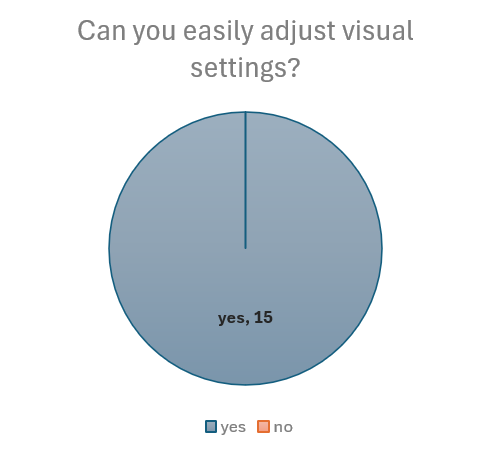
This chart highlights user responses on whether they could easily adjust visual settings.
We got very good feedback from our testers. Even when asked to be very critical, the testers gave our design an average score of 8.2 / 10. Furthermore, most of the members of the visually impaired community that we interviewed and that regularly used technology to help navigate around said that they think that the technology would be useful to them. They were all incredibly excited about the prospect of moving into the direction of more accessible technology, and finally being more independent when moving around.
We got very good feedback from our partners when they tested the product. We had meetings with them every week, so they could see a nice progression in the UI and also provided valuable feedback (especially about implementing clustering technology and creating a sidebar instead of a "top-bar"). They were also excited to take this further and try and integrate it with their existing technology (especially Soundscape).
We tested the application with a variety of browsers to ensure compatibility. We tested with the most-widely used browsers - Chrome, Safari, Firefox, and Edge. The widget properly loads on all, however, the speech interface doesn't work on Firefox. All the other features work on Firefox which means that this is an issue with the Azure Speech SDK and not our fault, alas, still a shame.