This section provides step-by-step instructions and visual aids to help users navigate and use the application effectively.
Version 1.0
The Accessible Location Widget is a web-based navigation tool designed to assist users, particularly those with mobility impairments, in identifying accessible pathways and services within their vicinity.
The application integrates with Google Maps to provide real-time location tracking while overlaying specialized accessibility data layers. These layers include visual indicators for zebra crossings and wheelchair service locations, facilitating safer and more informed navigation.
This manual is structured to serve a diverse user base, including individuals with disabilities, caregivers, urban planners, and accessibility advocates. The documentation assumes basic familiarity with web applications but provides sufficient detail to accommodate users with varying levels of technical proficiency.
Legacy browsers may experience reduced functionality due
to reliance on contemporary JavaScript APIs.
Pop-ups must be enabled to use the widget.
Additionally, to use the widget, the browser must support
geolocation services (location).
In order to use microphone and audio functionality, the
microphone on your device must be available and give
permissions to the website using our widget.
Upon opening a website implementing our widget, you are greeted with a home page with a search bar for entering your current location. You could also open the AccessMap and the widget will ask for your permission to share your location.
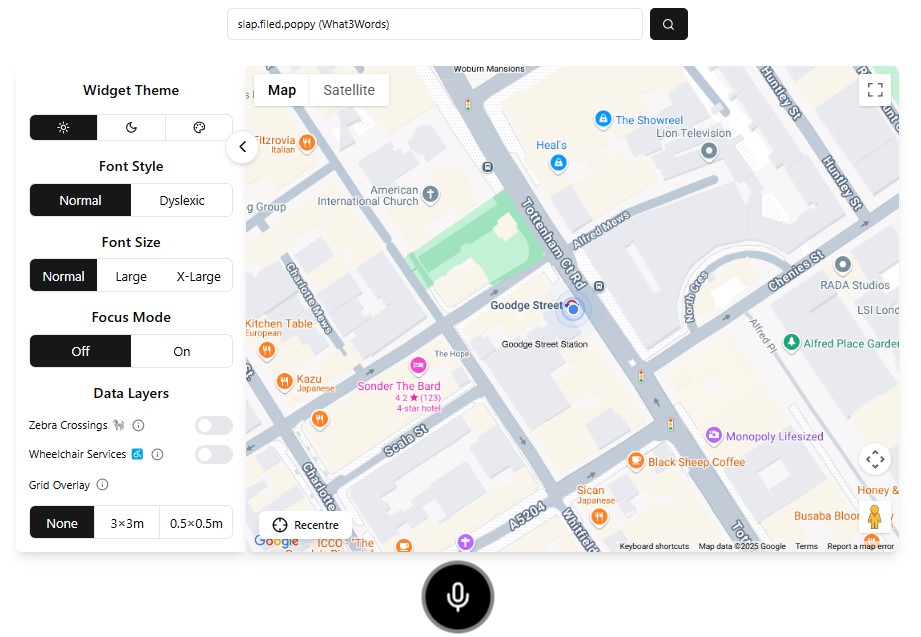
At the top center of the widget, the search bar allows users to find specific locations in three ways:
The map recenters smoothly over 0.5 seconds to display the selected location, preventing abrupt interface changes.
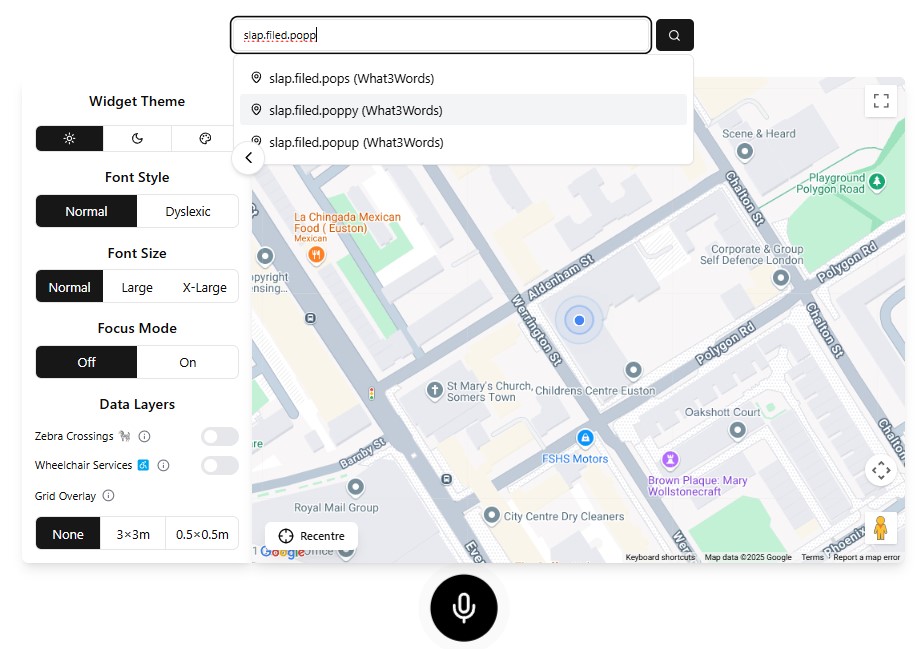
The search bar has autocomplete search so you can spend less time typing. Enter a location and a drop down menu will appear below of predicted search results.
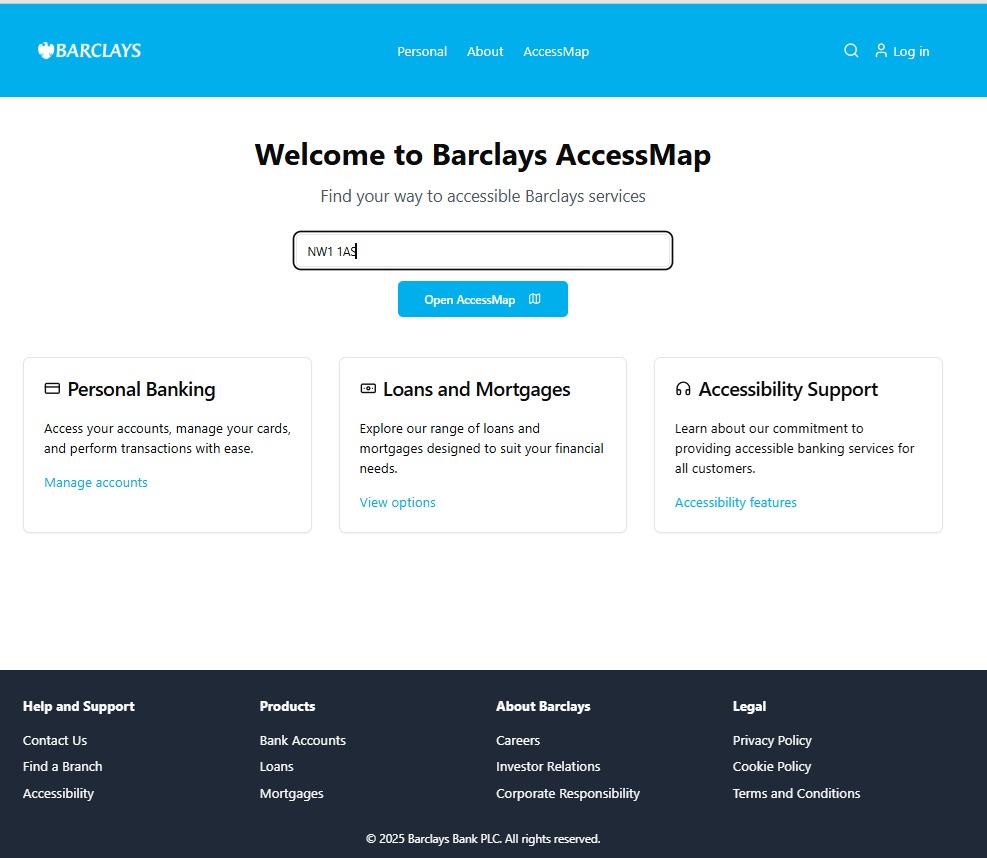
Type an Address, Postcode, or What3Words code. Alternatively, you can open the AccessMap and your location will be queried.
Access zebra crossing locations and get navigation directions via Google Maps with a simple press of a button or completely hands-free.
View all marked pedestrian crossings in your area
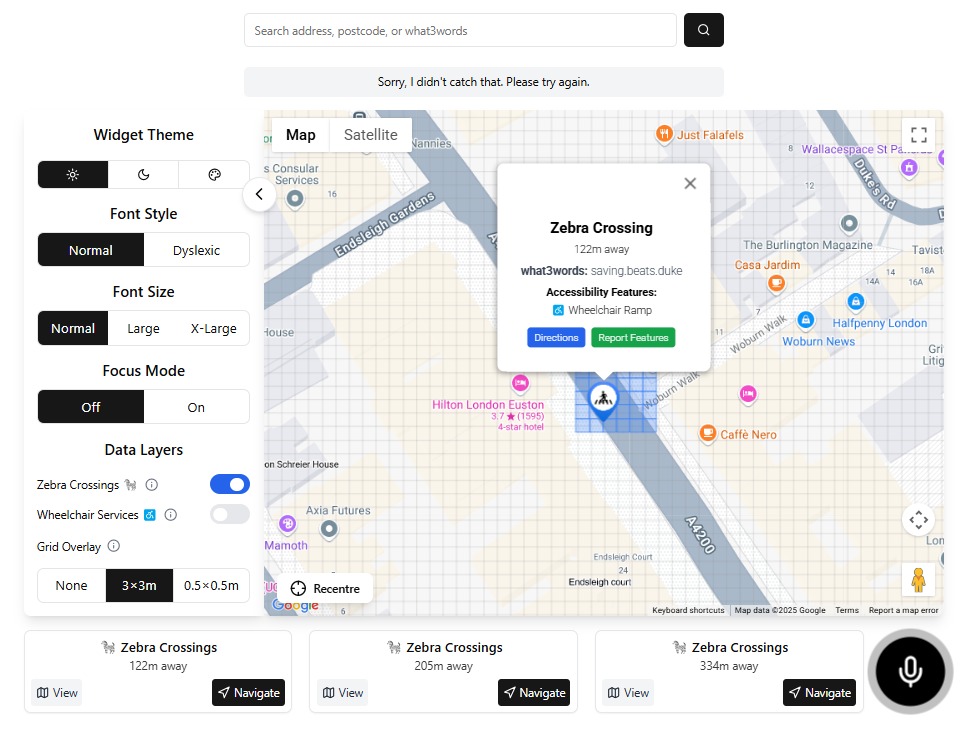
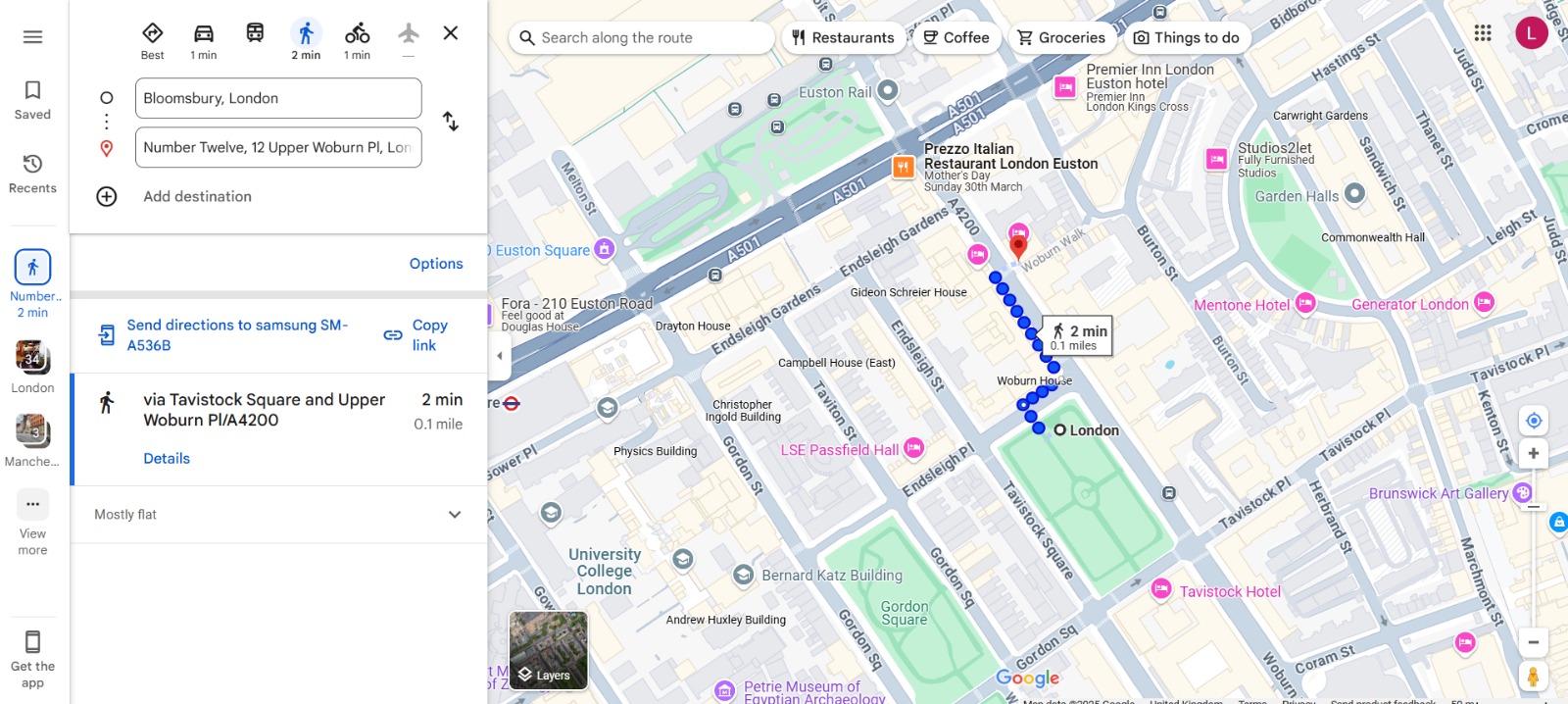
After pressing on a data layer such as a zebra crossing, click the Directions button in blue. This will send you out of the widget and onto Google Maps where the shortest path will be calculated and given to you.
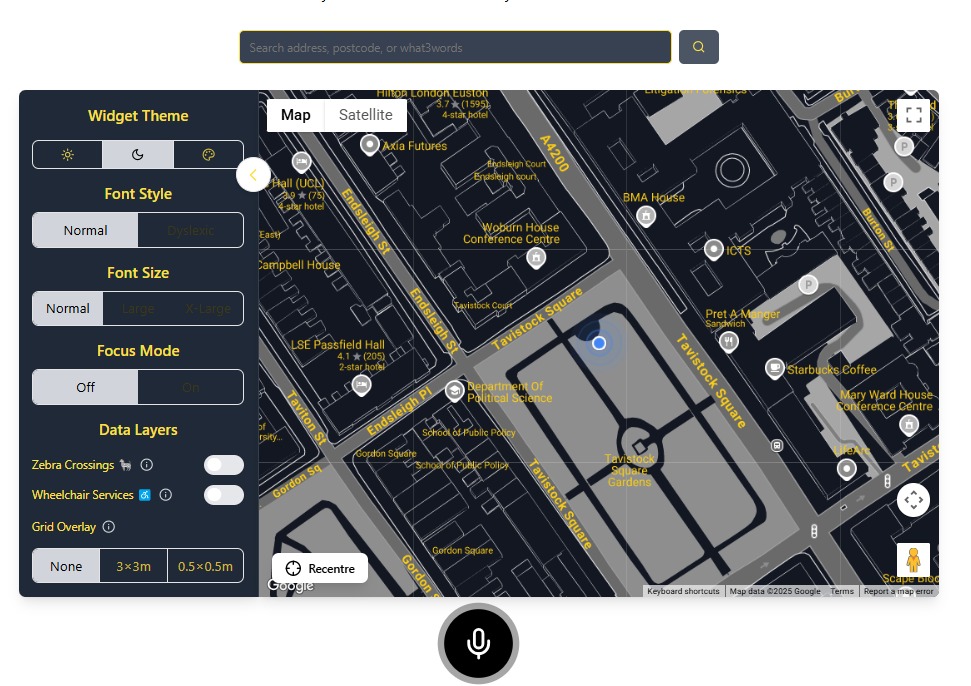
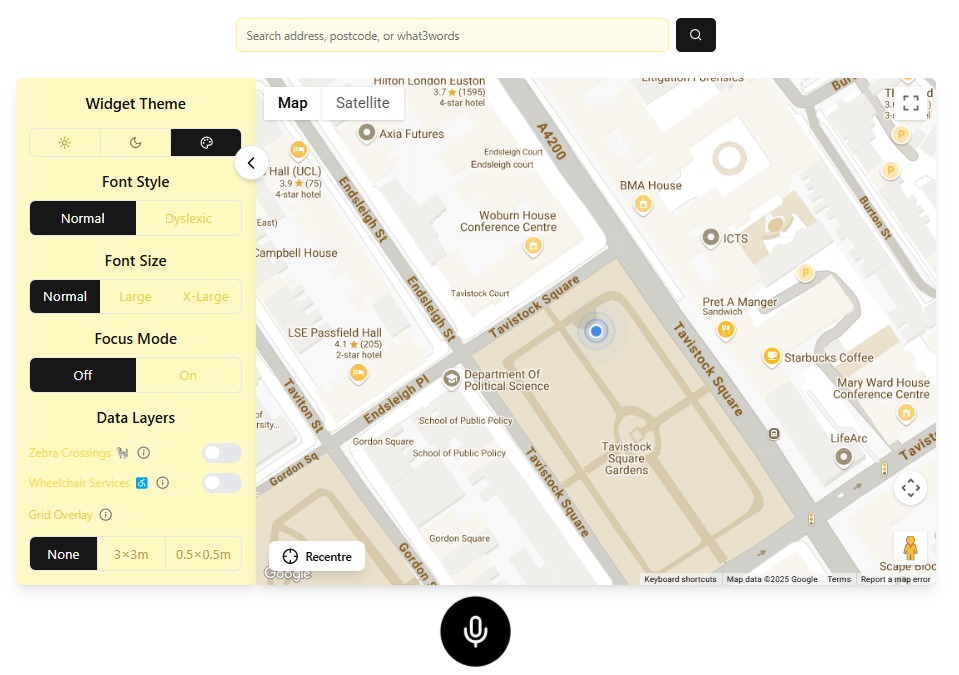
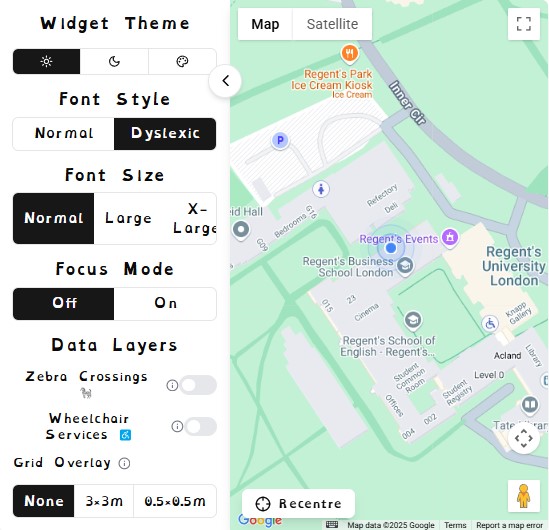
The widget allows users to switch between different display themes to enhance visibility based on personal preference and lighting conditions.
Best for standard indoor lighting conditions, click the sun icon under Widget Theme
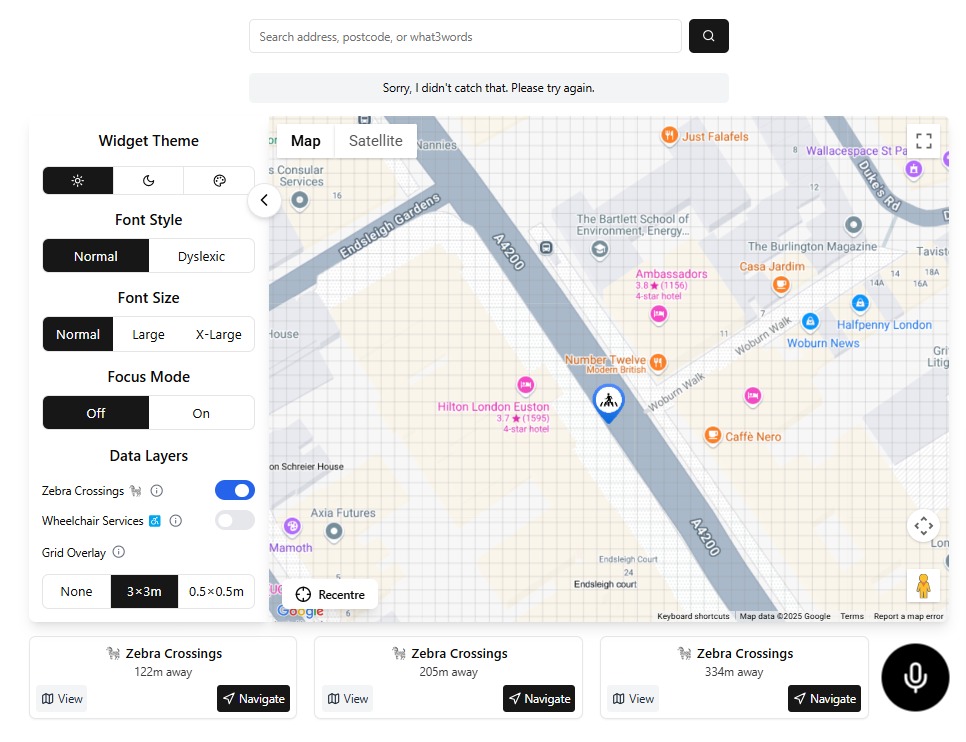
Users can customize the font style and size to improve
readability.
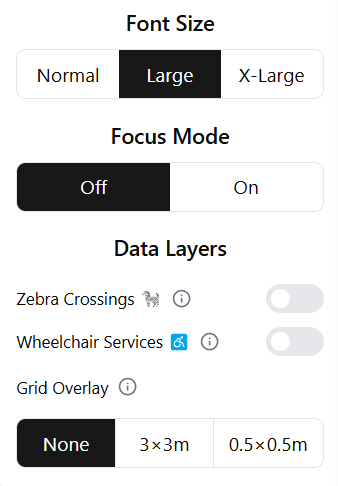
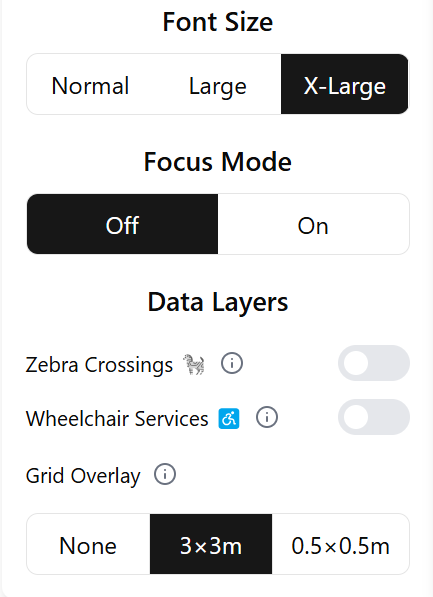
Changing the font size scales up the font, as well as the
entire widget making it easier to see.
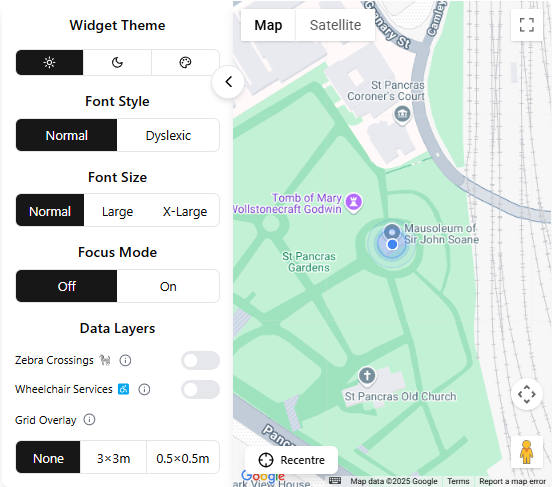
20px - Enhanced readability
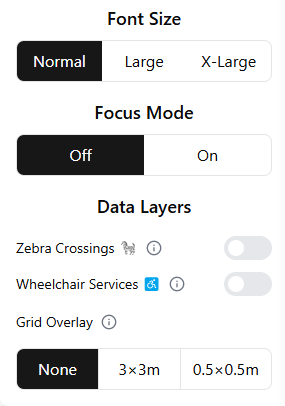
16px - Default size
Simplified layout for distraction-free interface.
Toggle on in the customizable menu on the left
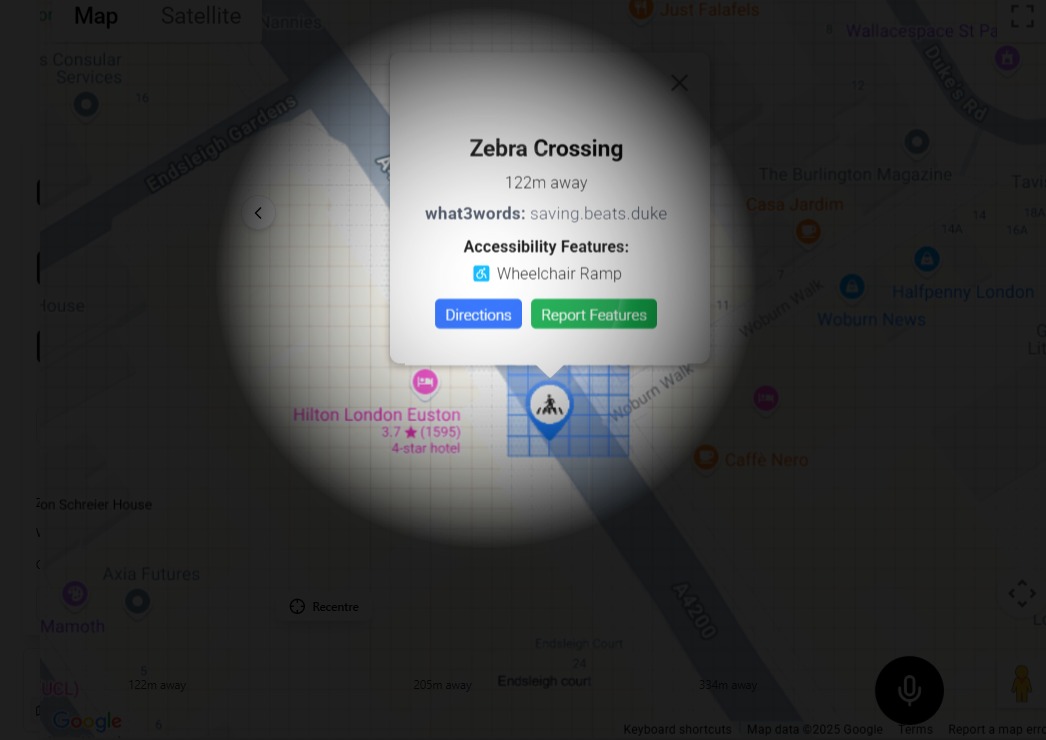
Notice the simplified layout and increased contrast in focus mode
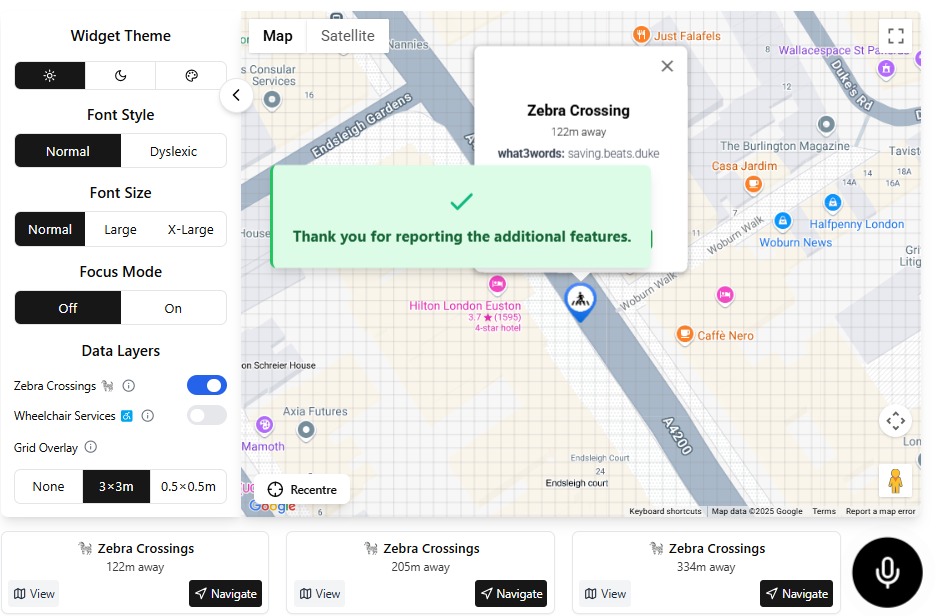
This layer highlights pedestrian crossings.
A what3words address is given, in this example "saving.beats.duke". This makes remembering certain locations easier for the user.
Example showing zebra crossings on the map
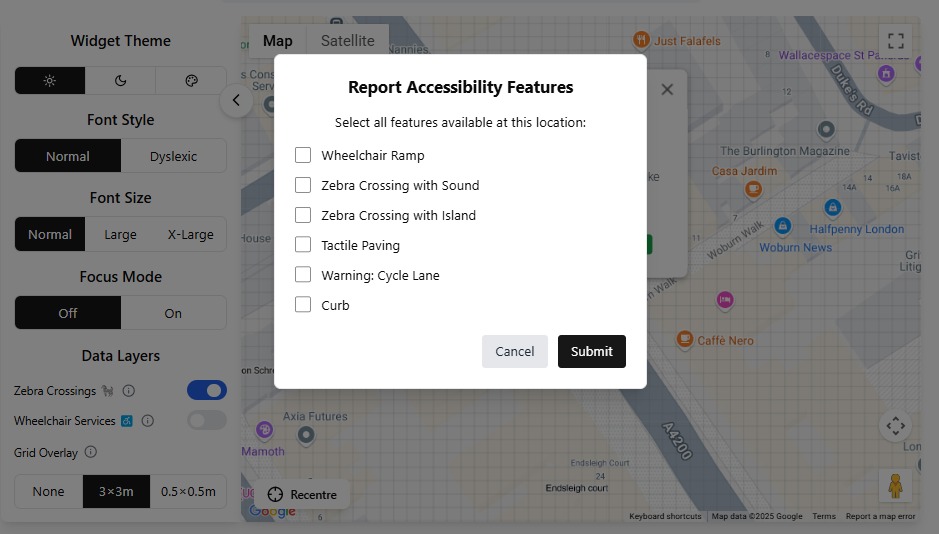
Verify and report on available Data Layers in your current location.
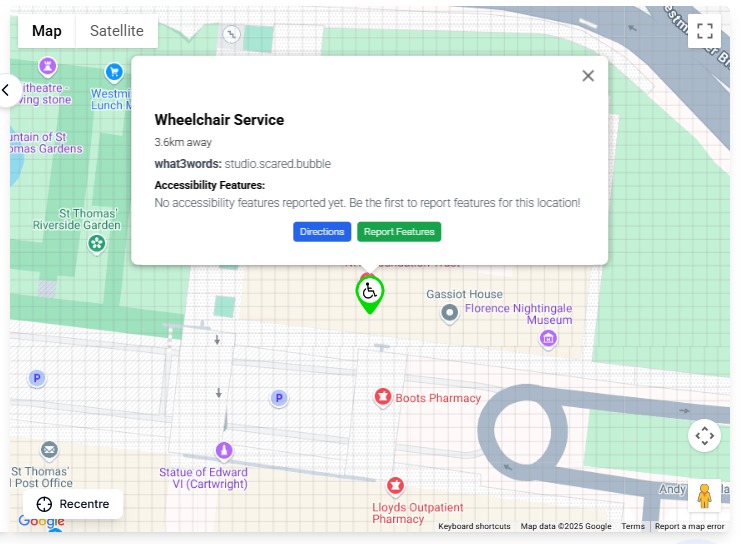
Find available services in your area
Select a data layer on your widget, or navigate to the nearest facility. Then click on any particular data layer, and press the Green Report Features.
Error messages and solutions when location cannot be determined.
The widget falls back to the default location in Trafalgar square.
Troubleshooting steps when layers fail to load.
Network Request Logger
Available in Developer Tools (F12)
Offline Mode
Hold Shift during startup to enable diagnostics
Clearing browser cache and cookies can resolve most data layer issues.
Ctrl + Shift + Del (Windows/Linux) or Cmd + Shift + Del (Mac)