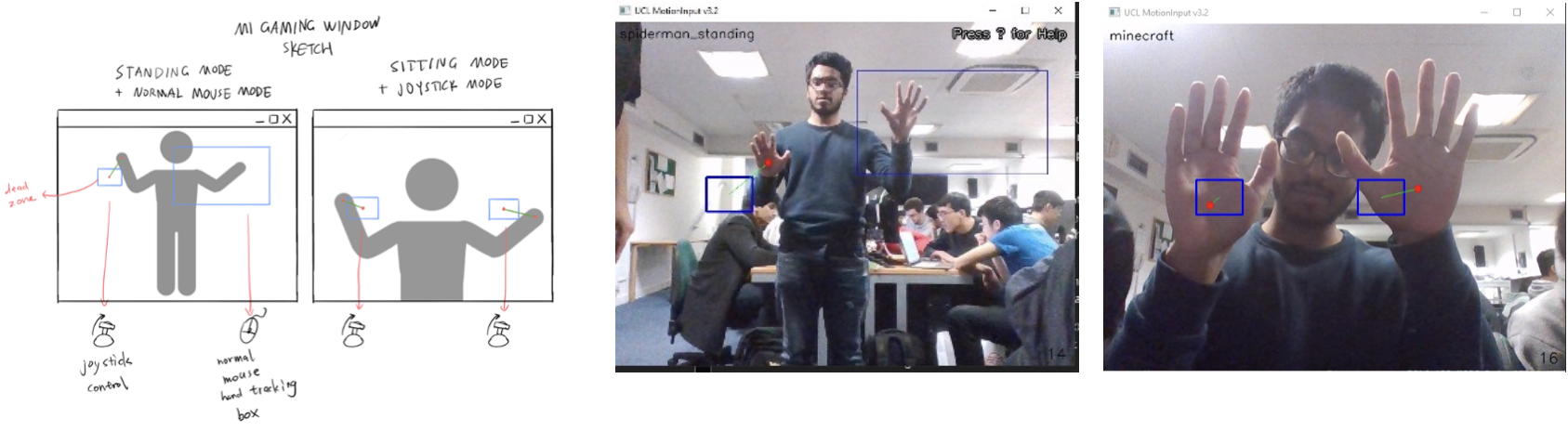
Along with the development of the MFC, we redesigned the MotionInput Gaming Window:
- We introduced the new dual-joystick control mode to guarantee smoother mouse and movement control
- Button triggers were removed to make the design more intuitive
- All button bindings were changed to be able to be triggered by doing poses, gestures or speeches.
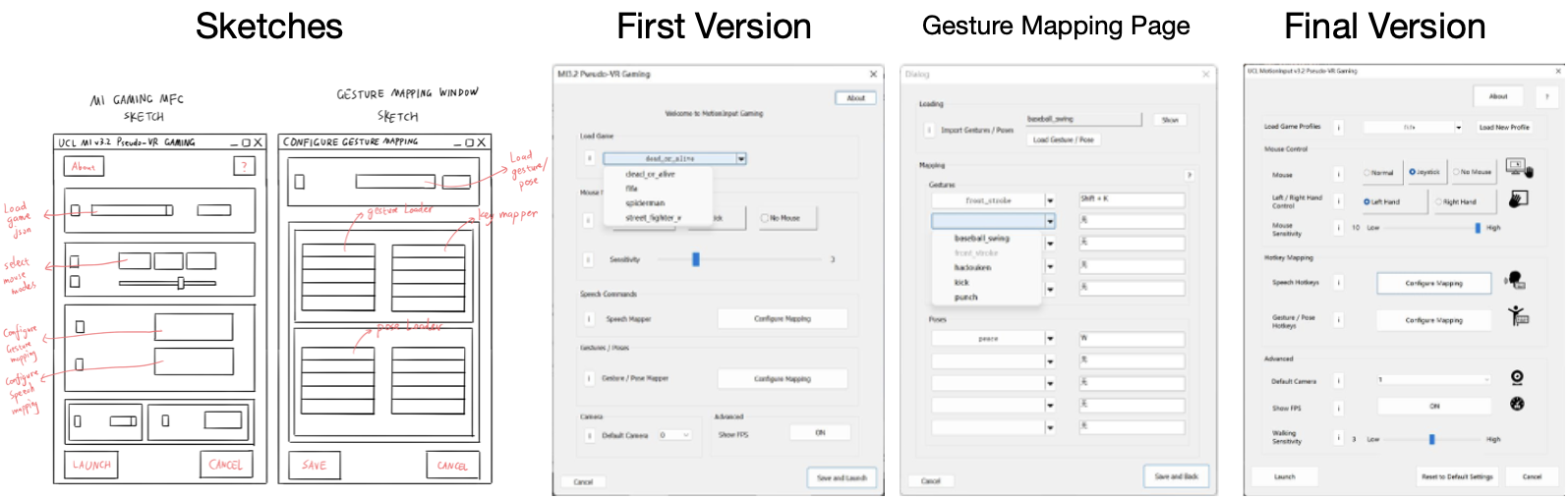
After implementing the Gesture Recorder, we decided to update the Gaming MFC Design. It is more powerful and more user friendly compared to the old Gaming MFC. The new MFC features, the dual-joystick control mode, enables users to configure key bindings from the gestures loaded from the gesture recorder, includes a more powerful speech key binding and on top of that has the walking detection calibration feature made by Chris Zhang.
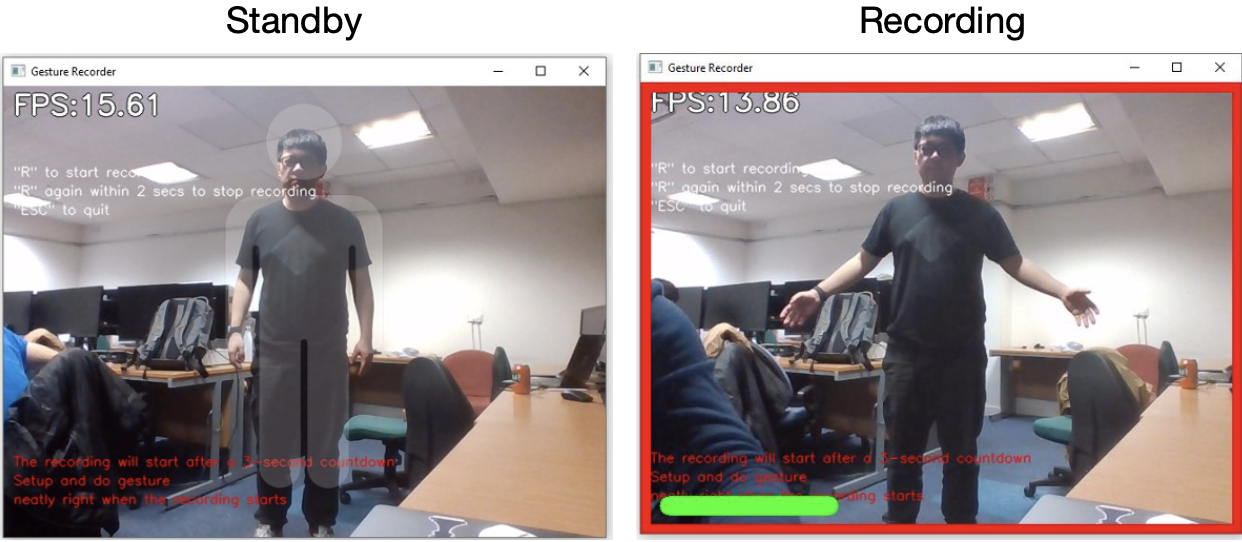
The Recording Window's design is supposed to be simple and intuitive. To continue with that logic, there is a guide frame for the user to be captured fully by the camera. Once the 'r' button is pressed; a 3 second countdown will occur, as indicated by the green bar, which decreases as the countdown progresses; along with a red frame, to indicate further that a recording is taking place.
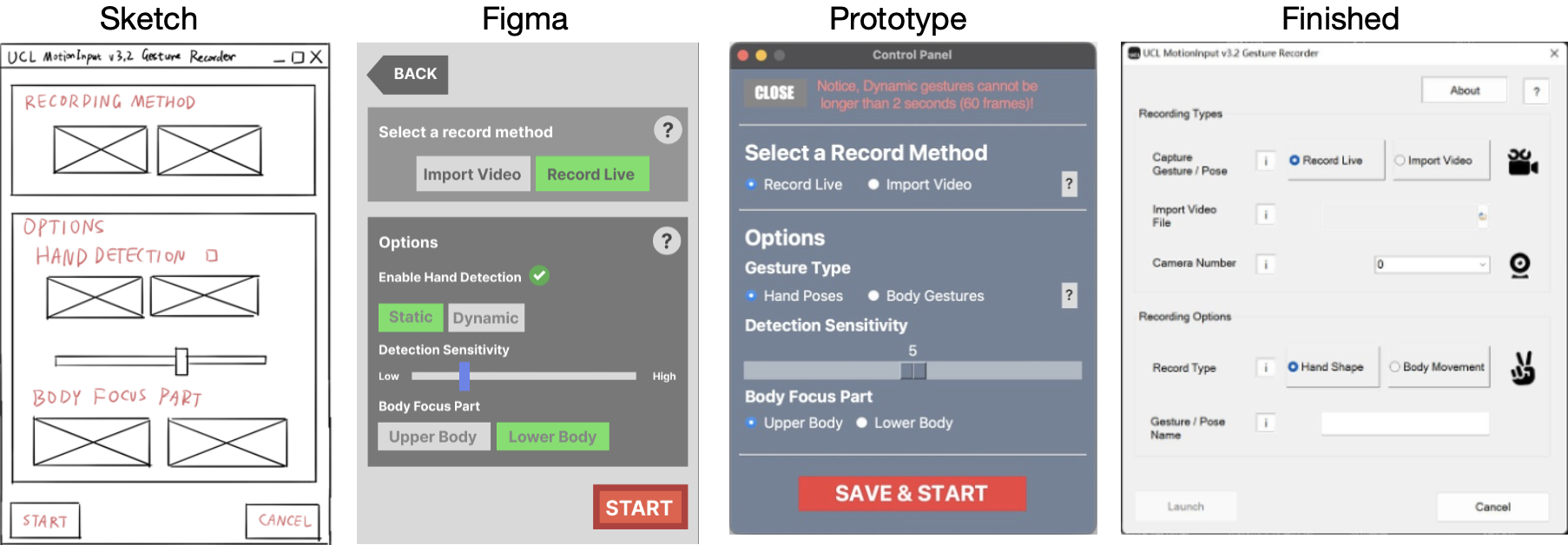
The Gesture recorder enables users to record a gesture or pose and store them as data files; its MFC includes features like, selection of different recording types (e.g., a hand pose or full-body gesture) and a naming slot. To make the UI more intuitive and user friendly, the buttons were made bigger and gif icons were added for most options. Also, the launch button is not available until the user selects everything needed. There is also an 'i' button to provide additional information for each option.
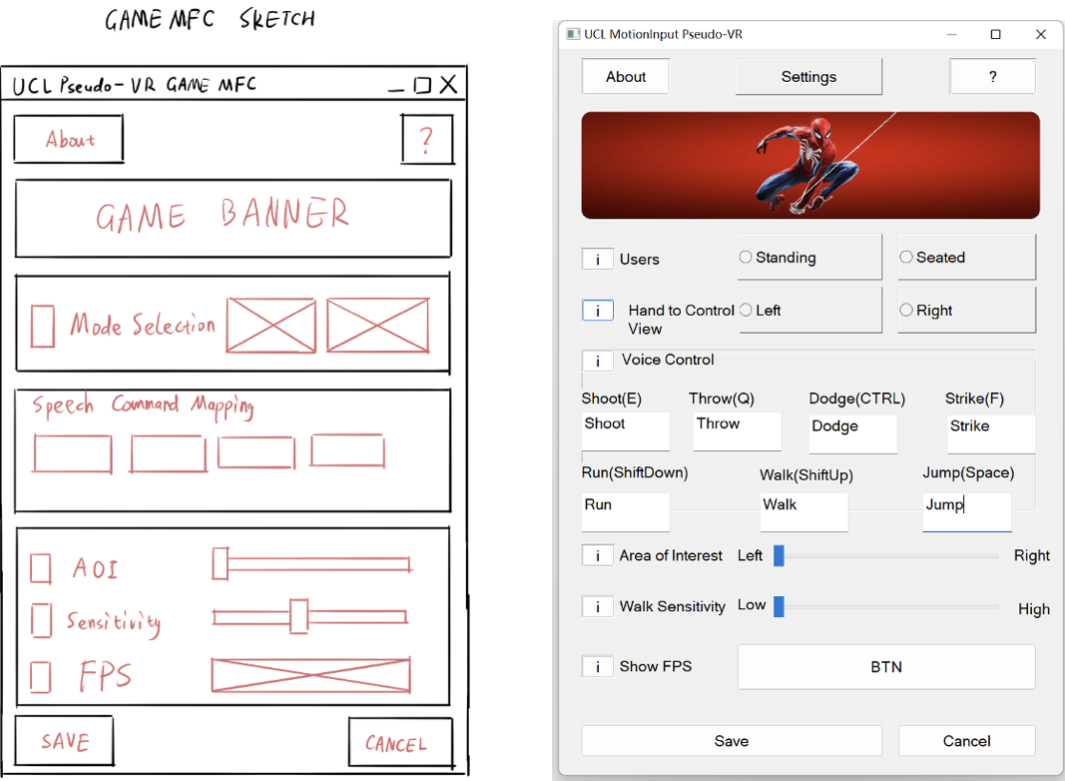
The legacy Gaming MFC is also modified from the previous build students had made last year. It includes features to modify settings in MotionInput, such as, standing and sitting mode or using left or right-handed mode to control the mouse.
The MFC can be specified for each game it supports, for example, the Voice Control Key bindings of that game.
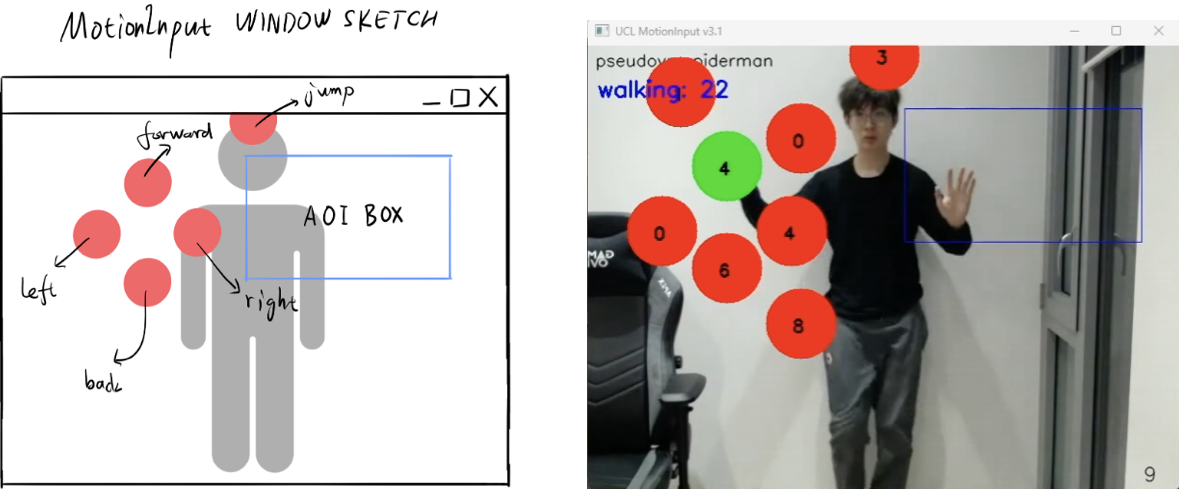
The Legacy MotionInput window UIs were modified from templates built by last year students. It was supposed to look like a game pad with trigger buttons (red dots) where the user can ‘touch’ the buttons via their wrist to trigger a control in game, such as walking around.
The blue box is the 'Area of Interest' (AoI) box, which enables the user to control the mouse cursor via their hand.