Deployment Manual
To get started with the deployment process, ensure that the system is running Cent OS 7.
It's really important to ensure it is running Cent OS 7. Otherwise, this process will not work.
Before getting started
Just ensure you have downloaded our source code from GitHub and currently in the root directory of the project folder.
We need to install three dependencies: Nginx, Docker, and Certbot. If you have installed them, you can skip to Section 4.
1 Install Nginx
Install Nginx on Cent OS 7.
sudo yum install epel-release # install epel-release basic package
sudo yum install nginx
Configure Nginx
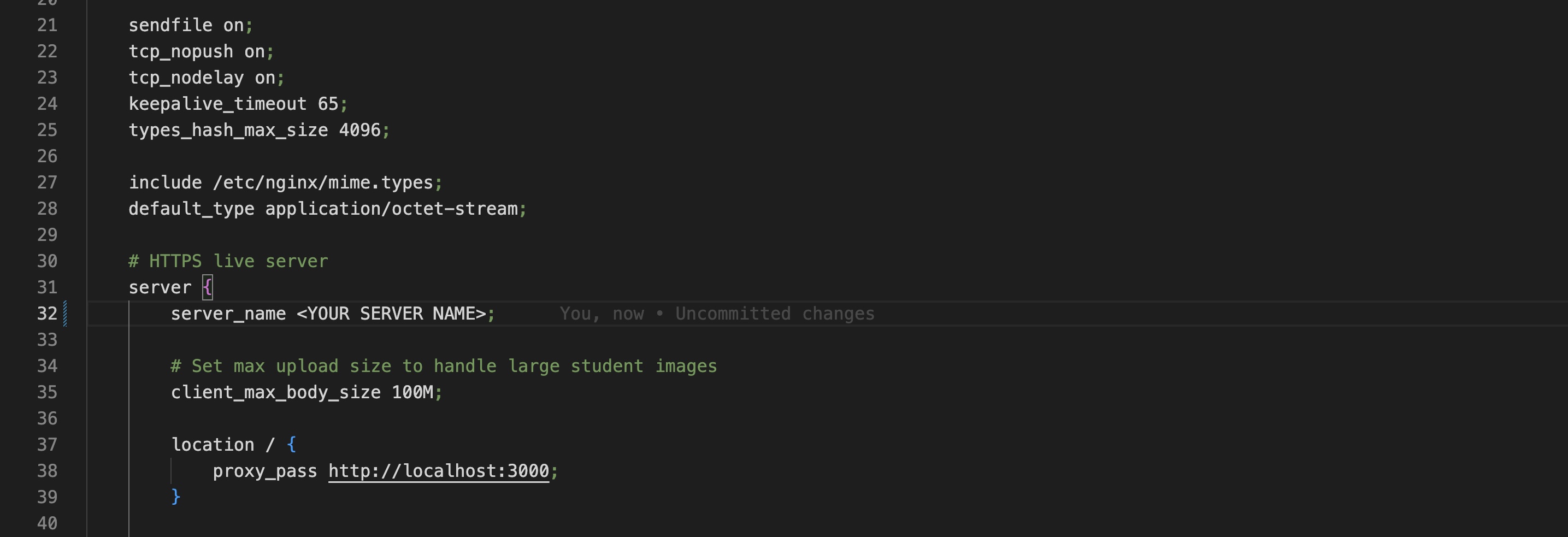
sudo cp nginx/prod/nginx.conf /etc/nginx/nginx.confChange the field server_name to the domain name of the server for your Ngixn environment at this path: /etc/nginx/nginx.conf.
Start Nginx
sudo systemctl start nginx # start nginx
sudo systemctl status nginx # check nginx status
2 Install Docker
# Uninstall old versions
sudo yum remove docker \
                  docker-client \
                  docker-client-latest \
                  docker-common \
                  docker-latest \
                  docker-latest-logrotate \
                  docker-logrotate \
                  docker-engine

# Set up repository
sudo yum install -y yum-utils
sudo yum-config-manager \
    --add-repo \
    https://download.docker.com/linux/centos/docker-ce.repo

# Install Docker Engine
sudo yum install docker-ce docker-ce-cli containerd.io docker-compose-plugin

# Start Docker
sudo systemctl start docker
For more information, please refer to this official Docker documentations (opens in a new tab).
3 Install Certbot
Step 1: Install snap on CentOS 7
Snap is a new package management system for Linux. It allows you to install and run applications in a sandbox environment. We will use snap to install certbot. For more information, please refer to this Link (opens in a new tab).
sudo yum install epel-release # install epel-release basic package
sudo yum install snapd
sudo systemctl enable --now snapd.socket
sudo ln -s /var/lib/snapd/snap /snap
Now logout and login again to make sure the snapd service is running.
Step 2: Install certbot
sudo snap install core; sudo snap refresh core # update snap
sudo snap install --classic certbot
sudo ln -s /snap/bin/certbot /usr/bin/certbot
Step 3: Obtain a certificate
The following command automatically obtains a certificate and configures your web server to use it. It will also install a cron job to renew the certificate automatically.
sudo certbot --nginx4 Build and Deploy the Application
Build the server
sudo sh scripts/build.shStart the server
sudo sh scripts/start.shStop the server
sudo sh scripts/stop.shYou should be able to access our service. Should any question occur at this point, please refer to the FAQ section below which includes many common troubleshooting guides.
FAQ
How to create the initial system admin account?
The initial seeding scripts for production is available under ./prisma/seed-prod.ts. The initial seeding scripts for development is available under ./prisma/seed.ts. You can modify the initial seeding scripts to create the initial system admin account.
Run either of the following commands to seed the database, You will need to first install npm packages before running the following commands:
npm run prisma:reset # for development, will drop current database and seed fake data
npm run prisma:seed-prod # for production
npx ts-node prisma/seed-prod.ts # alternative way to run the seeding script
How to setup the firewall for CentOS 7?
Please reference to this Blog Post (opens in a new tab).
How to config certificates issued by UCL TSG?
Copy the certificate file to ./nginx/certs folder
Copy the pre-configured nginx config file to /etc/nginx/nginx.conf using the following command:
sudo cp -rf nginx/prod/* /etc/nginxConfigure the certificate path in /etc/nginx/nginx.conf
Restart nginx service
sudo nginx -s reloadHow to Check Docker Container Health Status?
sudo docker inspect --format "{{json .State.Health }}" ixn-traffic-light-system-live | jqReplace ixn-traffic-light-system-live with the container name. jq is a JSON parser.
How to View Docker Container Logs?
sudo docker logs ixn-traffic-light-system-liveReplace ixn-traffic-light-system-live with the container name
Issues regarding to reading and writing files in ./sitedata folder?
Try giving the permission to the folder:
sudo chmod -R 777 ./sitedataRestart certain service in the docker-compose file?
sudo nginx -s reloadChange local nginx server config?
sudo cp nginx/nginx-prod.conf /etc/nginx/nginx.confAccess nginx server log?
sudo tail -f /var/log/nginx/access.log # access log
sudo tail -f /var/log/nginx/error.log # error log