User Guide
The purpose of this guide is to provide a comprehensive and detailed walkthrough of the website for each type of user, including lecturers, admins, and TAs. In addition to being an introduction to all the major features we include on our website, this guide aims to offer a clear and thorough understanding of our platform to all users. Therefore, we have included screenshots throughout this guide to better illustrate our ideas and provide a more visual representation of the features we offer. We believe that this guide will be an invaluable resource for users of all levels, from beginners to advanced users, and we hope it will enhance their experience with our platform.
Login
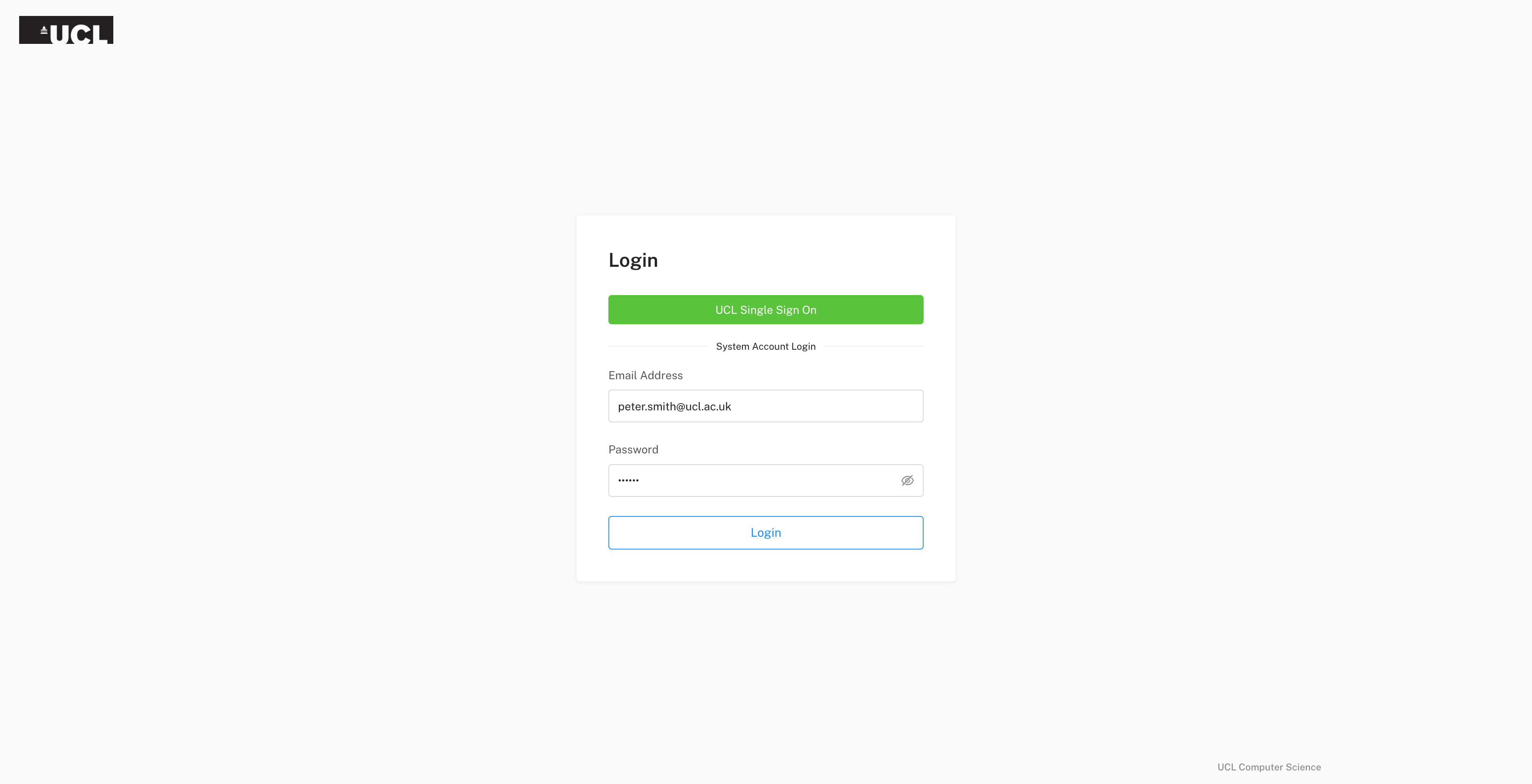
The process of logging in should be simple. You can use UCL Single-Sign-On (SSO) to quickly access the system, and the most relevant information to you will be displayed automatically. Some lecturers and especially admins will be using email-password login.
Lecturer
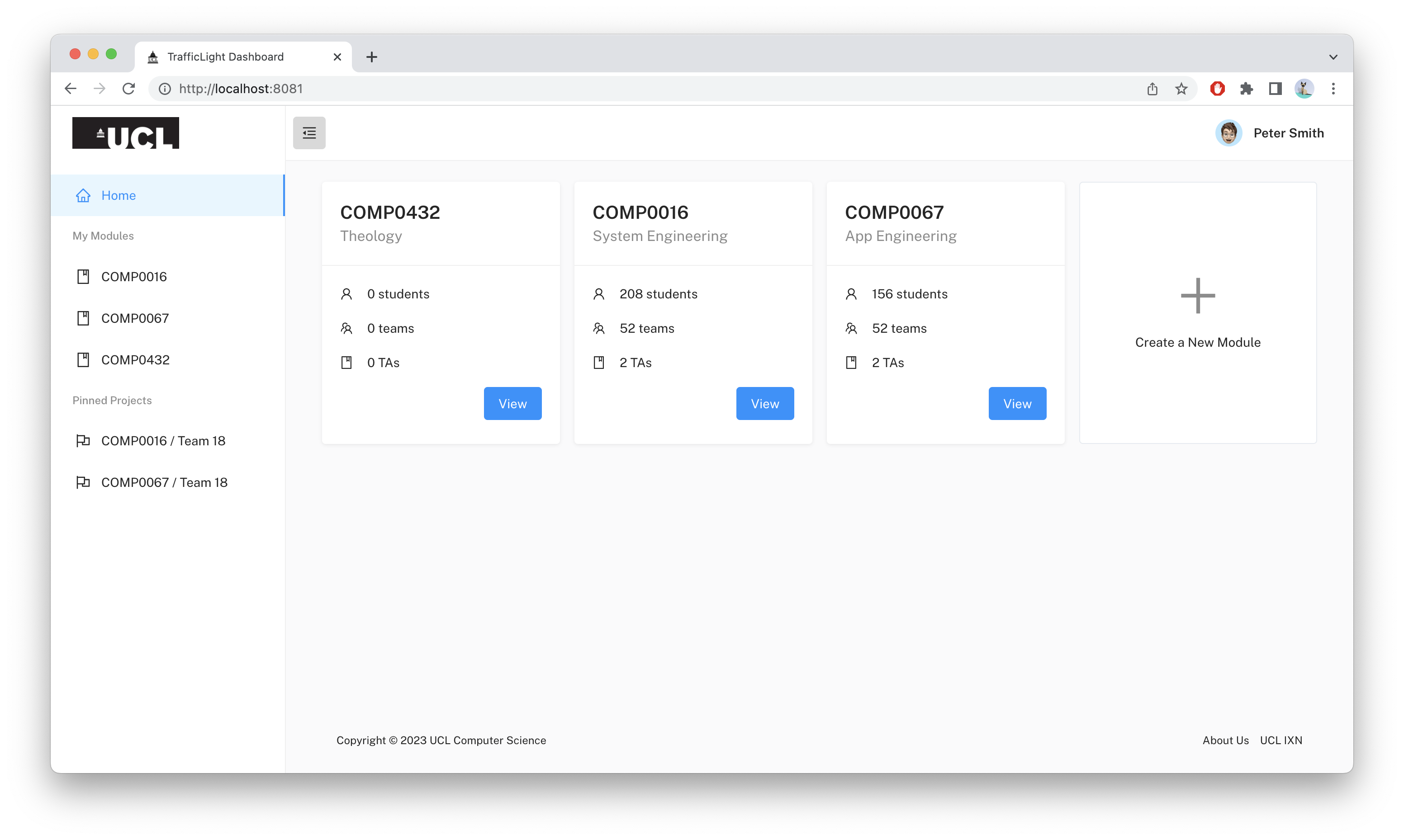
After logging into the system, the lecturer can see all the modules he or she is responsible for. On the left side, there is a menu with quick-access links to each module and pinned teams.
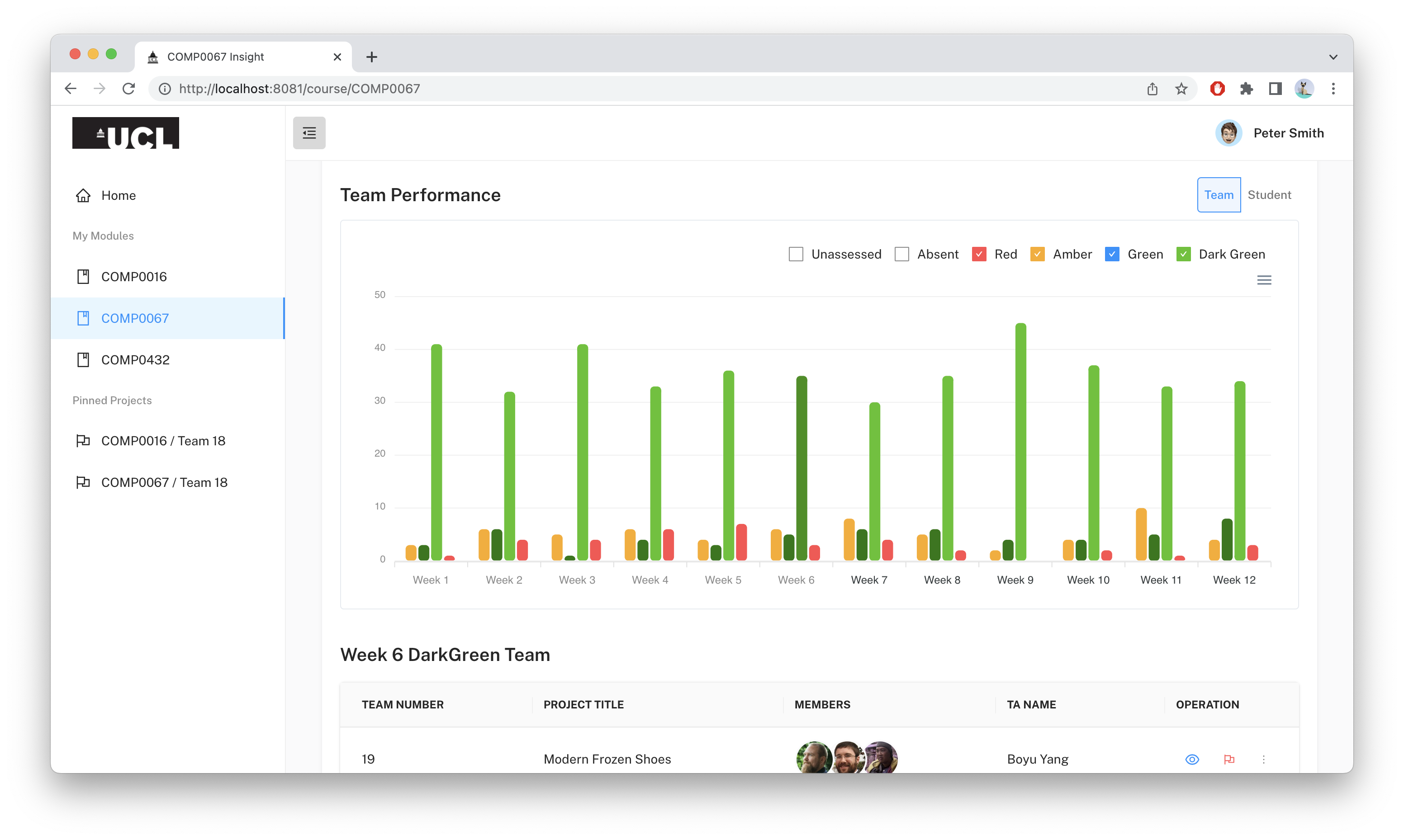
In the "Insights" tab, the lecturer can visually see the aggregate team performance recorded from weekly Traffic Light records. Red, amber, green, and dark green correspond to below-average, average, above-average, and exceptional performance, respectively. By clicking the "student" button on the top right corner of the graph, it will display aggregate student performance as well.
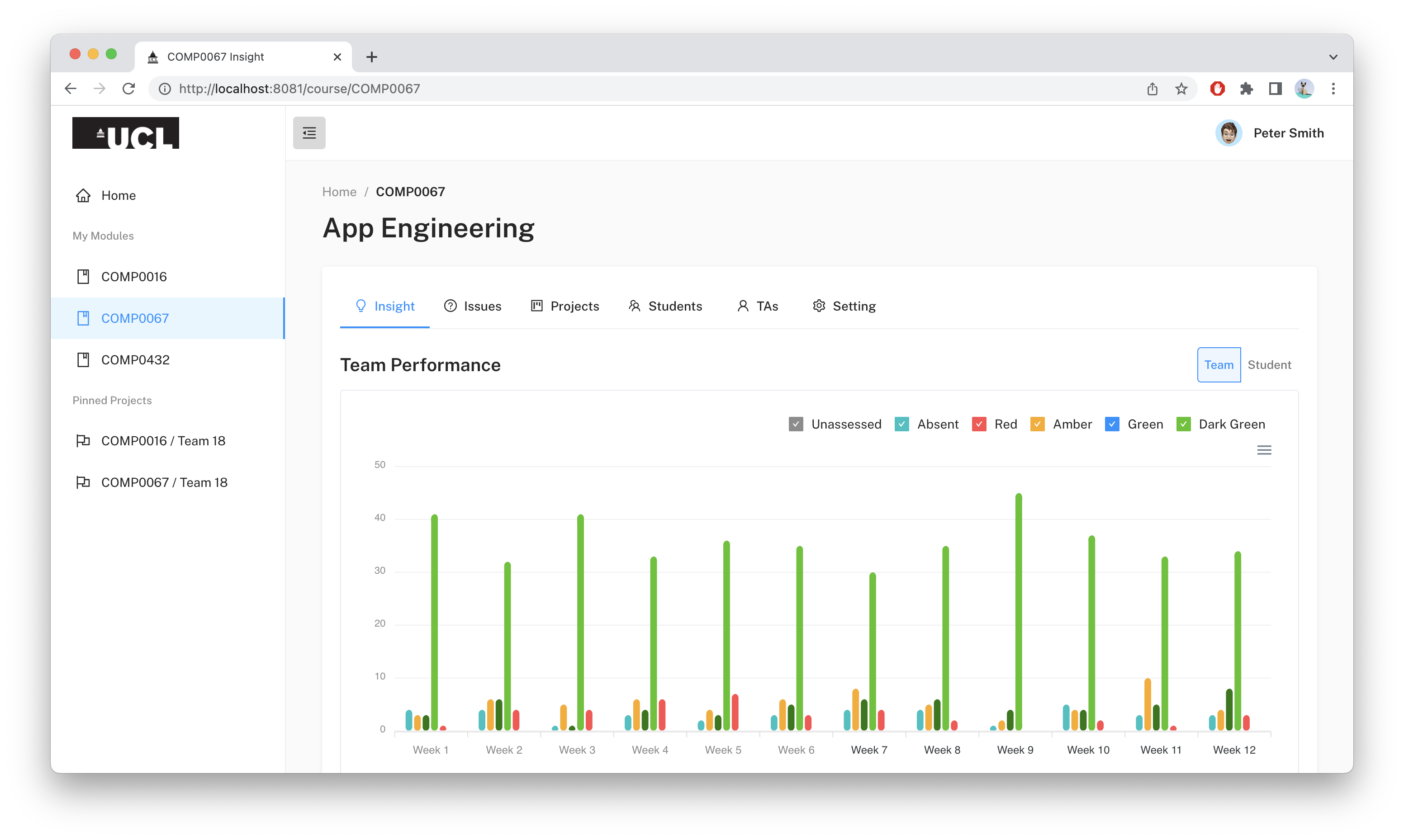
The column in the bar chart is interactive. When lecturers click on the column, the table below will automatically display teams with that certain Traffic Light score on that specific week.
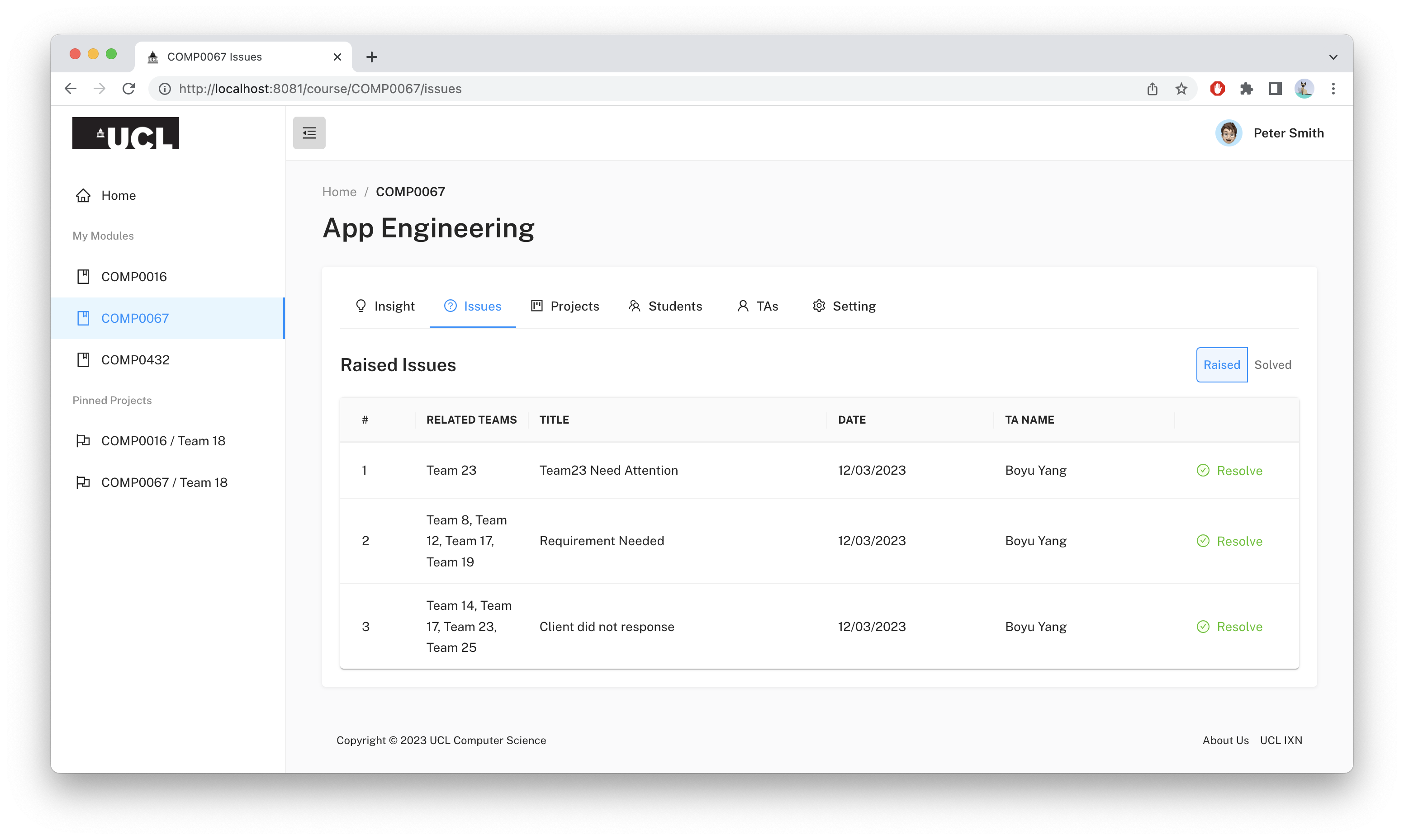
In the "Issue" tab, there is an issue tracking board where TAs have raised issues to lecturers and lecturers can resolve them easily here. There is also an archived table of solved issues by clicking "Solve" in the top right corner.
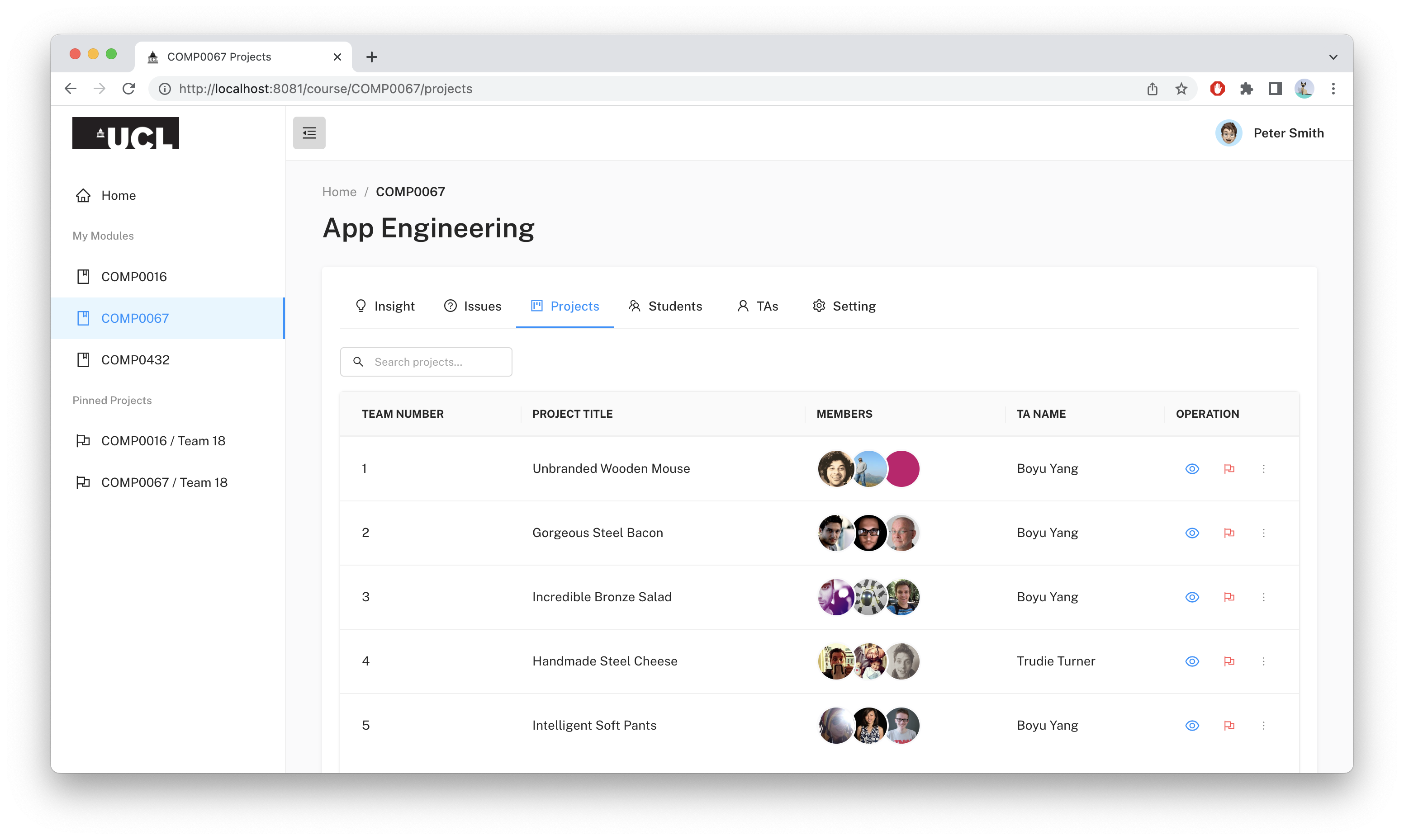
In the "Projects" tab, the lecturer can see all the projects in the module presented in a table. The table clearly shows the project name, the students involved, and the name of the TA. By clicking the flag icon, the system will redirect lecturers to that team's page. By clicking the flag icon, the system will pin the project to the left-side panel of the dashboard.
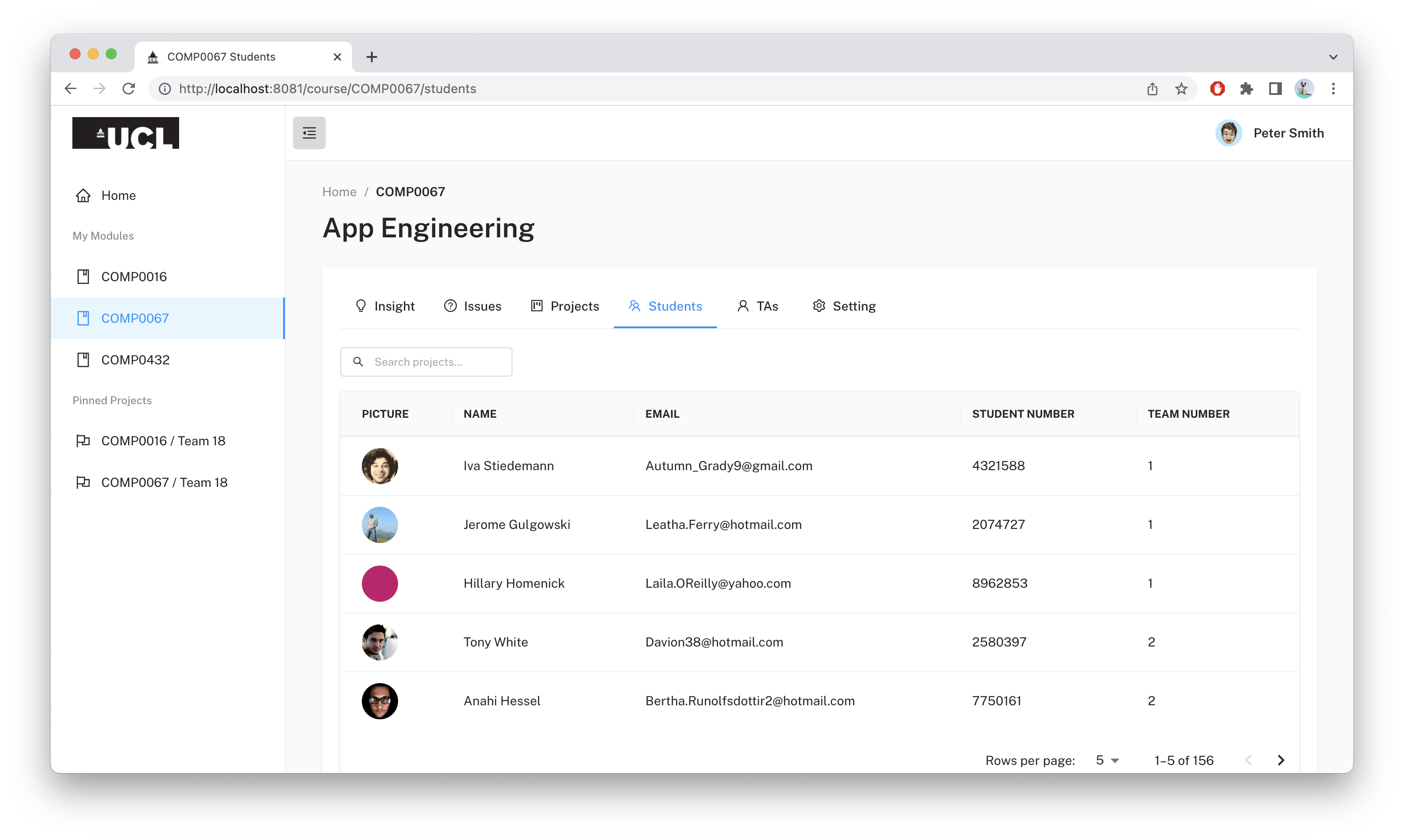
In the "Students" tab, the lecturer can see all the students in the module presented in a table. The table clearly shows the student's picture, student name, student email, student ID, and student’s team number.
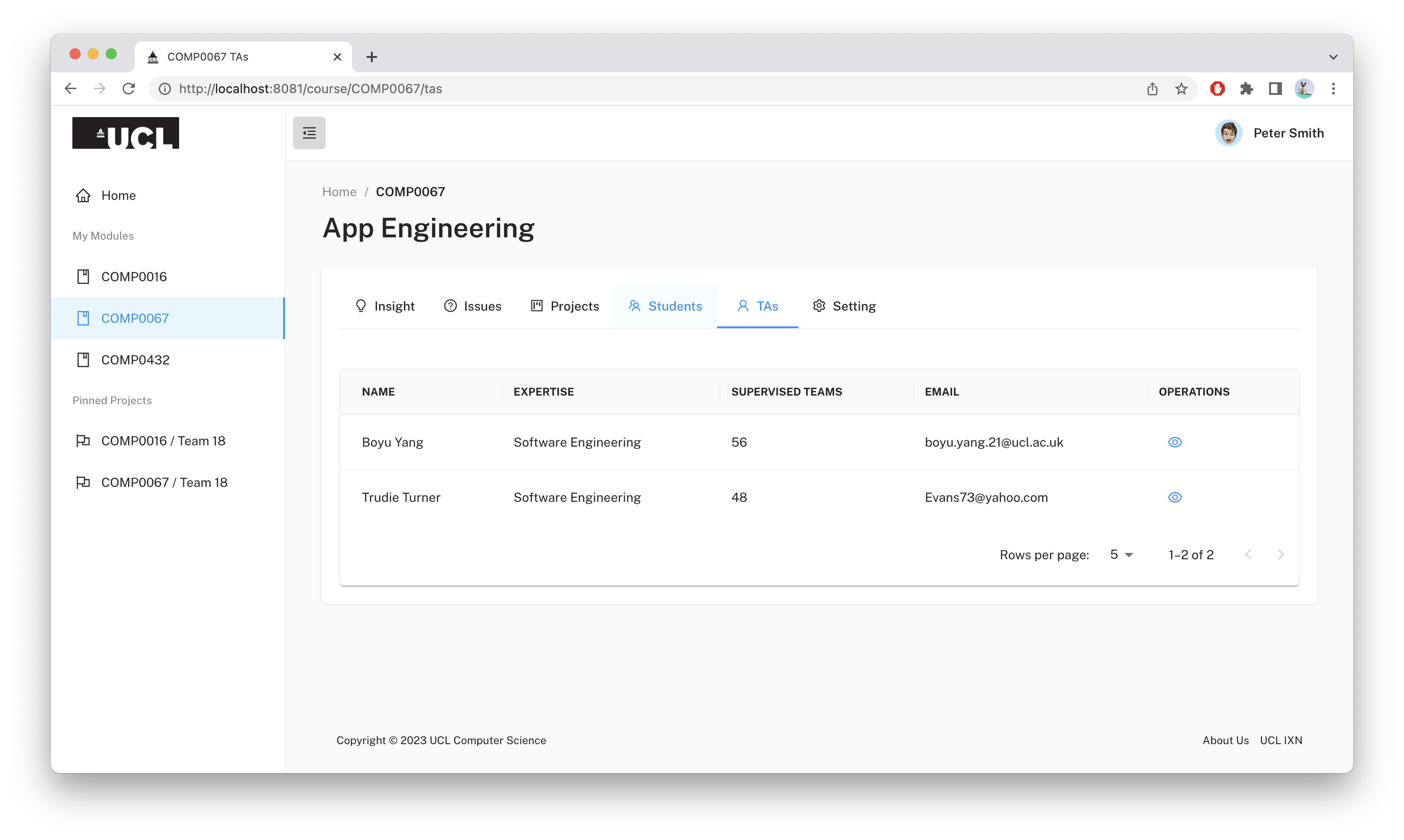
In the "TA" tab, the lecturer can see all the TAs in the module presented in a table. The table clearly shows the TA's name, his or her expertise, the number of teams supervised, and email address.
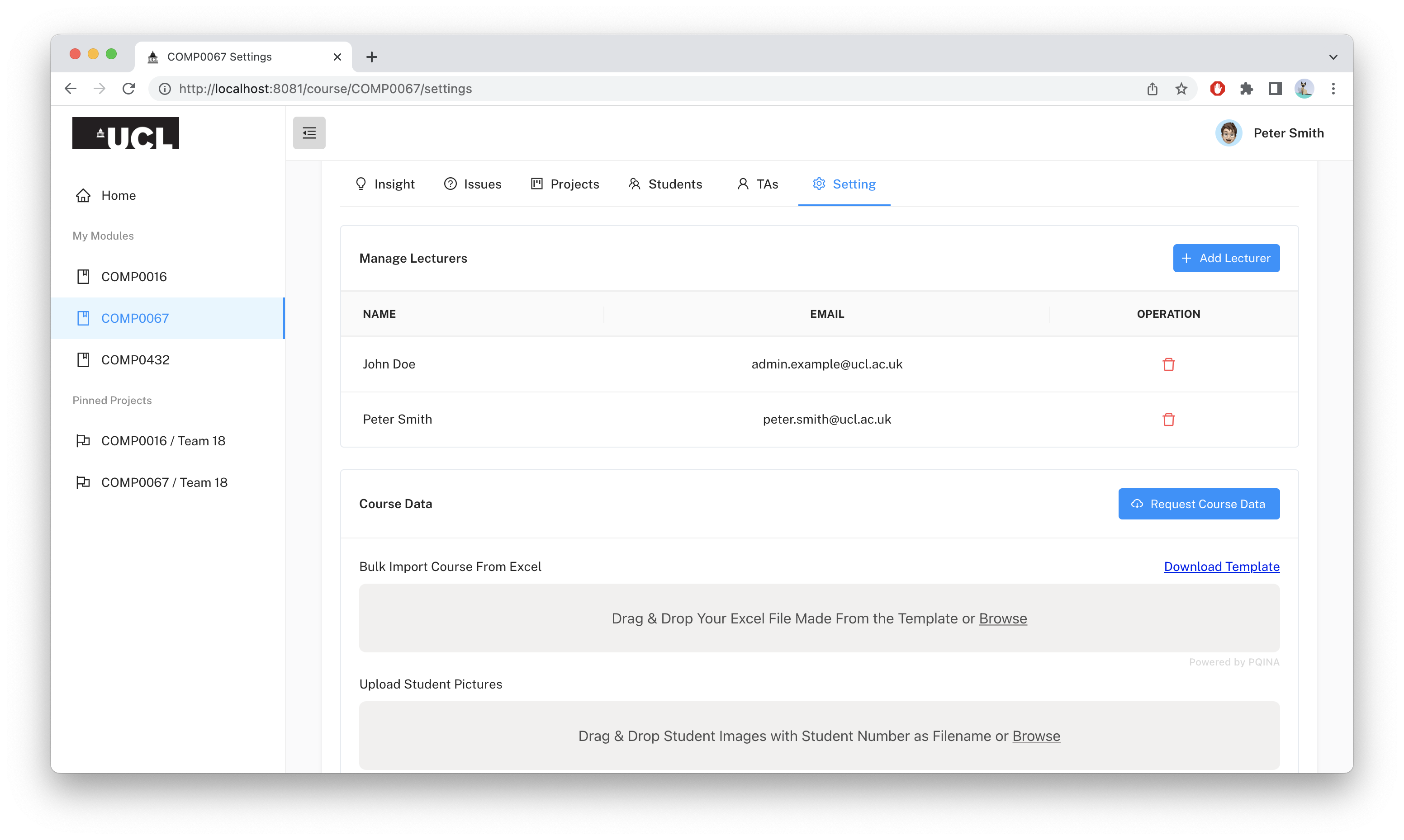
In the "Settings" tab, the lecturer can easily manage lecturers by adding or deleting existing lecturers. The lecturer can bulk upload Traffic Light data from a local Excel file and student photos. Our system will automatically resolve them. At the bottom of the page, the lecturer can edit basic module information as well.
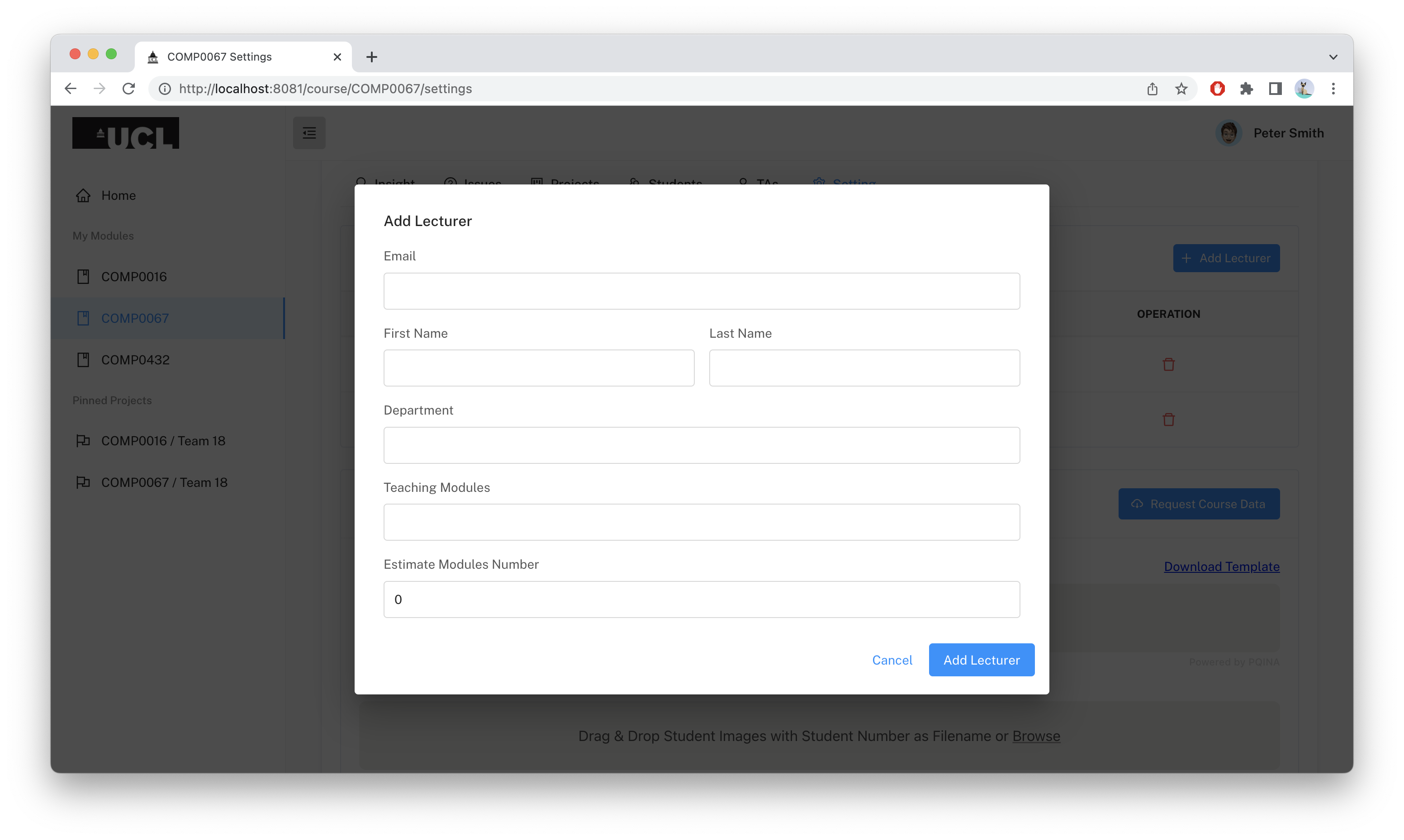
This dialog is used to add new lecturers to the system. Simply fill in the form with the lecturer’s email address, name, department, teaching module(s), and estimated module number and click “Done”.
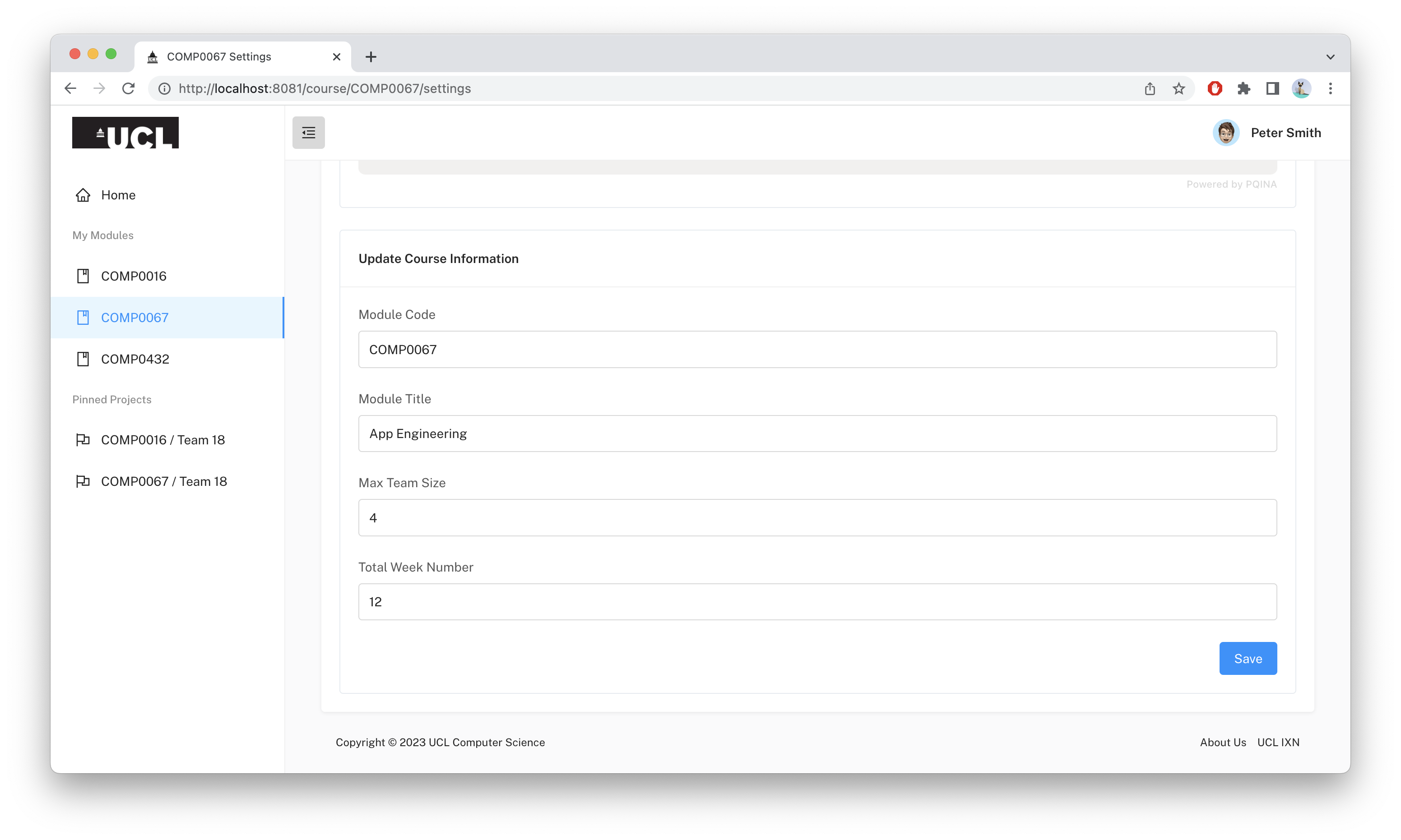
At the bottom of the "Settings" page, the lecturer can change the module code, module name, maximum team size, and the total number of weeks.
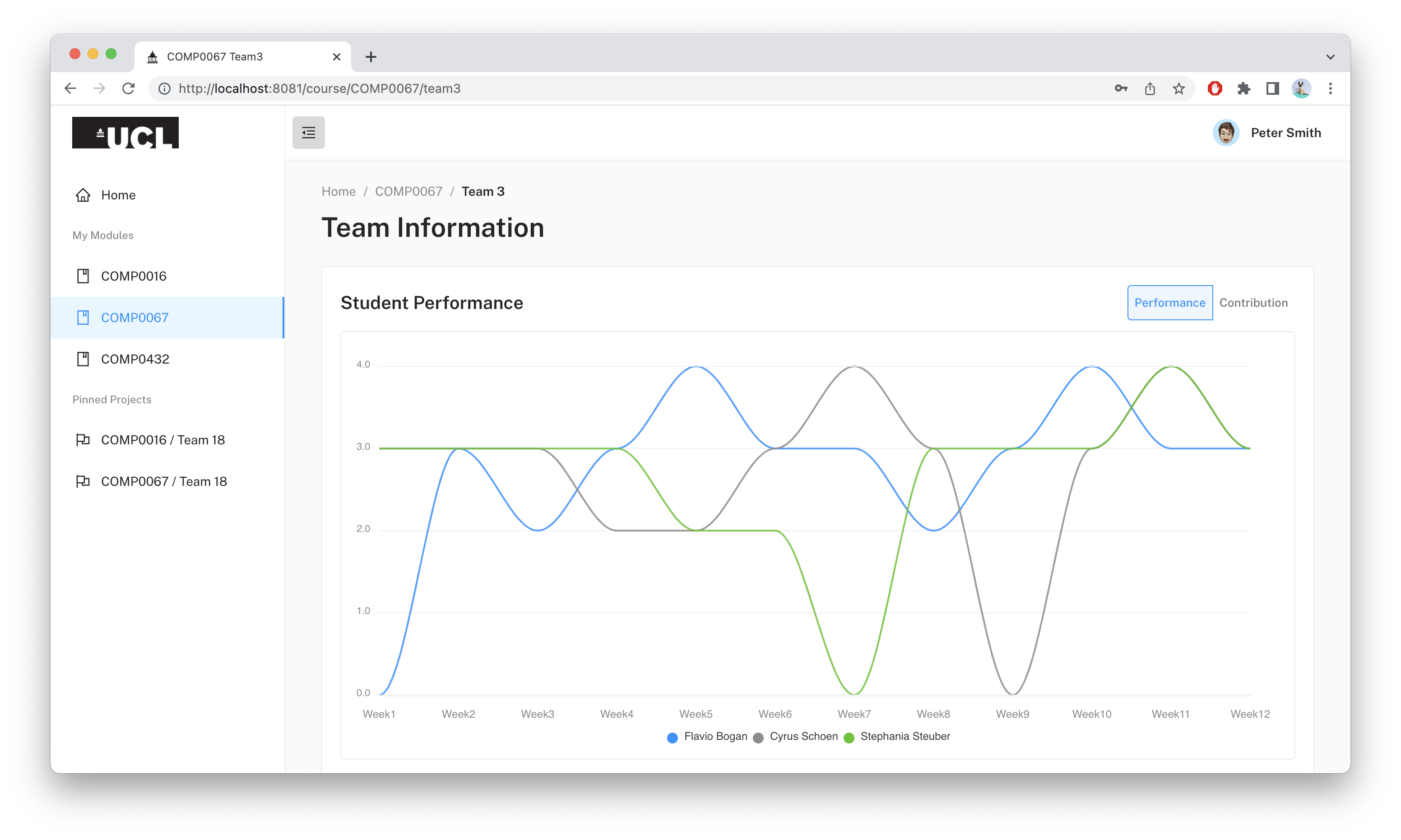
In the page of each specific team of a module, student performance is displayed with a line chart with each color denoting a different student.
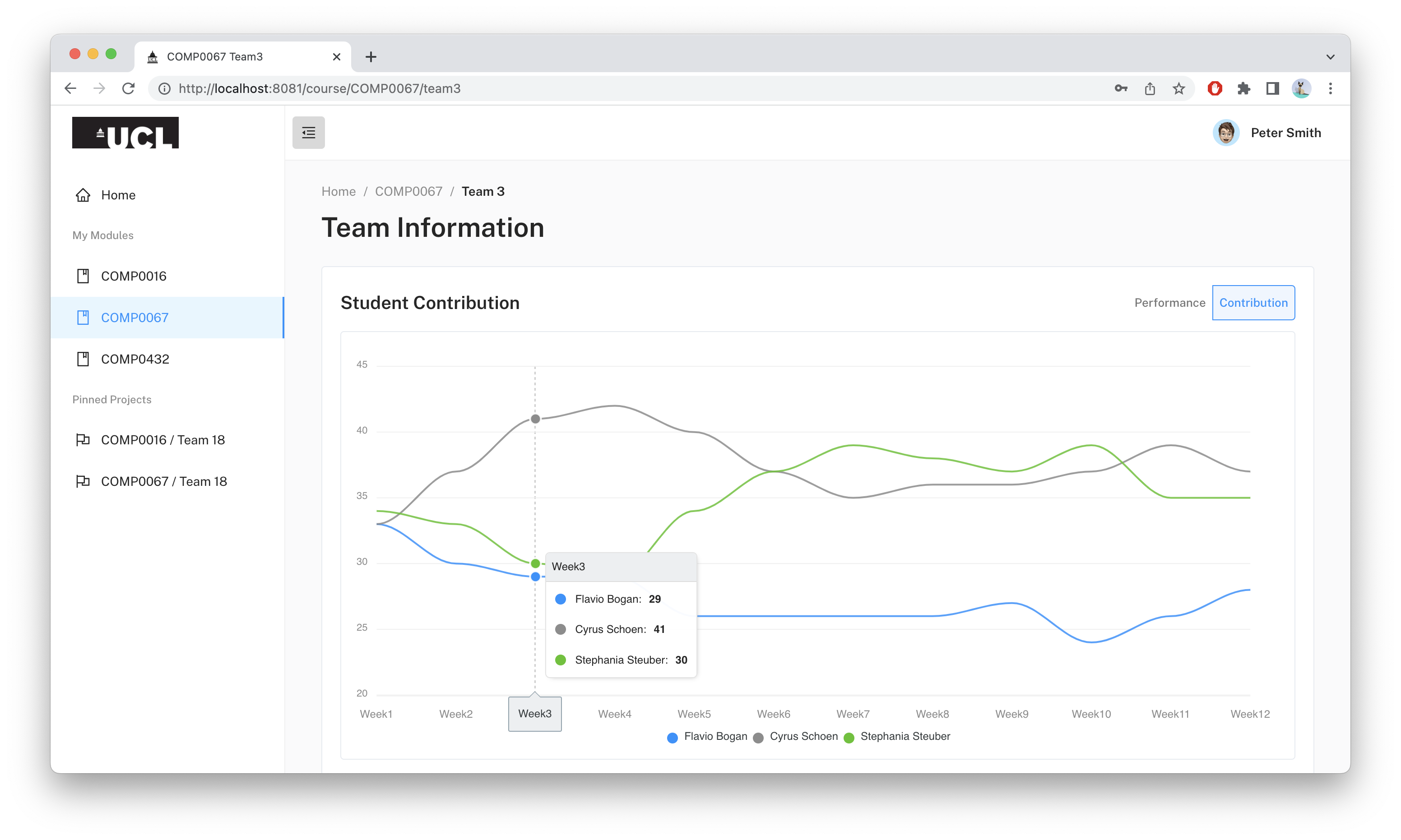
When clicking the “Contribution” button at the top right corner of that page, the graph will switch to a line chart displaying each student’s individual contribution to the project in terms of percentages.
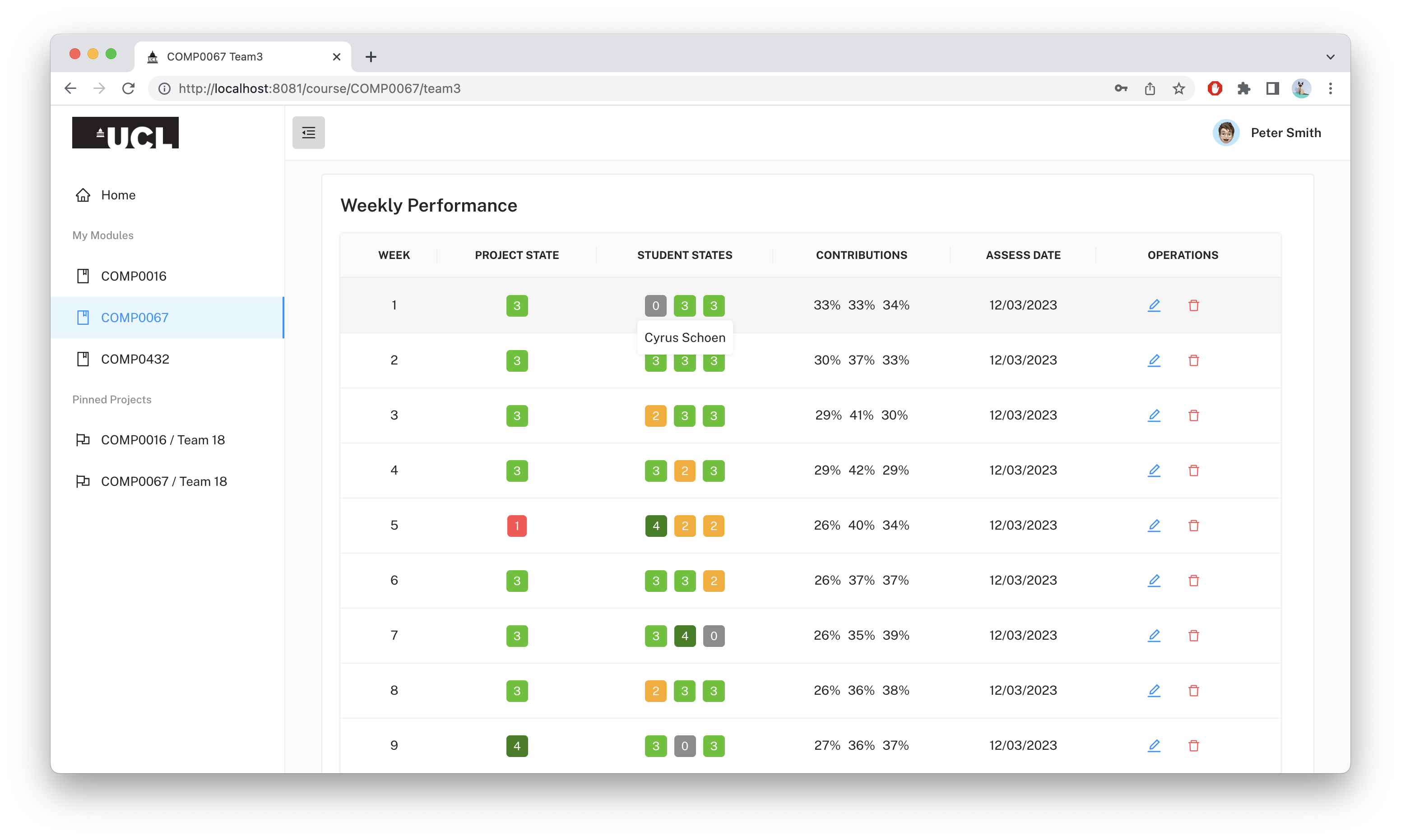
The table below the above-mentioned graph will display all weekly Traffic Light assessment records. It has a project state, each student’s individual state, contribution percentage, and assessed date. There is a button to view or edit the record or delete it. And when hovering over the student's state, the name will auotmatically pop up.
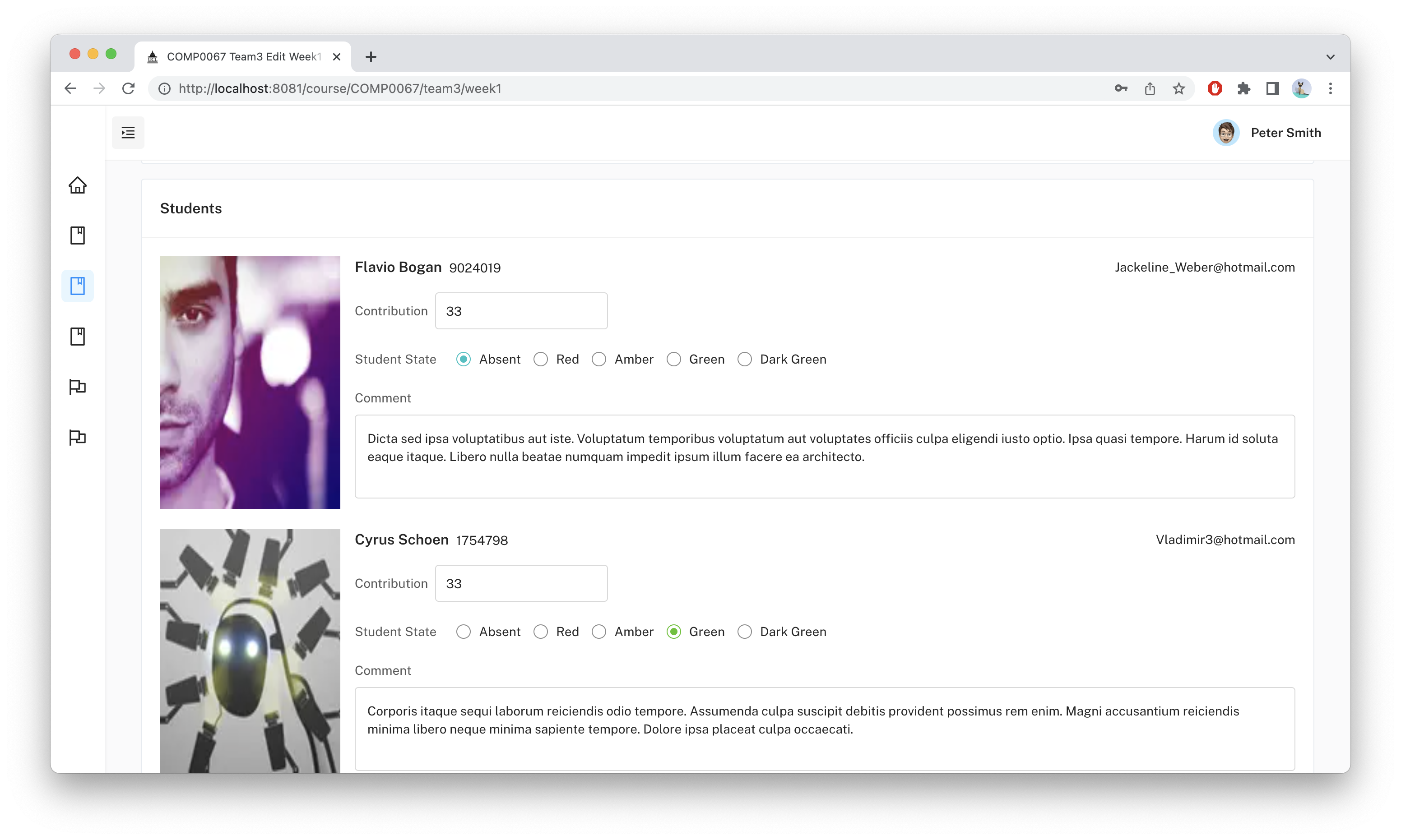
When viewing each week’s Traffic Light assessment record, it will display each student’s photo, email address, contribution percentage, performance state, and optional comments from TA who wrote the assessment.
Admin
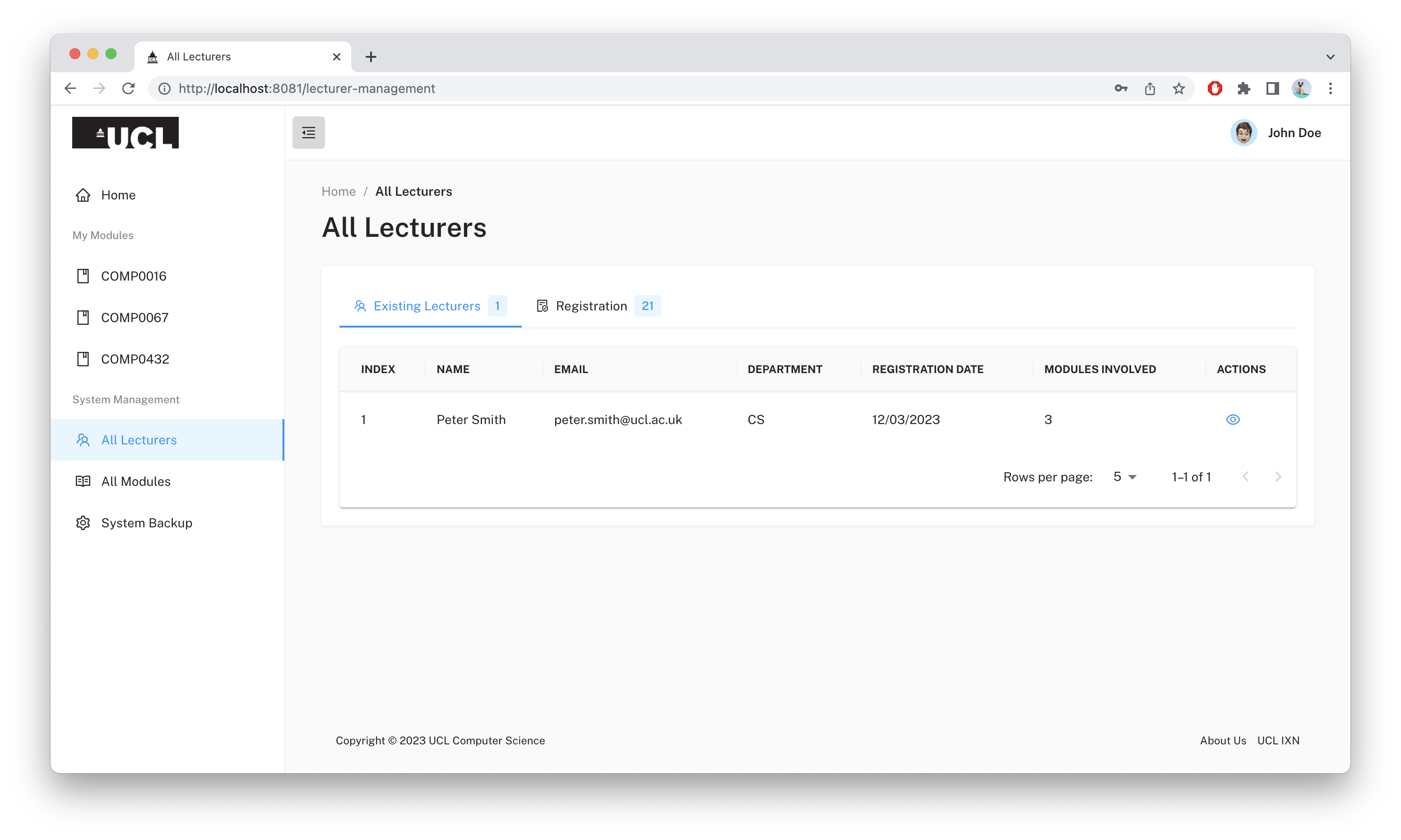
After logging into the system and clicking "All Lecturers" to navigate to that page, there is a table of all lecturers existing in the system. It has the lecturer's name, email, department, registration date, number of modules involved, and a button to expand a pop-up.
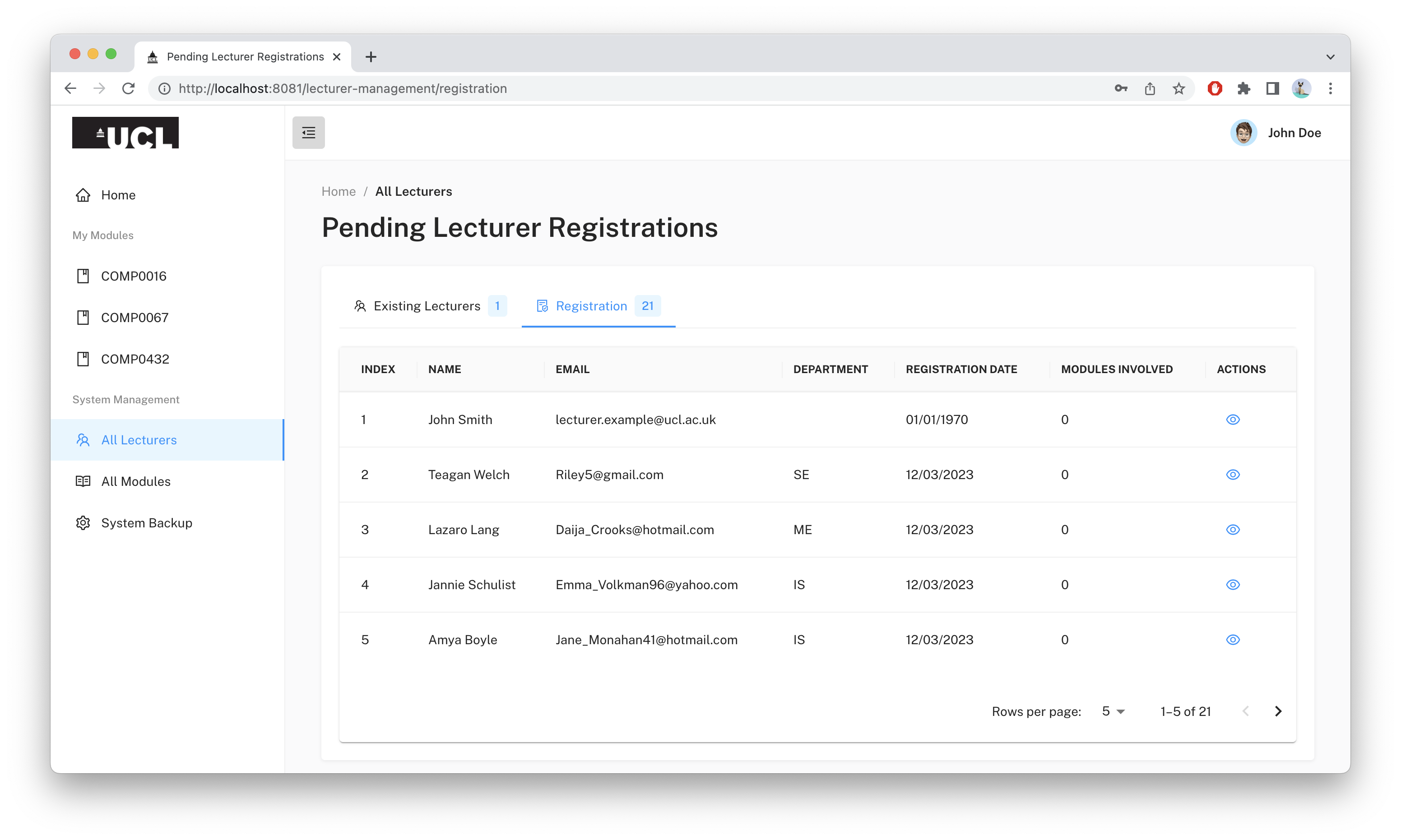
By clicking "Lecturer Registration" at the top of the table, the table will display all pending lecturer registrations. It has the lecturer's name, email, department, registration date, number of modules involved, and a button to expand a pop-up where admins can view more details and choose to approve or reject that request.
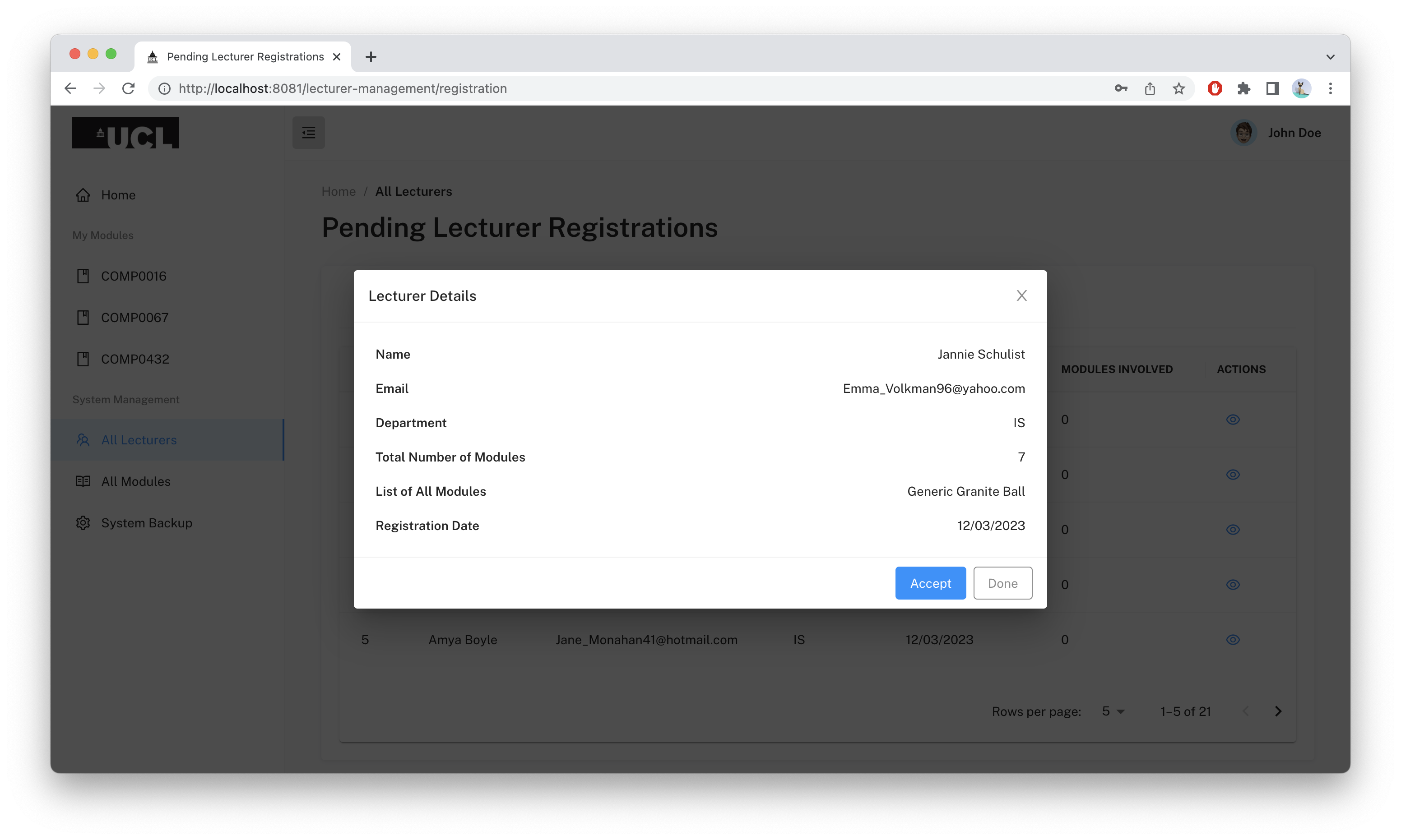
The above-mentioned pop-up lists the lecturer's name, email, department, registration date, number of modules involved, and all modules involved. At the bottom, after viewing the information, the admin can approve the request, decline the request, and click "Cancel" to exit the page.
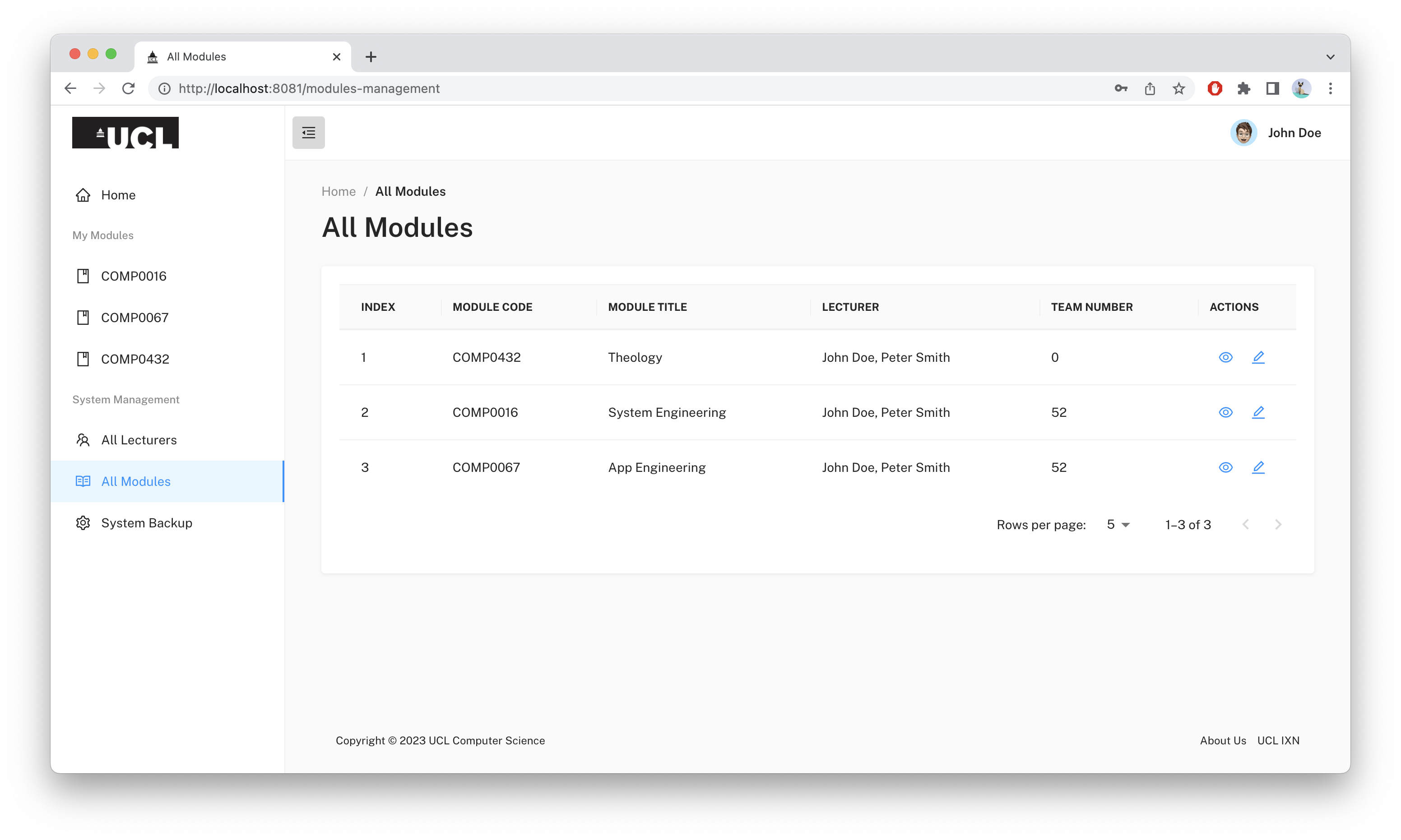
After clicking "All Modules" on the left-side menu, the system will display a table with all the recorded modules. It includes each module's module code, module title, lecturer's name, and the number of teams. There are two additional icons to view or edit module details.
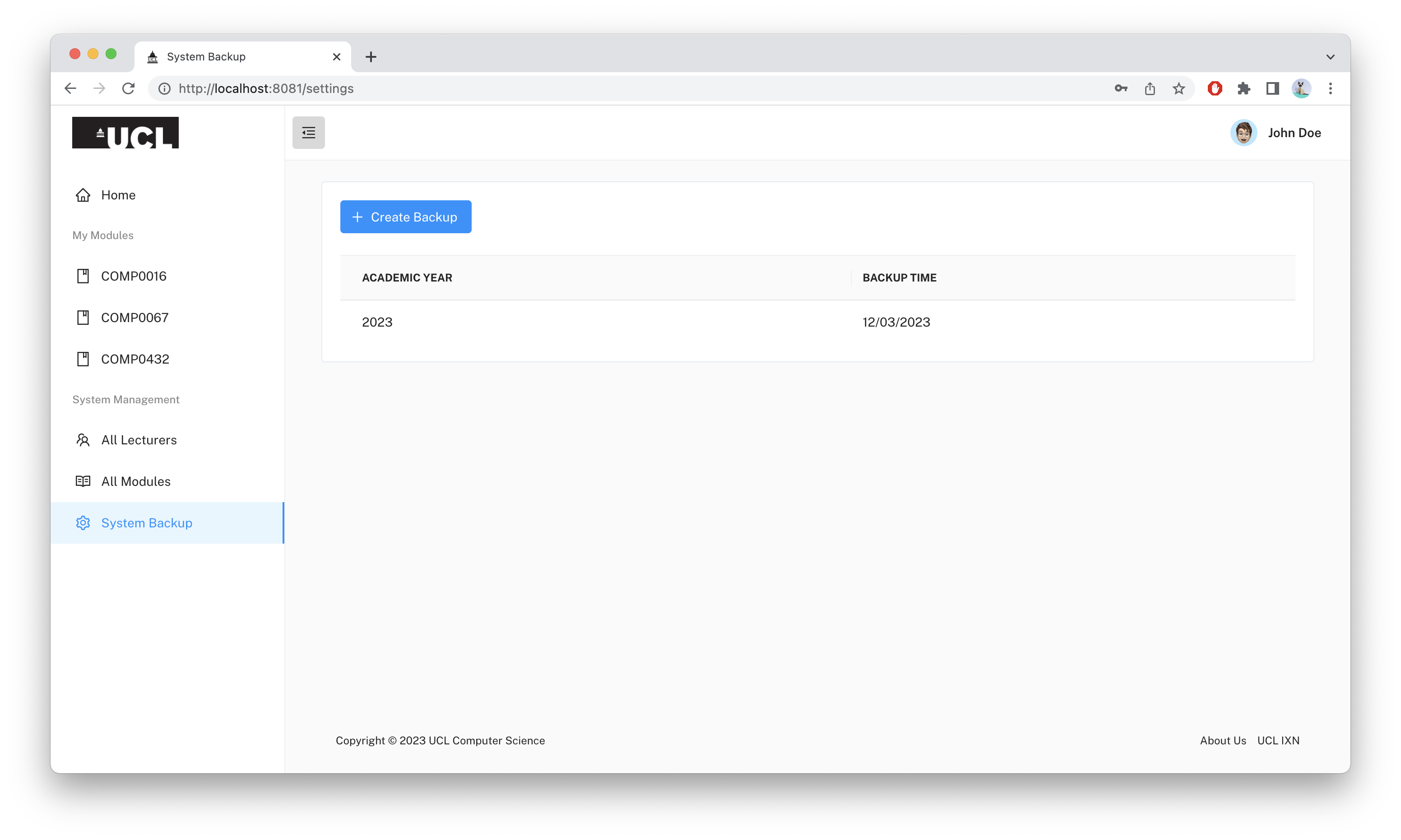
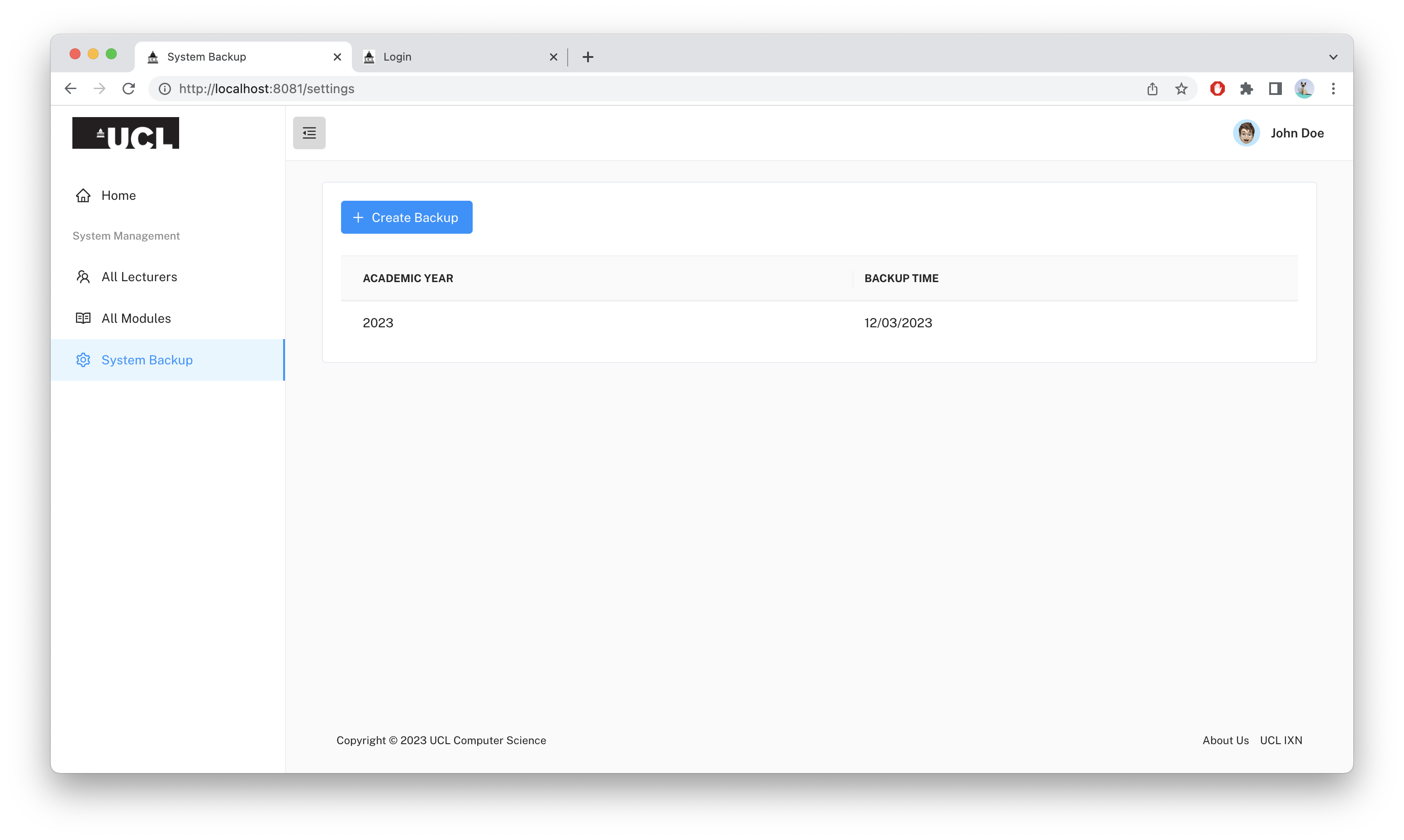
After clicking "System Backup" on the left-side menu, the system will display all available system backups. For all existing backups, it will display the date of the backup. In order to create a backup, simply click the "Create Backup" button and a backup will be created automatically.
TA
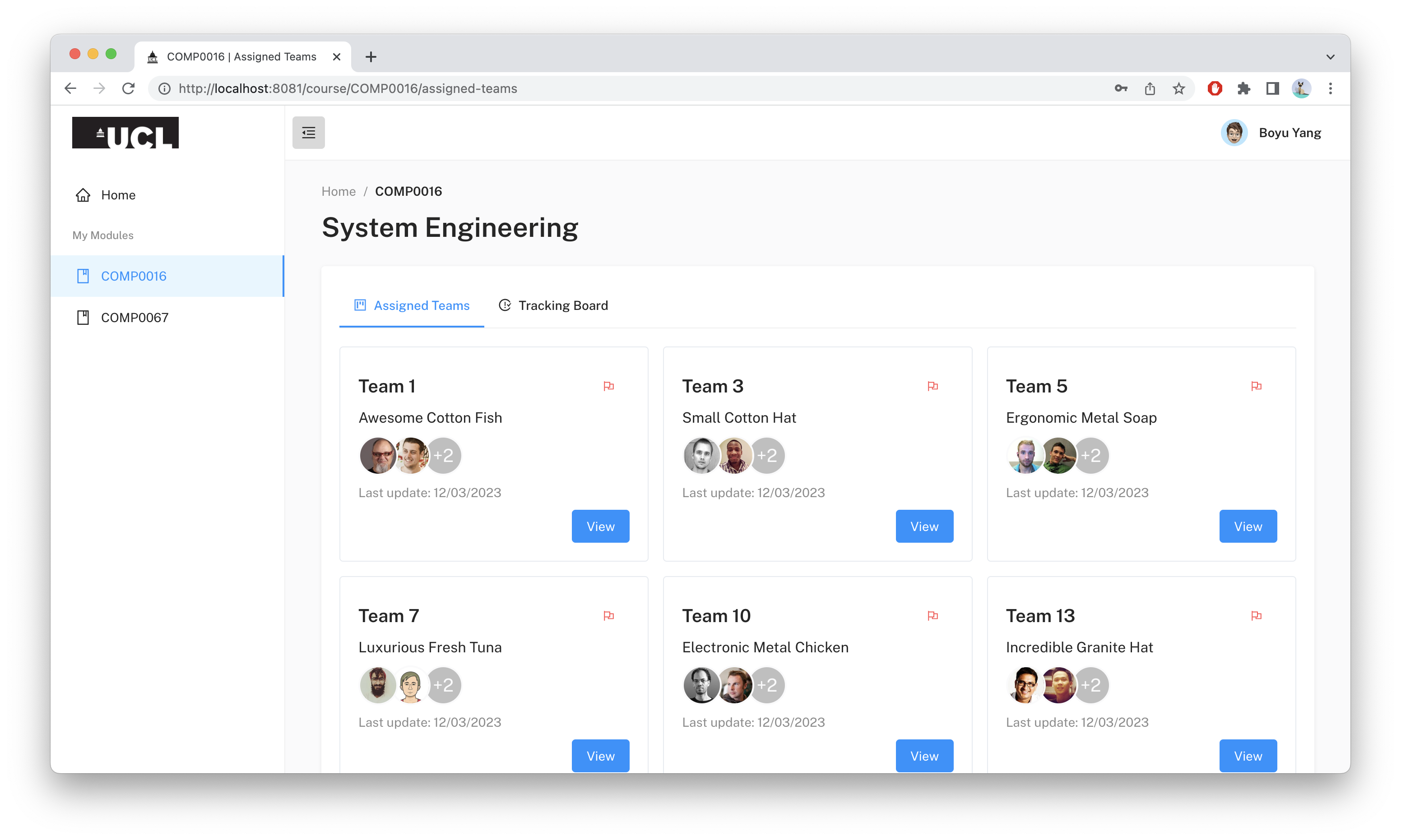
When logged in as a TA and navigating to a specific module by clicking the module name on the left-hand side menu, the system will display all the teams the TA is responsible for in a card format. The card contains the number of the team, the name of the team, the photos of each student, and the date when the last assessment was made.
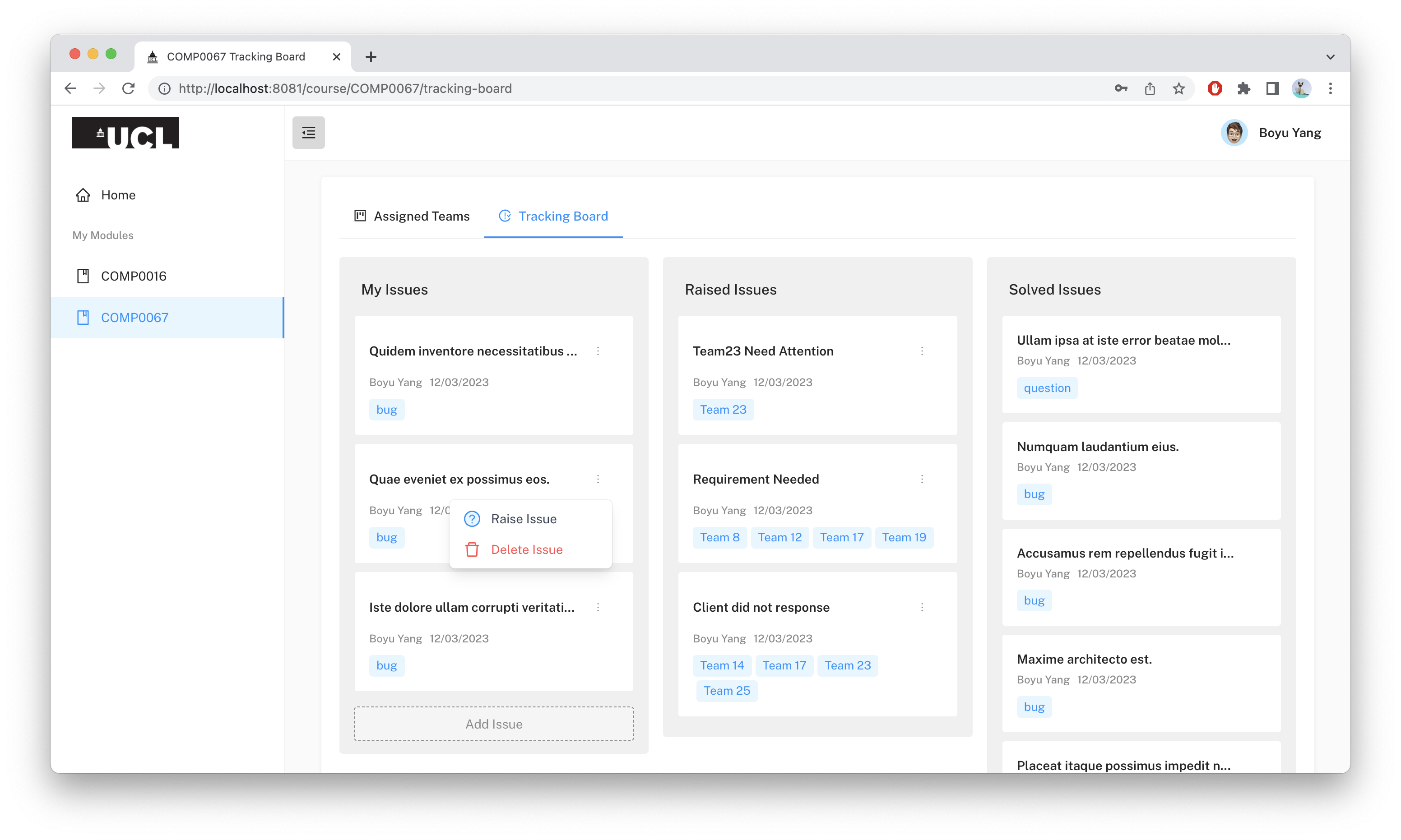
By clicking the "Tracking Board" button on the top of the page, the system will redirect the TA to the tab of the issue tracking board. It is simple to use and highly efficient. On the left panel, it includes issues proposed by the user and not yet raised or solved. On the middle panel, it includes issues raised to lecturers by the user that have not yet been resolved. On the right panel, it includes all solved issues. Also, when clicking the three dots icon in the top right corner of each issue, the user can raise or delete the issue.
System Backup
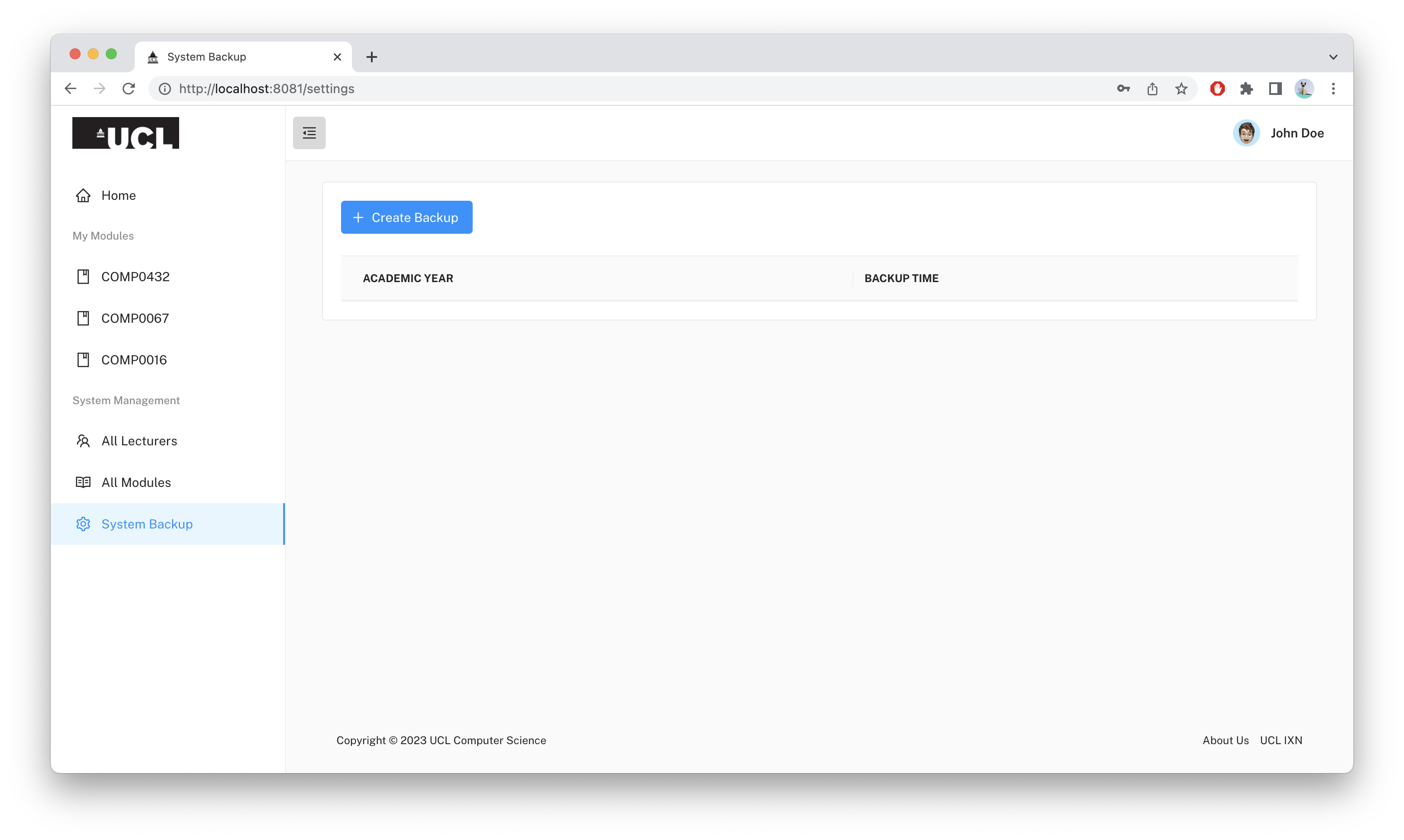
Firstly, you have to log in as an admin. After logged in, click “System Backup” in the left hand-side menu.
Currently, the system has no backups.
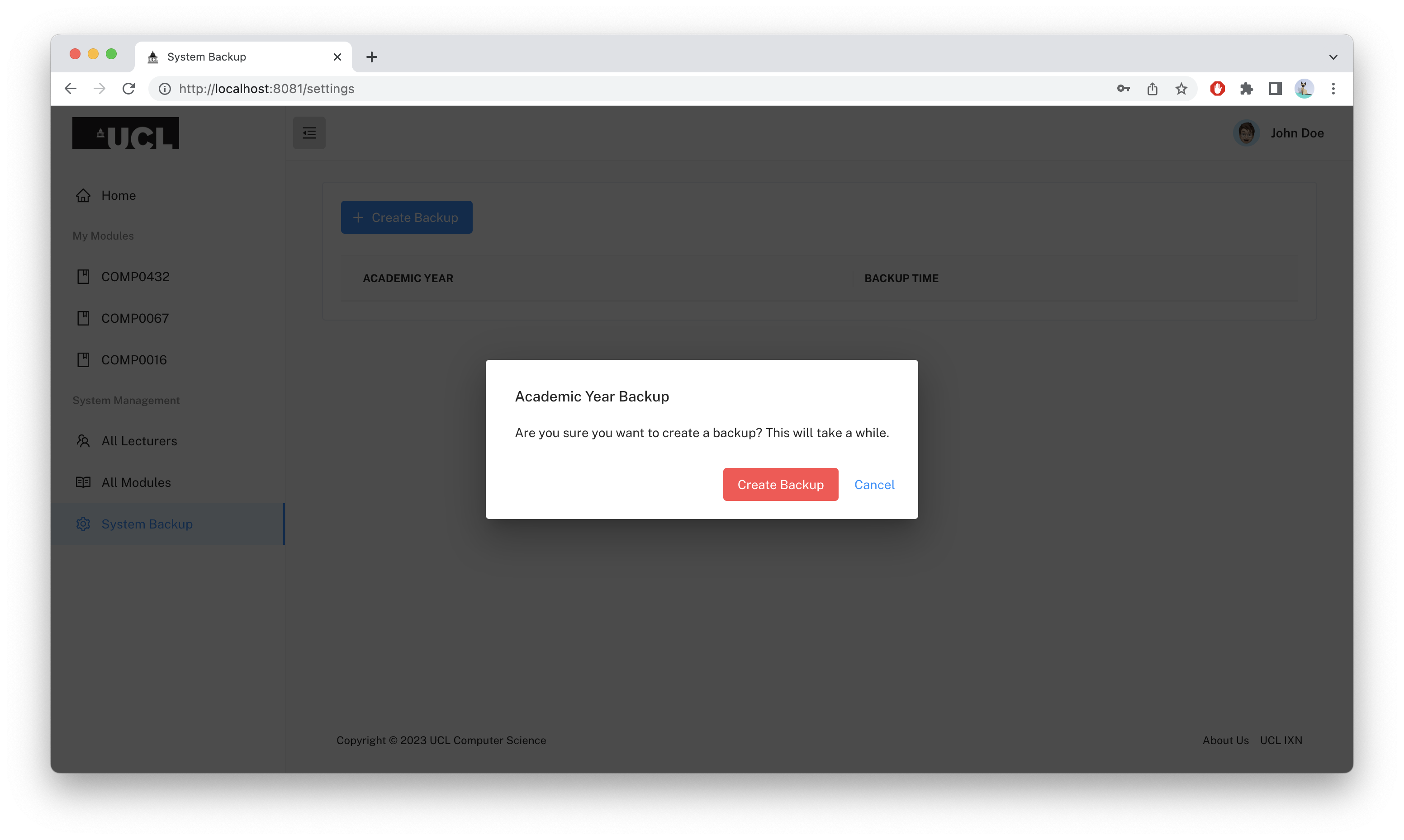
Click “Create Backup” button.
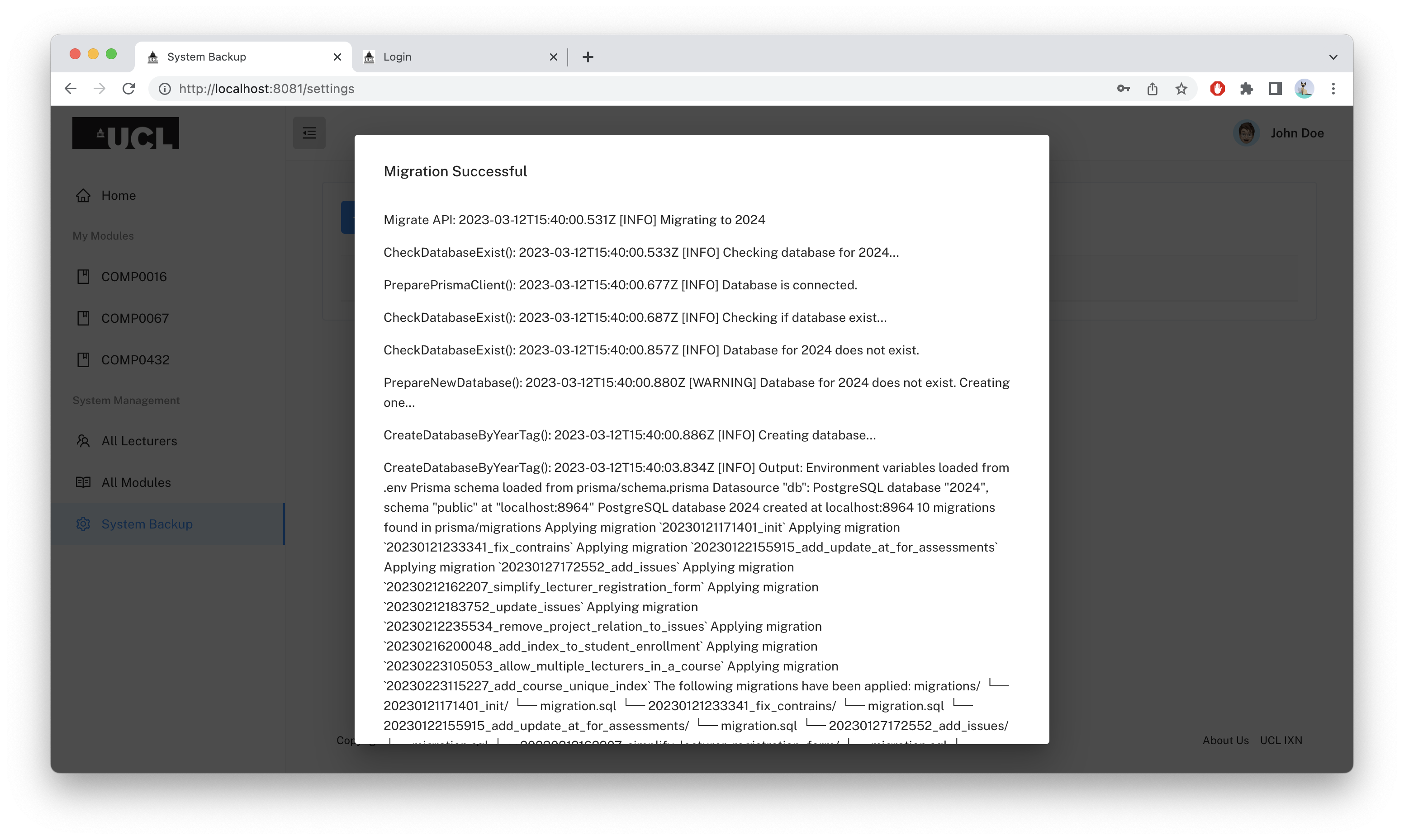
When migration process is successful, a dialog of messages will pop up.
Close the dialog, you will see a list of history backups. The one we just created is there.
Accessing the Archive Mode
If you wish to view history data, you can log in to the archive version site of the Traffic Light system. Note it is a different link:
At the time of publishing, the domain of this site has not been properly set up for deployment of our archive site. We are confident that the system will be ready for deployment with these features in place should resources become available in the future.
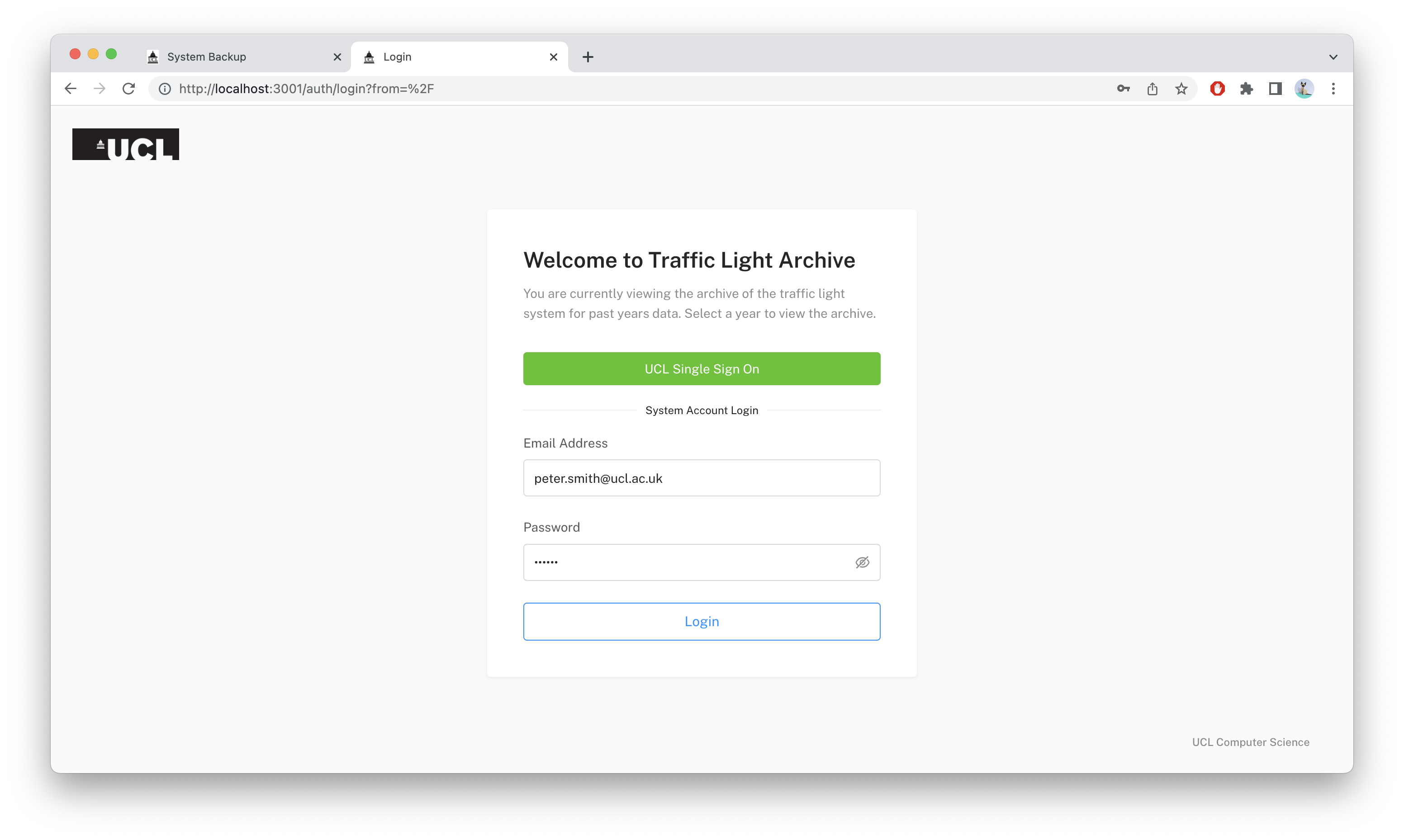
After logged in, you will be prompted to select an academic year to view.
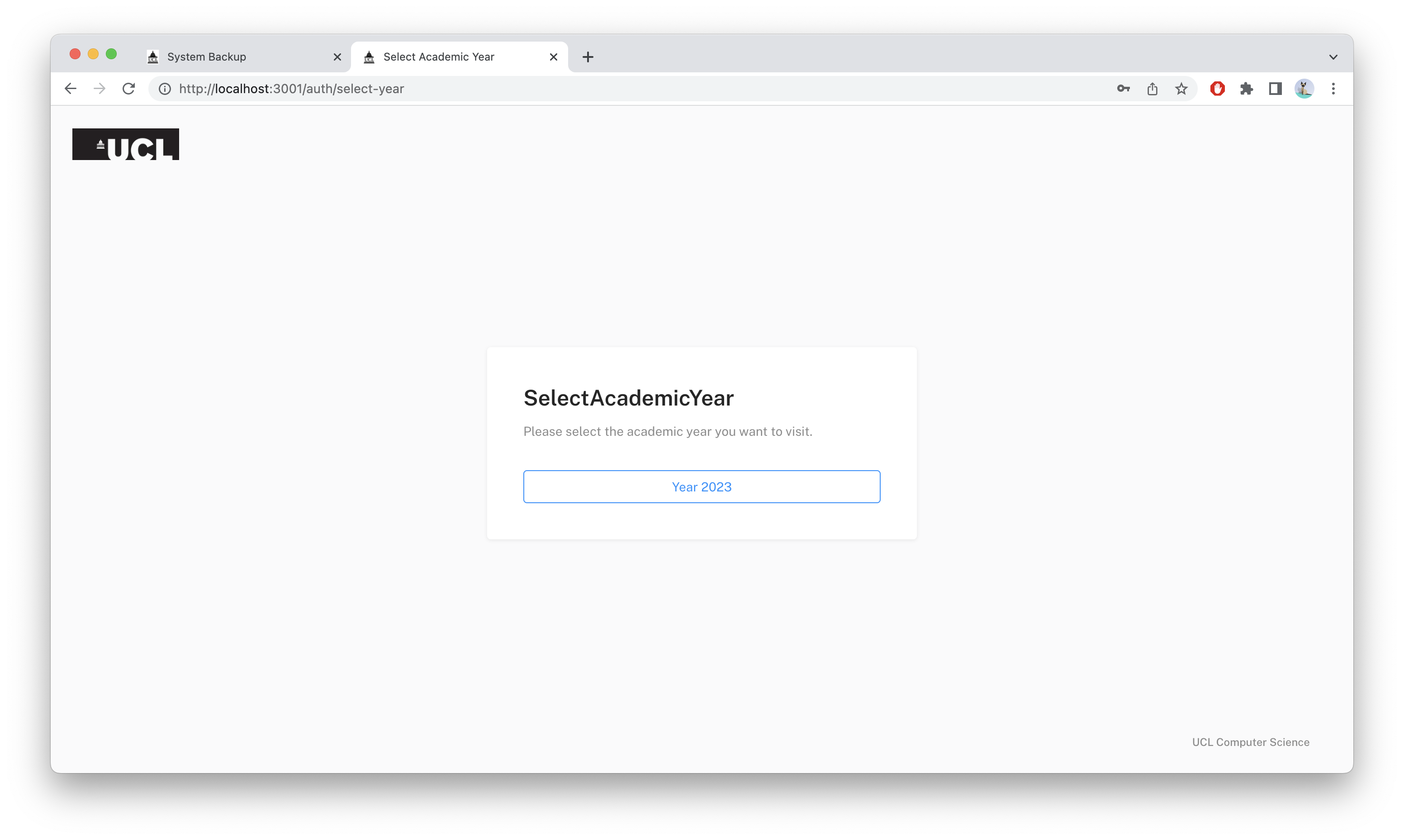
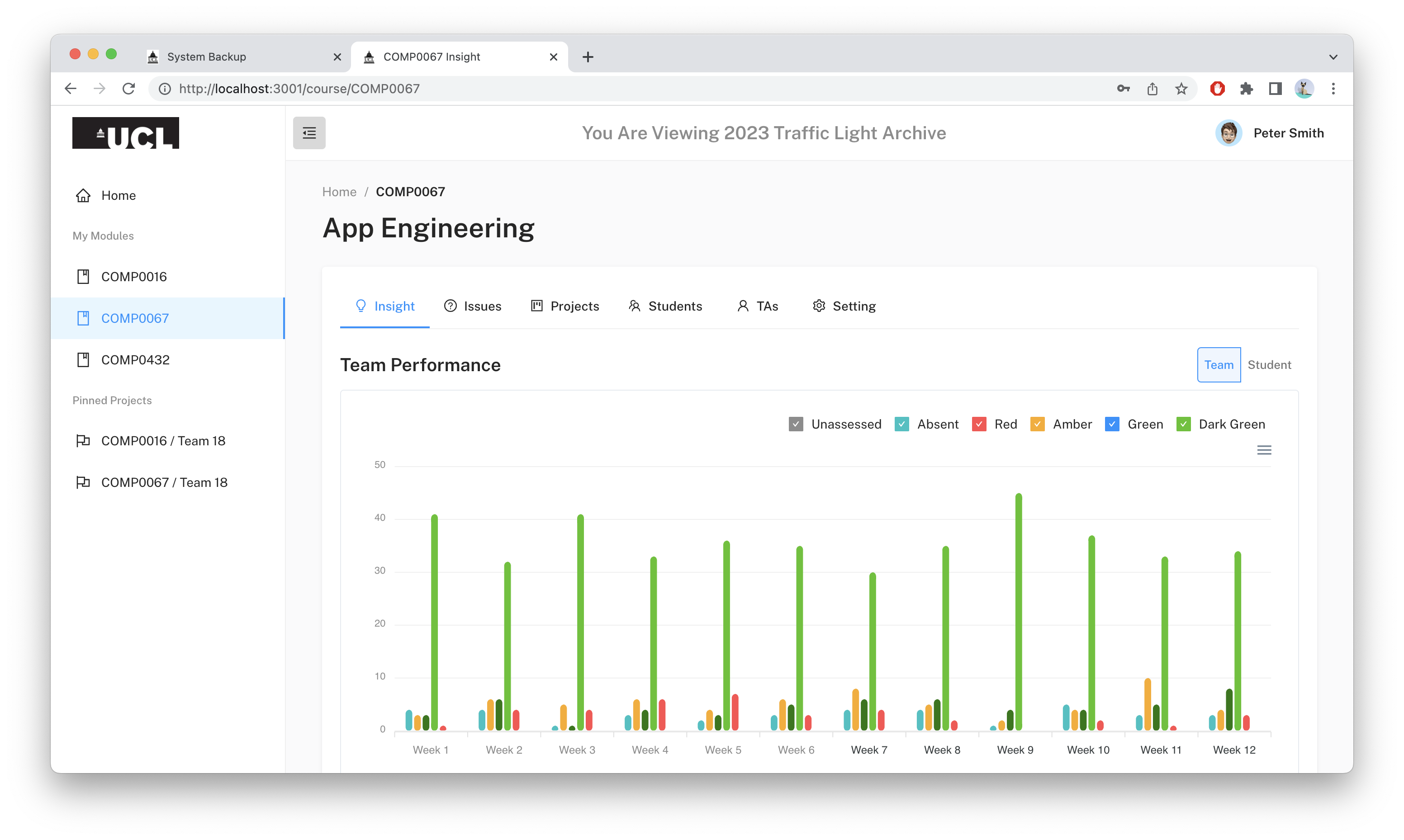
Once a year tag is selected, you can view historical data in the original UI. The only difference is that It has a warning banner on top of the site indicating the year you are viewing.