Assessment Form Rendering
We leverage various MaterialUI components to craft a concise form that enables TAs to input efficiently. Normally, rendering long and complicated forms shares two common issues:
- Hard-to-modularize UI code
- Hard to manage the states of forms, which contain the data from user input
Form items like single option selection from a drop-down menu are implemented using the following template:
<Stack spacing={1}>
  <InputLabel htmlFor="week-number">Week Number</InputLabel>
  <TextField
    id="week-number"
    value={...}
    name="week"
    onChange={...}
    fullWidth
    required
    select
    SelectProps={{ native: true }}
    variant="outlined"
    InputLabelProps={{ shrink: true }}
  >
    {weeks.map((weekNumber) => (
      <option key={weekNumber} value={weekNumber}>
        Week {weekNumber}
      </option>
    ))}
  </TextField>
</Stack>
Form items, such as input boxes, are implemented using the following template:
<Stack spacing={1}>
	<InputLabel htmlFor="week-task">Weekly Task</InputLabel>
	<OutlinedInput
		id="week-task"
		type="text"
		value={...}
		name="task"
		onChange={...}
		fullWidth
	/>
	</Stack>
</Grid>
For scenarios where selecting a mark from a ratio group is necessary, the following template is used:
<Stack spacing={1}>
  <InputLabel htmlFor="project-state">Project State</InputLabel>
  <FormControl component="fieldset">
    <RadioGroup value={...} name="..." onChange={...} row>
      <FormControlLabel value="Absent" control={<Radio color="info" />} label="Absent" />
      <FormControlLabel value="Red" control={<Radio color="error" />} label="Red" />
      <FormControlLabel value="Amber" control={<Radio color="warning" />} label="Amber" />
      <FormControlLabel value="Green" control={<Radio color="success" />} label="Green" />
      <FormControlLabel value="DarkGreen" control={<Radio color="success" />} label="Dark Green" />
    </RadioGroup>
  </FormControl>
</Stack>
For the multiline input component, we implemented it from the following template.
<Stack spacing={1}>
  <InputLabel htmlFor="project-comments">Project Comments</InputLabel>
  <OutlinedInput
    id="project-comments"
    type="text"
    value={...}
    name="projectComments"
    onChange={...}
    multiline
    minRows={2}
    fullWidth
  />
</Stack>
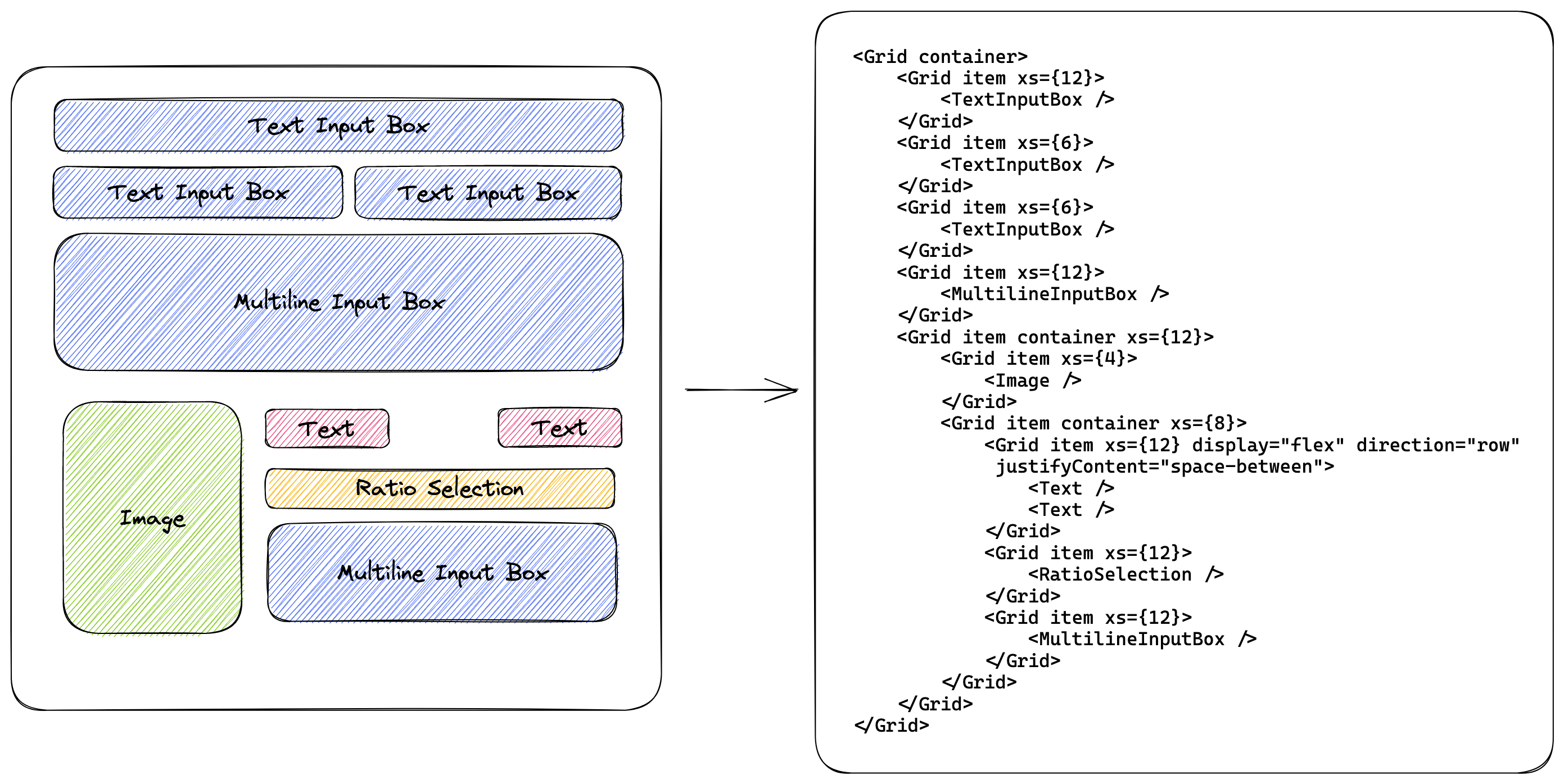
We use the MaterialUI grid system to write our application. The following graph shows how the view structure is translated to React JSX code.
We then address the second issue by introducing Formik (opens in a new tab). Formik allow us to easily manage the state of forms, which contain data from user input. It provides a simple way to handle form submission and validation, and it integrates seamlessly with React components. This makes it much easier to create complex forms with dynamic behavior, and to handle common use cases such as form submission, validation, and error handling.
We use Formik as follows:
<Formik
  initialValues={initialFormData}
  validationSchema={validationSchema}
  onSubmit={async (data) => { ... }}
>
  {({ handleSubmit, values, handleBlur, handleChange, touched, errors }) => (
    <form onSubmit={handleSubmit}>
			...
		</form>
  )}
</Formik>
The form input validation schema is defined as follows, using Yup library (opens in a new tab). Yup is a JavaScript library for input validation. It allows developers to define custom validation rules and error messages for form inputs. Some advantages of using Yup for input validation include its ease of use and integration with other libraries like Formik. Yup provides a simple and flexible API for defining validation rules and error messages, and supports a wide range of input types and validation scenarios. Here is an example validation scheme of Yup in the form for submitting weekly Traffic Light assessment for each team:
const validationSchema = Yup.object().shape({
  projectState: Yup.string().required('Project State is Required'),
  students: Yup.array().of(
    Yup.object().shape({
      state: Yup.string().required('Student State is Required'),
      contribution: Yup.number().required('Student Contribution is Required').min(0).max(100)
    })
  )
});
After passing initialFormData, validationSchema, and onSubmit function to Formik, Formik handles the complex states of the form internally and exposes handy utility functions for us, which include:
handleSubmit- function to call when the user submits the formvalues- read-only value for displaying the form's datahandleBlur- utility function to call when the user clicks the textboxhandleChange- utility function to call when the user inputs data into the textboxtouched- read-only value to indicate whether the form has been edited by the usererror- read-only value to indicate whether there are input values that contradict the validation rules, for example, missing mandatory fields.
As we have demonstrated with the readable and comparatively simple code above, rendering beautiful and easy-to-use form is done elegantly with Formik. Some of the dinstinct adavnatges of using Formik are the application is more efficient, less error-prone, and more intuitive. Formik makes form rendering and submission more efficient by reducing the amount of boilerplate code required to manage form state. Instead of manually handling the state of each form field and writing custom code to handle form submission and validation, Formik provides a streamlined API that handles all of these tasks for you. Formik also makes form rendering and submission less error-prone by providing a centralized location for state management and validation. By consolidating form state and validation logic in one place, Formik helps to reduce the likelihood of bugs and errors in your code.Finally, Formik makes form rendering and submission more intuitive by providing a declarative API that is easy to understand and use. The API is designed to be familiar to React developers, making it easy to integrate into existing projects. Formik also provides a range of built-in validation functions and error messages, which make it easy to handle common use cases such as validating required fields and displaying error messages to users. For more information, please refer to Formik's documentation: https://formik.org/docs/overview (opens in a new tab).