Wireframes
Overview
After presenting our initial sketches to the client, we received very constructive feedback. The client suggested that we make a few modifications to our designs. We were able to take those suggestions and implement them into our designs, making adjustments to the layout and structure of the website. Following this, we utilized draw.io to create the second iteration of our UI design draft, which includes convenient templates for wireframes.
Wireframes are an essential component of the design process, as they provide a low-fidelity visual representation of a user interface, communicating the basic layout and structure of a webpage. This is crucial because it allows for changes to be made with greater ease and less cost. Additionally, due to their interactive nature, wireframes can be presented to the client for more precise feedback. This allowed us to get feedback from the client on specific elements of the website, such as the placement of buttons and the overall flow of the website.
Draw.io is an online diagramming tool that is incredibly versatile and can be used to create a wide variety of diagrams, including flowcharts, wireframes, and more. We chose to use this tool because it is easily collaborative, intuitive to use, and free. We were able to work together as a team to create wireframes that accurately reflected our vision for the website.
Due to space limitations, we were unable to present wireframes for every page of the website. We include wireframes for the most important pages so that it is sufficient to understand the general look of our wireframes.
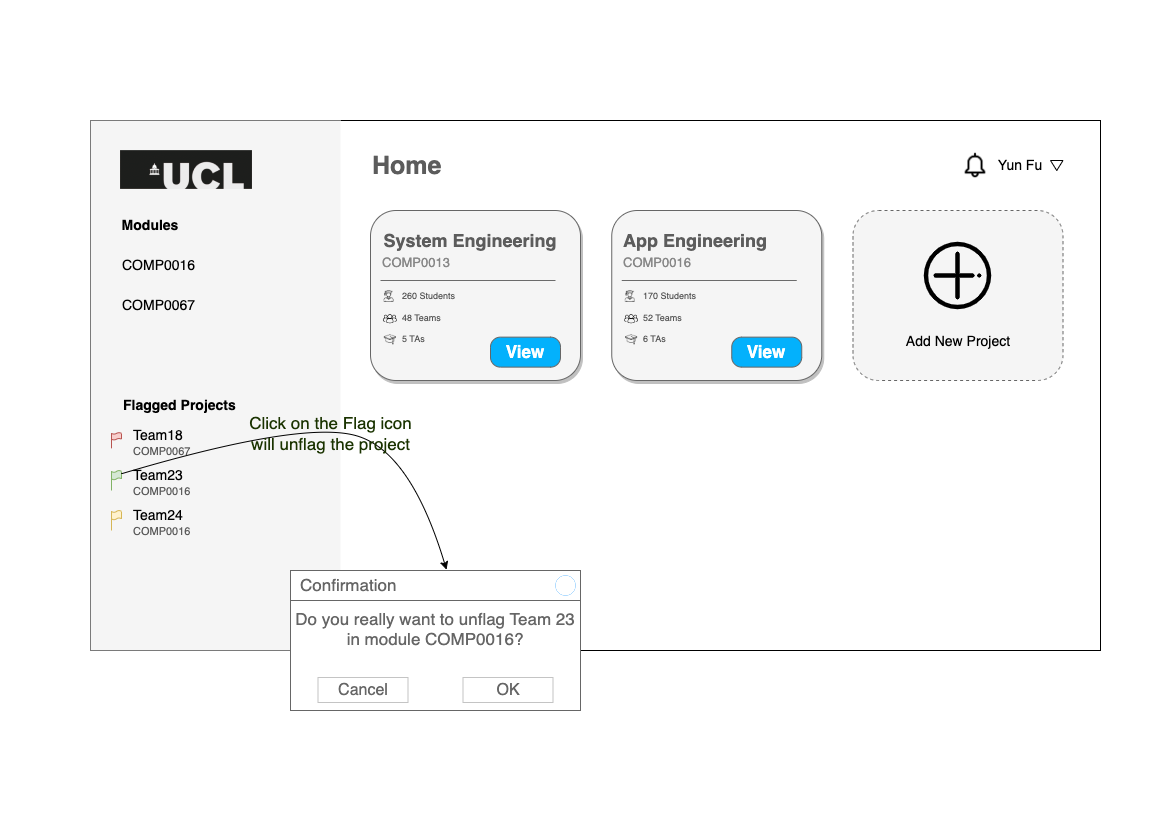
This is the main dashboard for the lecturer with responsible modules in the center. And lecturer can flag projects on the left panel.
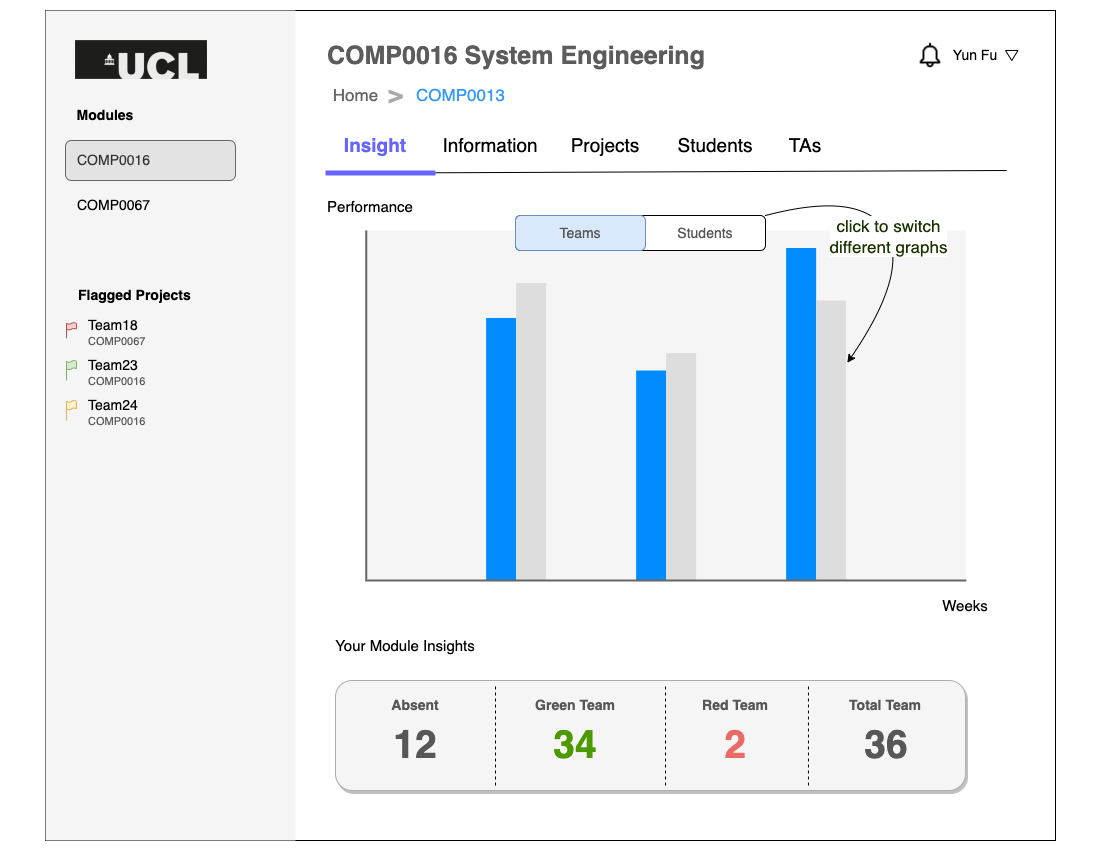
This page displays the module insight of the selected module. It displays aggregated traffic light data of the module in a chart and important information below.
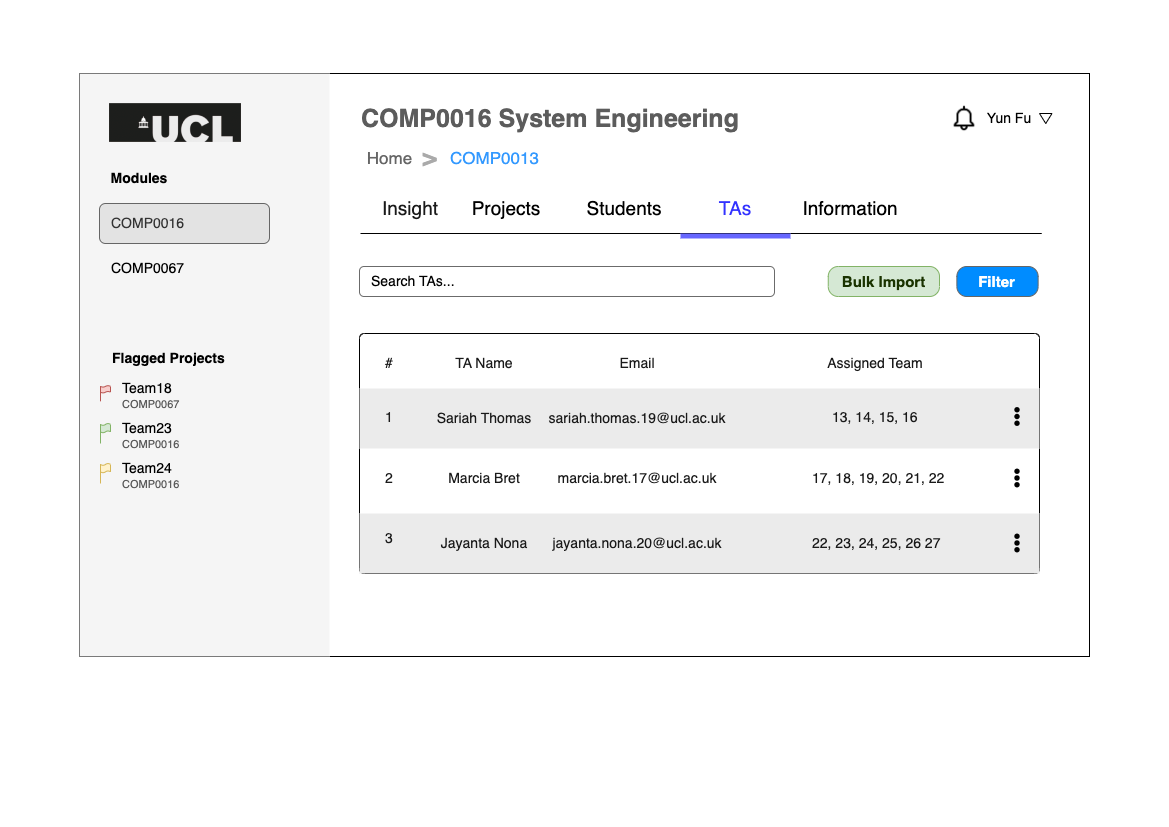
This table displays all the TAs in the selected module in an easily navigable table. Lecturers can easily add or search TAs.
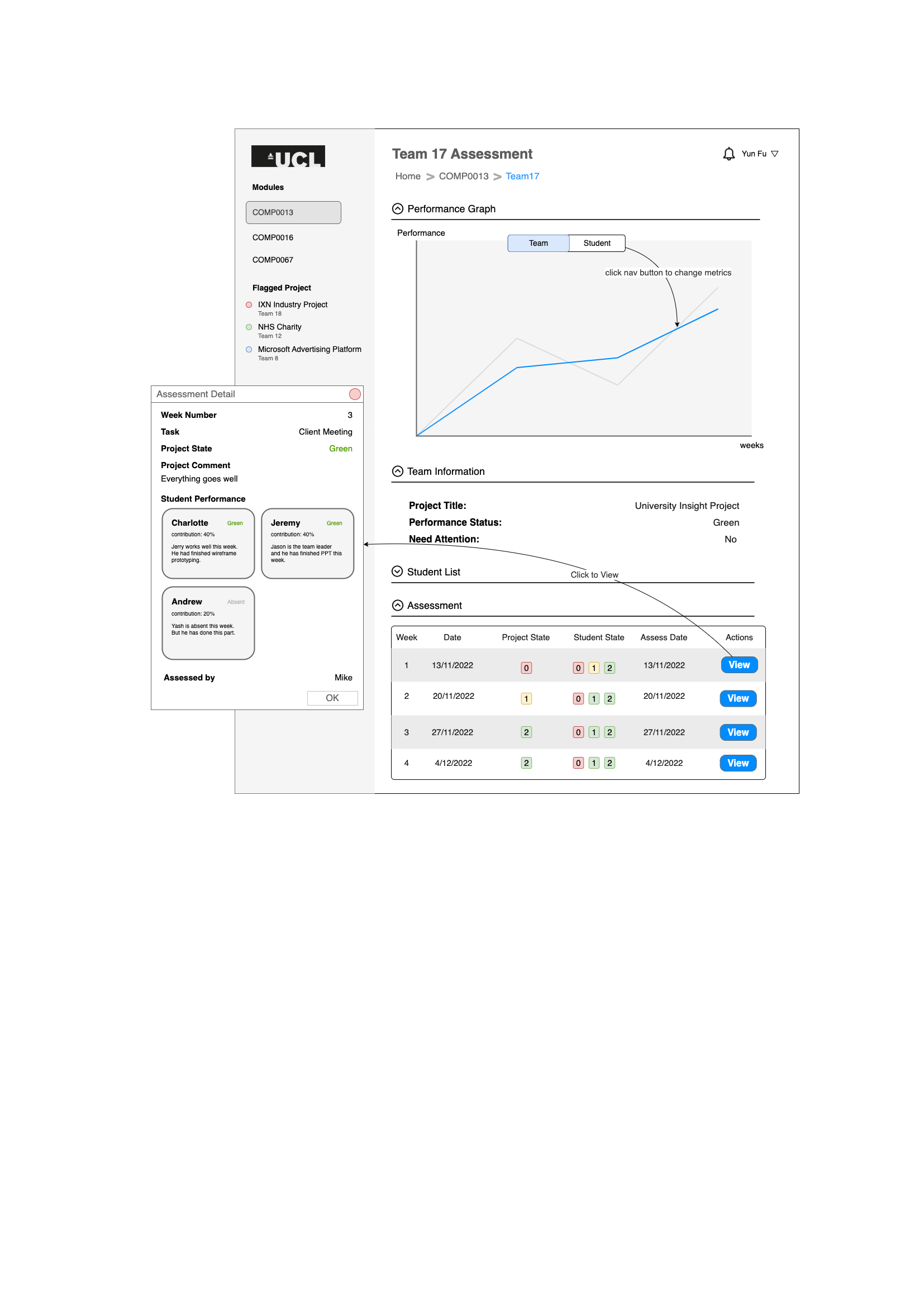
This page presents weekly assessment recorded by the TA. It has a table containing all historial entries and a button to view the details of the selected entry.
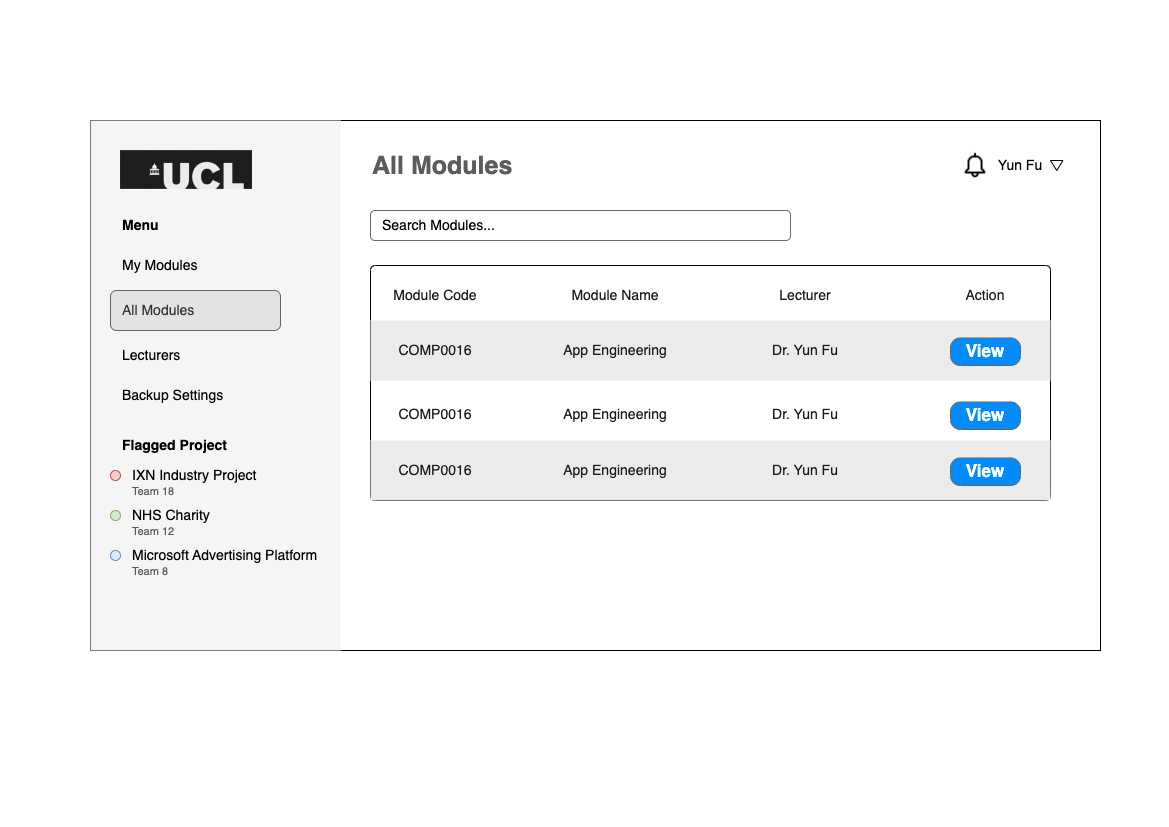
This page displays all modules in the system. Admin can easily view all the modules in the system and assciated lecturers.
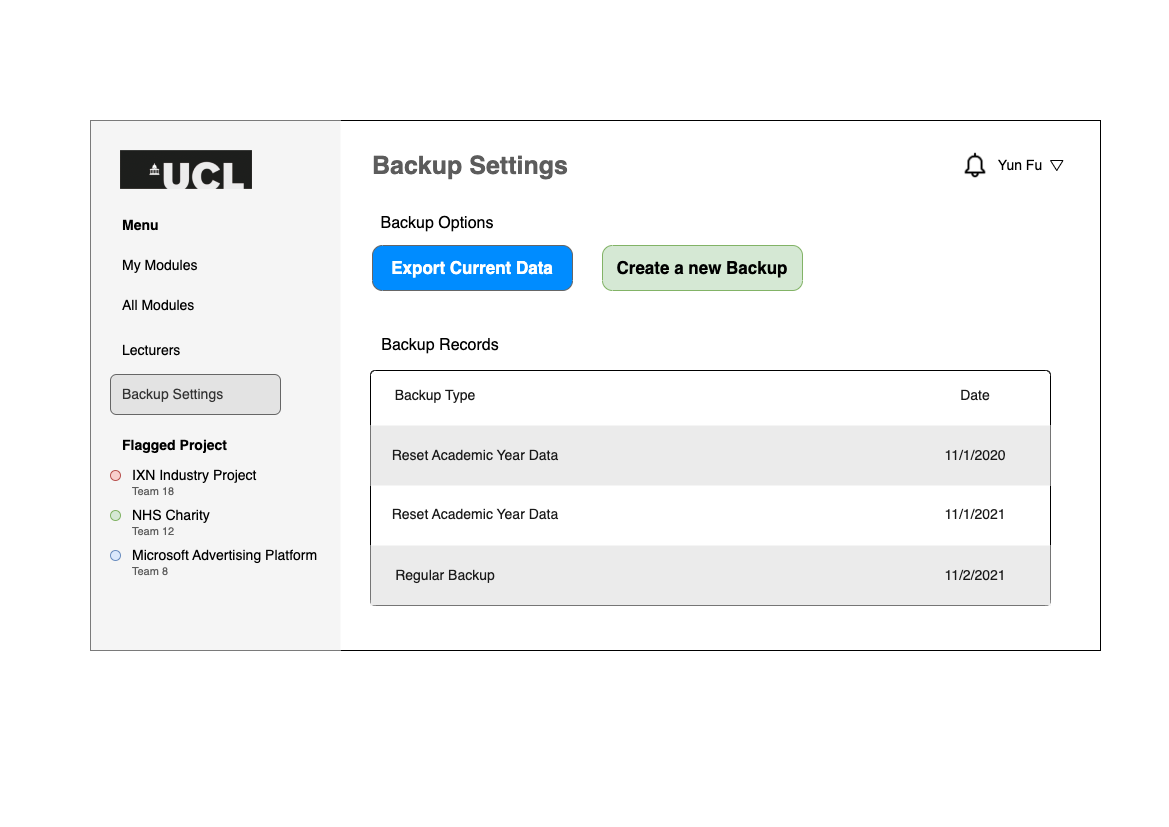
This page is for the admin to routinely backup the database. It displays the last backup time and a button to trigger the backup or export current data.
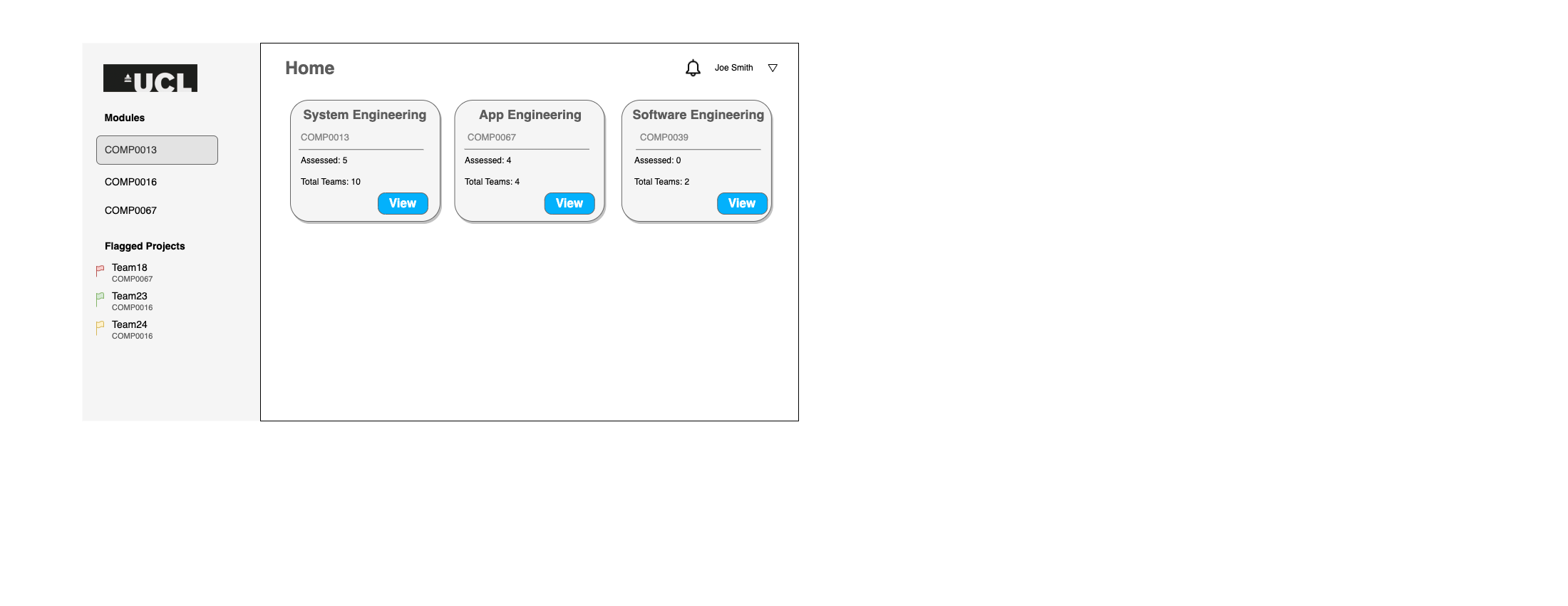
This is the main dashboard for the TA. It displays the modules that the TA is responsible for and the weekly assessment that the TA has to record.