Use Case Diagrams
Use case diagrams are a form of visual representation used to depict the different use cases, actors, and their interactions with a software system. They offer a more intuitive and simplified view of how users interact with the system, when compared to use case lists. Diagrams can be used to identify the various components of a system, as well as the relationships between them. Thanks to their graphical nature, they are easier for developers to communicate with clients and receive some constructive feedbacks. By analyzing the interactions between use cases and actors, designers can optimize the system's functionality and the user experience.
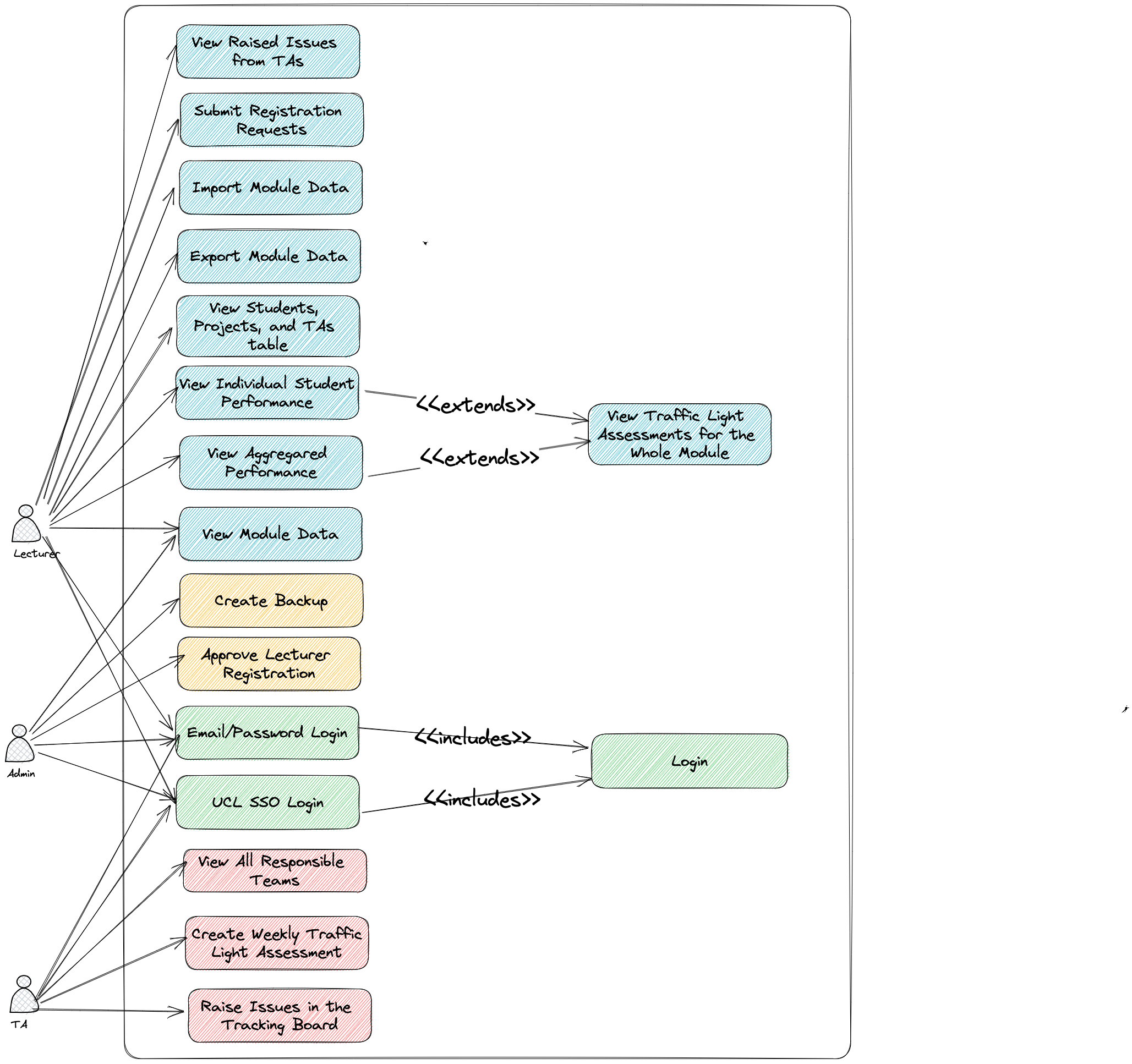
Use Cases
We conducted a thorough analysis of use cases in order to better understand the needs of our users by simulating the interaction between users and the system. Each use case consists of a description of the actor, a sequence of steps or flow of events, and the expected outcome. This allowed us to identify different pain points and challenges that users may encounter while using the system, which in turn helped us develop solutions that meet our users' needs.
Furthermore, we found that the use cases helped us clarify the required functionality and prioritize tasks accordingly. By dividing the system's features into smaller, more manageable tasks, we could more easily assign them to our development team. The use case analysis was a crucial step in ensuring that the system we developed has a great user experience and functions properly.
Due to space limitations, below we are presenting is a list of the major use cases for three types of users: lecturer, admin, and TA. We will explain each use case in detail after the list.
| ID | Actor | Use Case Description |
|---|---|---|
| UCU1 | All Users | Sign in to the system using UCL SSO |
| UCL1 | Lecturer | Create a new project for a module |
| UCL2 | Lecturer | View aggregated student performance for a module |
| UCT1 | TA | Create a traffic light assessment for a team |
| UCA1 | Admin | Approve a lecturer's registration |
Below are detailed use cases that include the flow of events and the expected outcome. These detailed use cases are very helpful in identifying subtle pain points and nuances that need to be addressed.
| Use Case for All Users | |
|---|---|
ID | UCU1 |
Actor | Lecturer, Admin, or TA |
Description | Sign in to the system with UCL SSO |
Flow | 1. The lecturer or TA navigates to the website's login page. 2. They select the "UCL Single Sign-On" option and are redirected to the UCL login page. 3. They enter their UCL login credentials (e.g. UCL email and password) and click "Login". 4. The website verifies their UCL credentials and logs them in automatically. |
Result | The user is logged into the system securely without the need of creating new accounts. The website will display content based on the role of the user in the system |
| Use Case for Lecturer | |
|---|---|
ID | UCL1 |
Actor | Lecturer |
Description | Create a new project for a module |
Flow | 1. The lecturer logs into the website and navigates to the module they are teaching. 2. They go to “Projects” tab and click “Add Project” button on the top of the table displaying all existing projects in the module. 3. They fill relevant information in the given form and click “Done”. |
Result | A new project with information filled by the lecturer is added in the module. |
ID | UCL2 |
Actor | Lecturer |
Description | View aggregated students’ performance for a module |
Flow | The lecturer logs into the website and navigates to the module they are teaching. The page will by default display aggregated students’ performance data for each week in a bar chart. Red bars are below-average performance; amber bars are average performance; green bars are above-average performance; dark green bars are exceptional performance. They can optionally hover over a bar and click it so that the table below will display all teams meeting that search criteria. |
Result | The lecturer can intuitively view aggregated students’ performance data at a glance with a rendered chart. And the lecturer has the option to go into more details by clicking on the bar. |
| Use Case for TA | |
|---|---|
ID | UCT1 |
Actor | TA |
Description | Creating a traffic light assessment for a team |
Flow | 1. The TA logs into the website and navigates to the module they are responsible for. 2. They then navigate the team they are responsible for. 3. They select the "Create Assessment" button and mark the team’s weekly performance by choosing the appropriate traffic light colors. Then they mark each student’s weekly performance by choosing the appropriate traffic light colors and add a contribution percentage. 4. They can optionally add additionally comments. |
Result | A weekly Traffic Light assessment is created and is visible for the lecturer and the TA, allowing real-time monitoring of students’ performances and serving the record-keeping purpose, |
| Use Case for Admin | |
|---|---|
ID | UCA1 |
Actor | Admin |
Description | Approve a lecturer’s registration |
Flow | 1. The admin logs into the website and navigates to the "All Lecturers” page. 2. They see a table of all pending registration requests. 3. The admin can approve or reject a request by reviewing relevant information provided such as name, email, modules responsible, etc. 4. The system will automatically notify the lecturer should the request is approved. |
Result | Only valid and legit requests to sign up as a lecturer is approved by the admin, ensuring the system’s integrity. |